|
Configuration |
  
|
| Show/Hide Hidden Text |
|
Configuration |
|
| Show/Hide Hidden Text |
This option allows you to configure various settings which are available under different tabs.
 |
| Click on image to magnify/shrink |
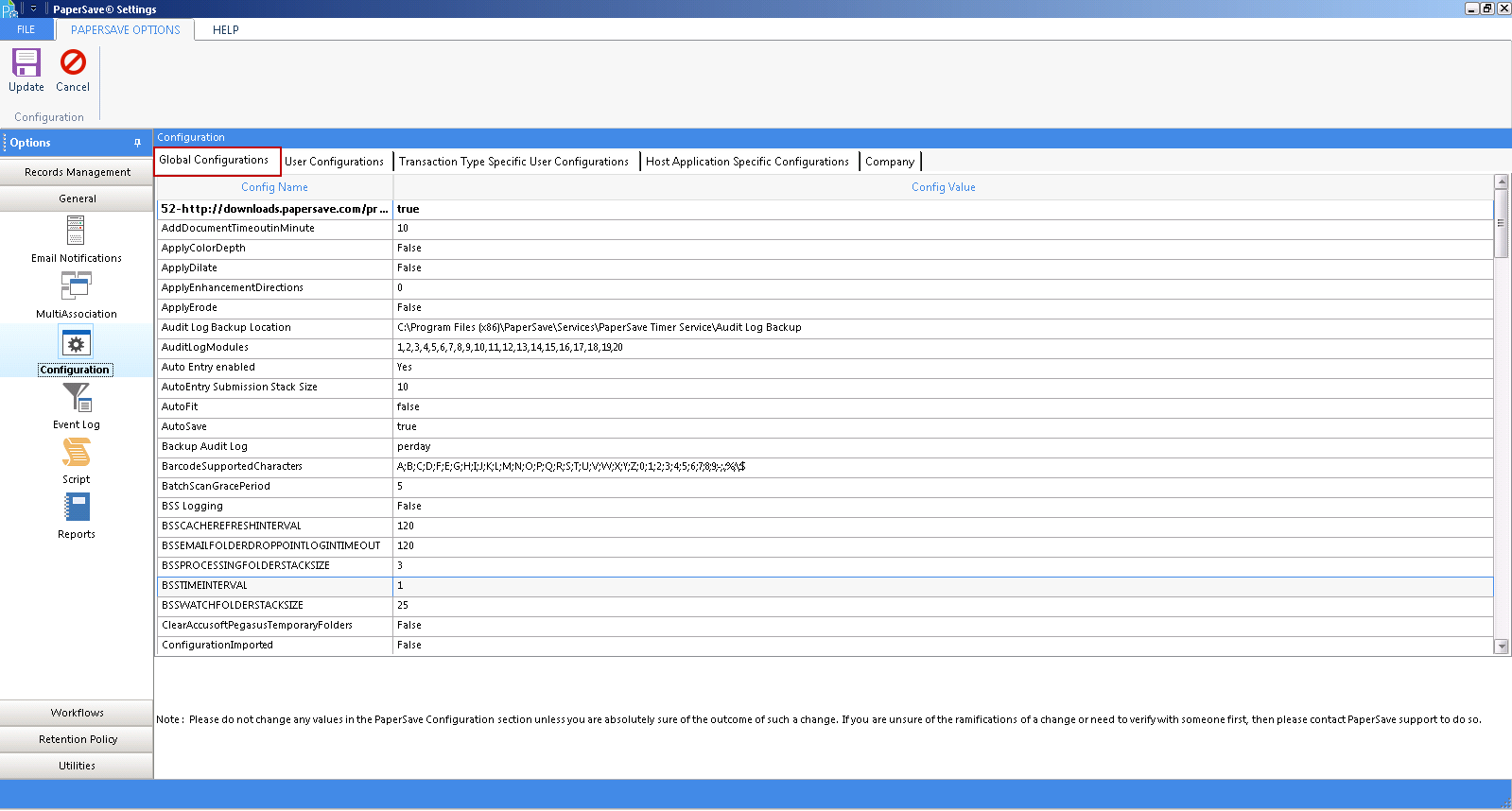
| 1. | Global Configurations: Under this tab, you can edit the global settings which will be applicable to all the PaperSave host applications on that machine as displayed in the above screen. |
Note: |
||||||||||||||
Such as: in ReCaptureBarcodePrefix '$C', ScanFirstBarcodePrefix '$B', ScanLaterBarcodePrefix '$A', UploadDocScanLaterPrefix '$D'.
Such as: A in ScanLaterBarcodePrefix, B in ScanFirstBarcodePrefix, C in ReCaptureBarcodePrefix, D in UploadDocScanLaterPrefix(without "$" sign as a prefix).
A;B;C;D;F;E;G;H;I;J;K;L;M;N;O;P;Q;R;S;T;U;V;W;X;Y;Z;0;1;2;3;4;5;6;7;8;9;-;.;%;\;$
|
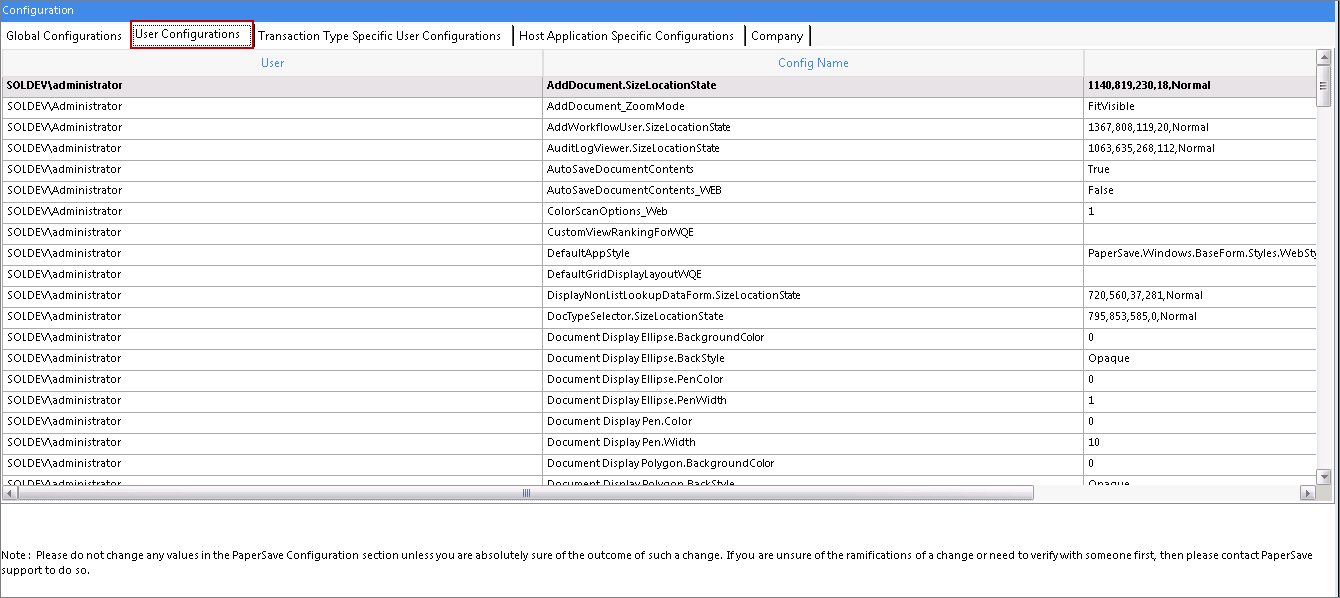
| 2. | User Configurations: Under this tab, you can edit the Config value assigned to a specific user for access to various features and functions of the PaperSave application. |
 |
| Click on image to magnify/shrink |
| 3. | Transaction Type Specific User Configurations: Under this tab, you can edit the Config value assigned to a specific user regarding a specific Transaction Type with the following screen: |
 |
| Click on image to magnify/shrink |
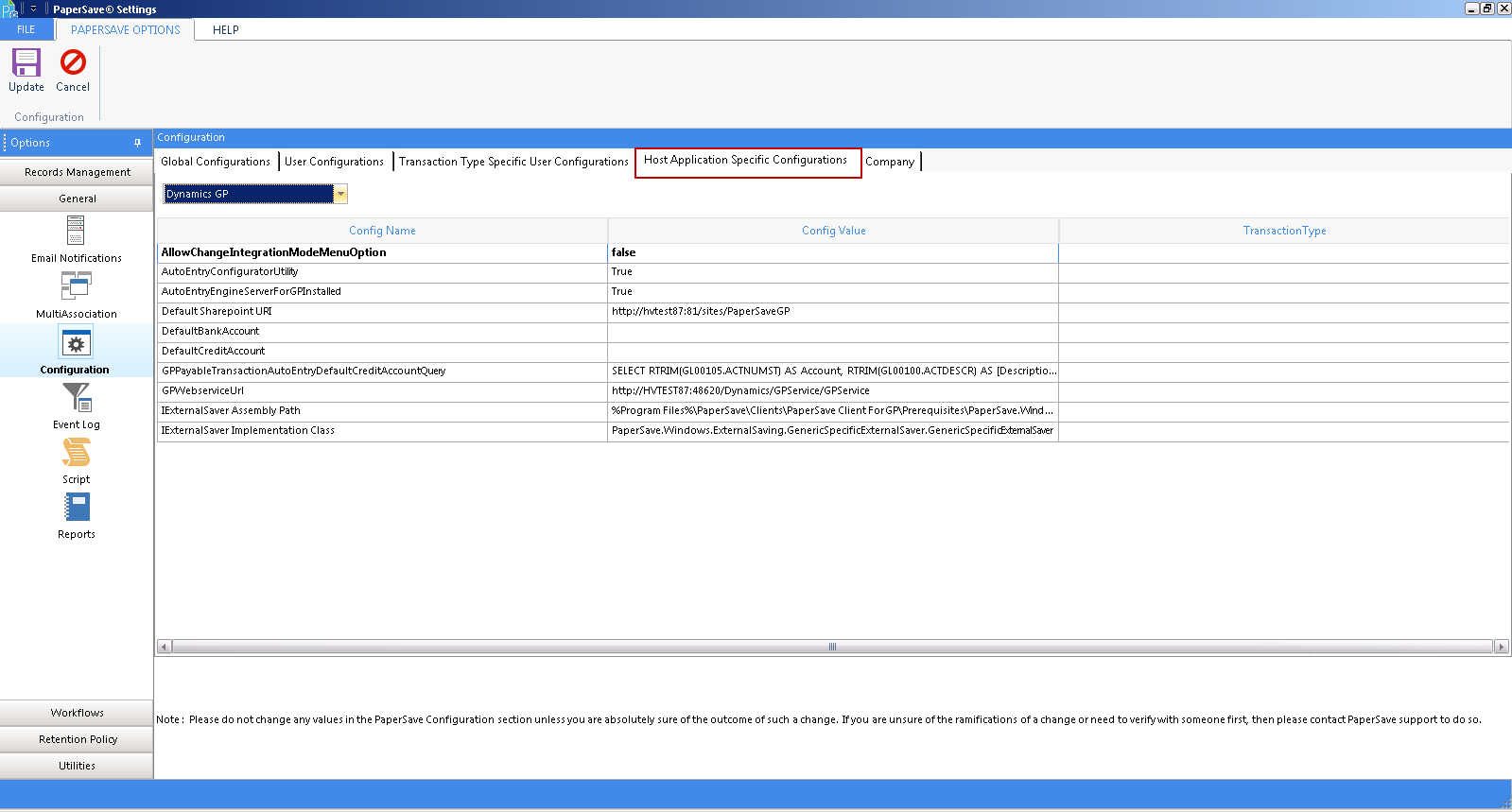
| 4. | Host Application Specific Configurations: Under this tab, you can edit the Host Application Specific Configurations with the following screen: |
Note: |
You can set the config value AllowChangeIntegrationModeMenuOption as True to view an option named Change Integration Mode to Web under PaperSave run time tray icon. |
 |
| Click on image to magnify/shrink |
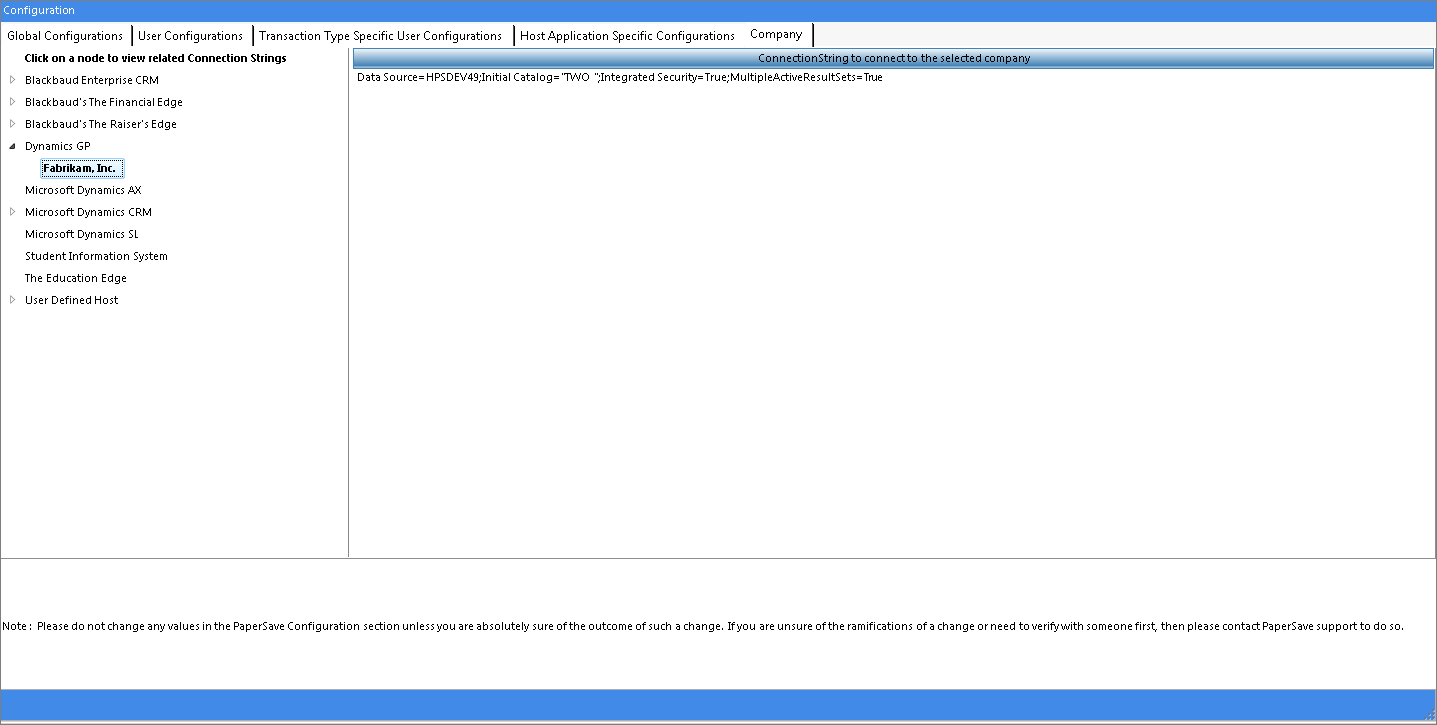
| 5. | Company: Under this tab, you can edit the connection string of the Company for a specific Host Application with the following screen: |
 |
| Click on image to magnify/shrink |
To save any changes made to this configuration, click Update or click Cancel to cancel the current configuration.