|
Document Explorer |
  
|
| Show/Hide Hidden Text |
|
Document Explorer |
|
| Show/Hide Hidden Text |
To view documents using PaperSave Web Module that are added to PaperSave, you need to follow below given steps:
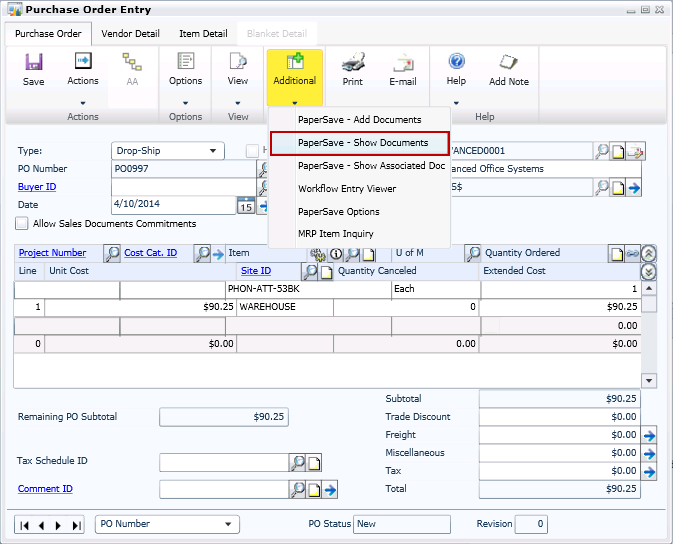
1. Open Dynamics GP Web Client. Select the appropriate Transaction Type and related record to which you want to view the document. Below displayed window will open. Click PaperSave - Show Documents.
 |
| Click on image to magnify/shrink |
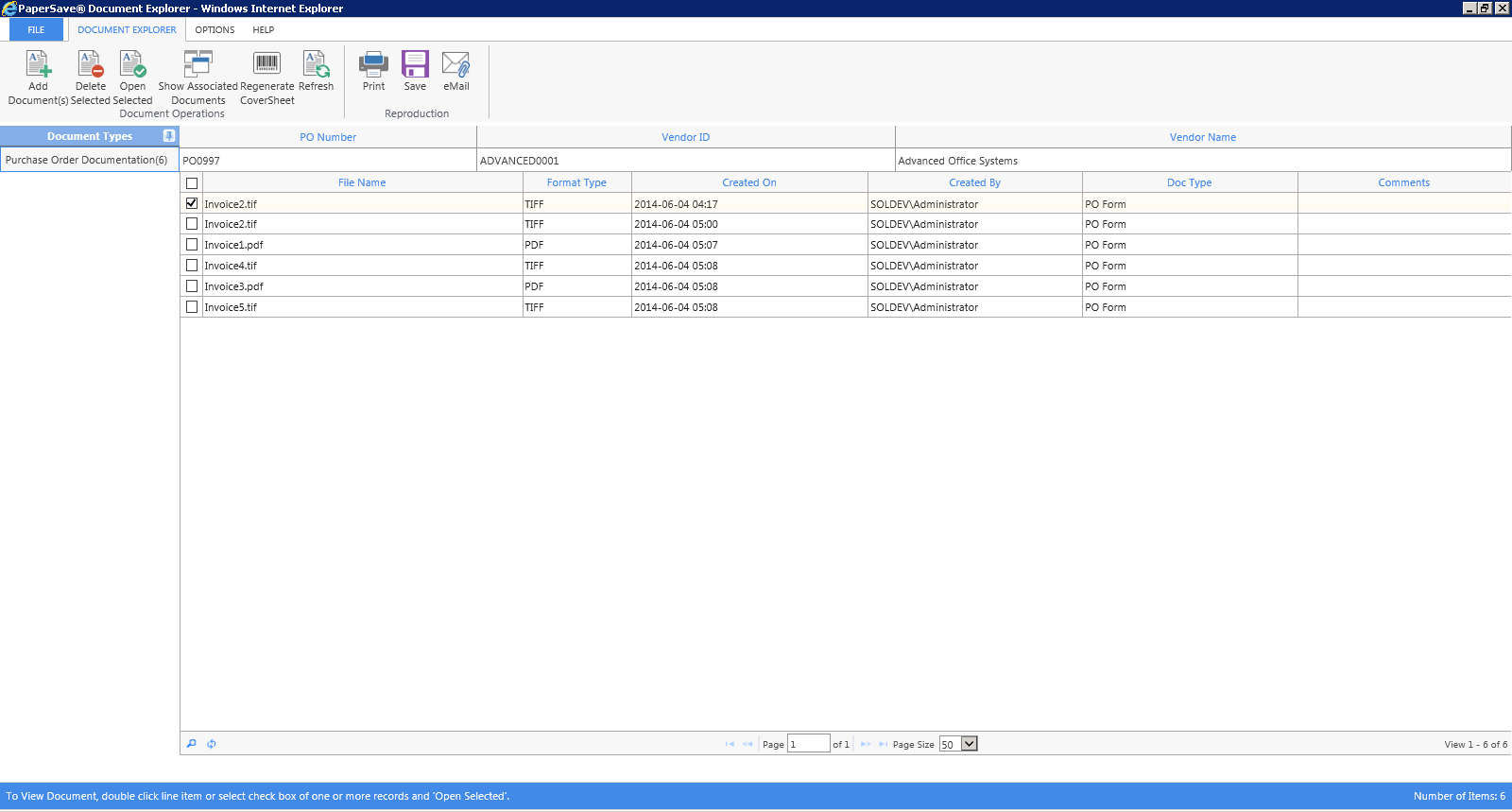
2. Document Explorer window will open. You can view the list of documents added for the respective Transaction Type in the Record Grid.
Note: |
PaperSave will directly open Document Display window instead of opening Document Explorer window, if the selected record consists of only one associated document. |
 |
| Click on image to magnify/shrink |
Understanding Document Explorer User Interface
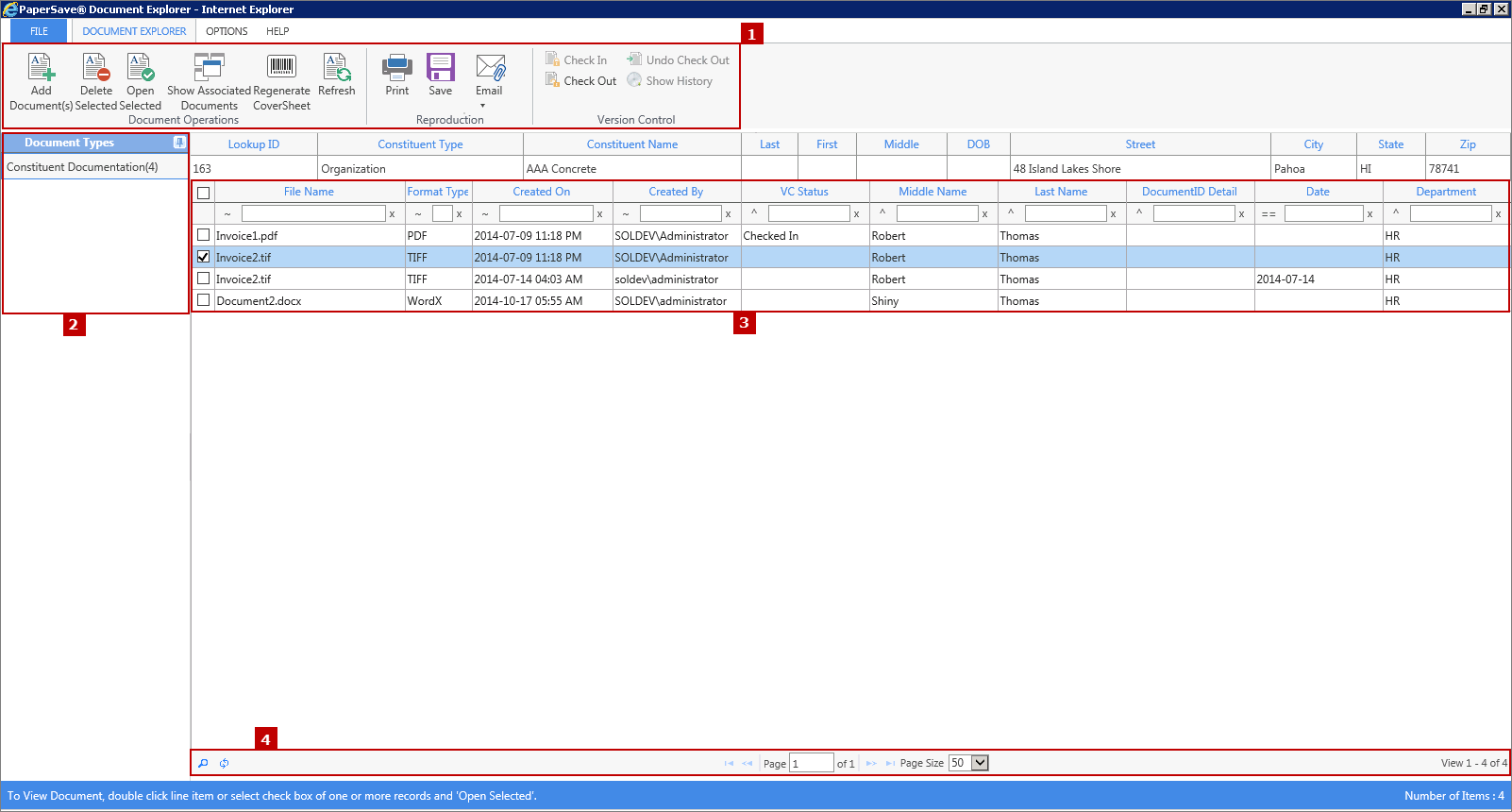
Description of all the grids available in Document Explorer window is mentioned below:
1. Toolbar: You can view various options for managing the documents. Click here to know more.
2. Document Type Pane: You can view all the Document Types for the current Transaction Type with the total no. of records for each Document Type.
3. Record Grid: You can view the list of all the records available for the selected Document Type.
4. Paging Grid: Paging grid allows you to view the list of records in the Document Grid as per your selection. You can select the Page Size ranging from 50 to 200 or else you can view all records at once by selecting ALL from the drop-down list. From the middle of the Paging Strip section you will be allowed to navigate to First, Previous, Next and or Last Page based on the available no. of records by clicking on the respective icons. Right side of the Paging Strip shows you the no. of selected record out of total no. of records available in the Record Grid.
 |
| Click on image to magnify/shrink |