|
JavaScript Intellisense |
  
|
| Show/Hide Hidden Text |
|
JavaScript Intellisense |
|
| Show/Hide Hidden Text |
The main purpose to introduce this feature is to improve the end user experience in writing the script in script editor window. You will experience a more easy and convenient way of writing scripts in script editor window for various classes like Profile, Parameter, Globals etc. So this will ultimately reduce the human error caused during writing the scripts. Moreover, on hovering cursor over the functions/methods available in the list for the respective class, you will be able to view prompt help for the same.
Let us understand this with the help of below given example:
In the below given script, previously with PaperSave 5.2.0 you had to write whole script manually with no list of functions/methods available for the respective class.
if (Parameter.Manager_Threshold == '15000')
{
PaperSave.ShowMessage("Approve","PaperSave");
}
else
{
PaperSave.ShowMessage("Reject",'PaperSave');
}
But with JavaScript Intellisense feature (as shown below), now as you will write the class name followed by dot(.), related functions/methods available for the respective class will be listed. You can also view the prompt help in the tool tip on hovering the cursor over the respective functions/methods as displayed in below screen.
Moreover, you will experience an autocomplete of Single Quotes, Double Quotes and Curly Braces while you press the respective keys in the script editor.
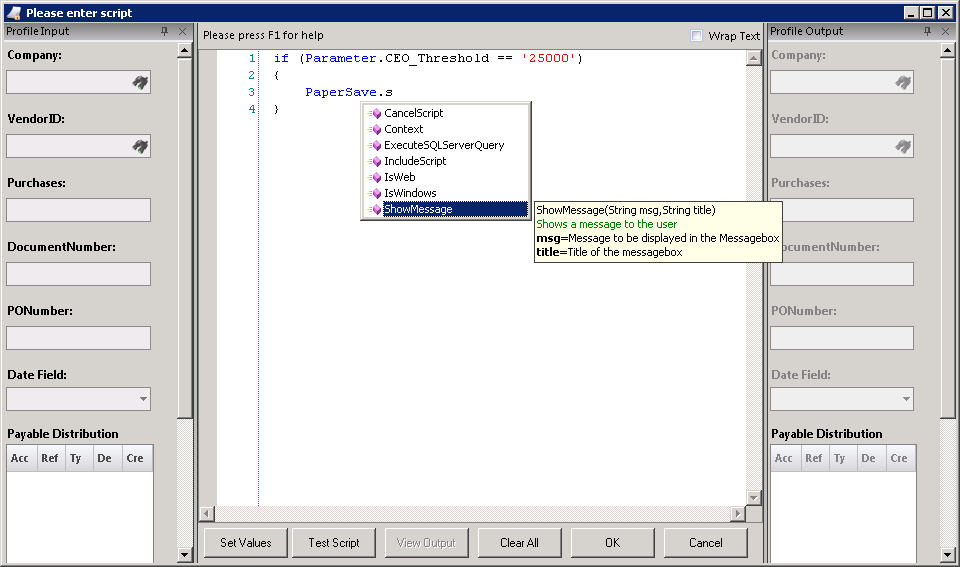 |
| Click on image to magnify/shrink |
Below are the examples for all the classes that support JavaScript Intellisense:
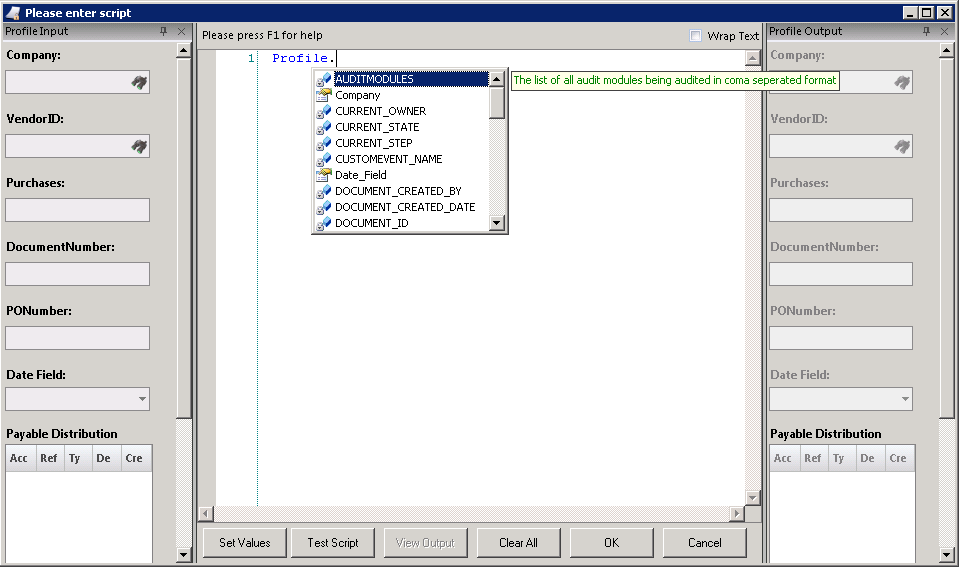
1. Profile.: Profile.{ProfileFieldName, ContextParamerters}
As you write Profile. in the editor window, all the available Profile Fields will be listed in the drop-down as displayed in below screen.
 |
| Click on image to magnify/shrink |
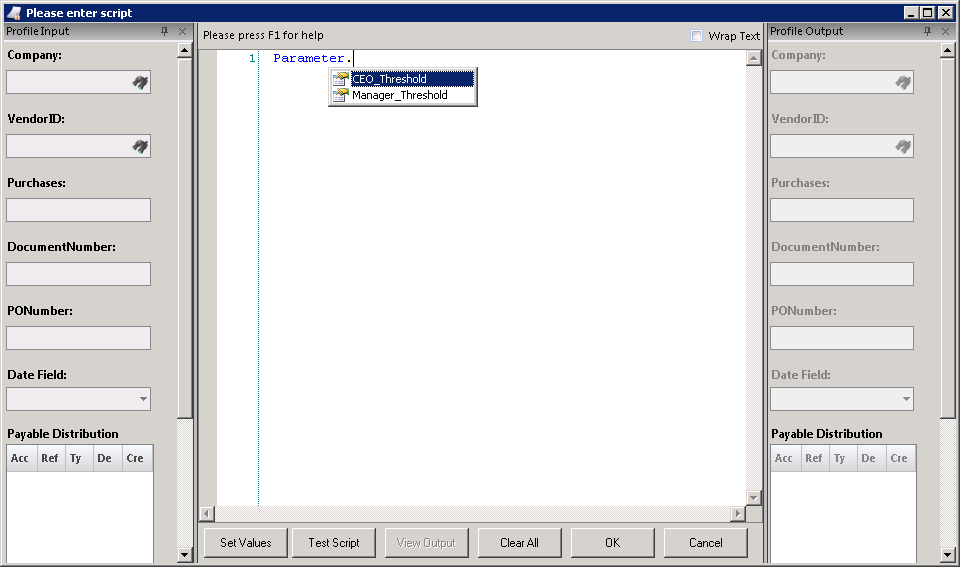
2. Parameter.: Parameter.{WorkflowParameter}
As you write Parameter. in the editor window, all the configured Workflow Parameters for the respective Workflow will be listed in the drop-down as displayed in below screen.
 |
| Click on image to magnify/shrink |
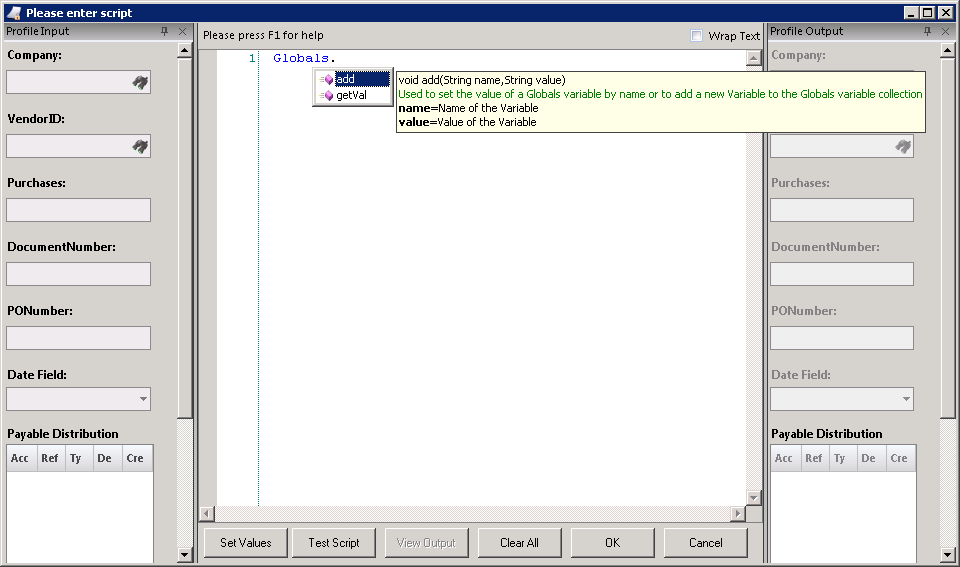
3. Globals.:
As you write Globals. in the editor window, "Add" and "getVal" function will be listed in the drop-down as displayed in below screen.
 |
| Click on image to magnify/shrink |
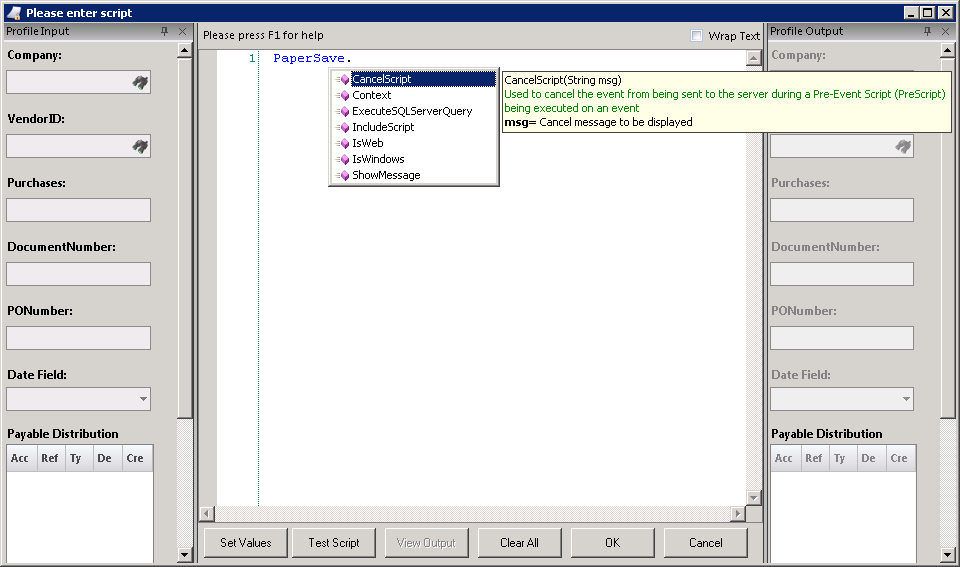
4. PaperSave.: PaperSave.{Methods}
As you write PaperSave. in the editor window, all the available Methods will be listed in the drop-down as displayed in below screen.
 |
| Click on image to magnify/shrink |
Back to Script Activity (Workflow 1.0)
Back to Script Activity (Workflow 2.0)
Back to Pre-Script & Post-Script Workflow 1.0
Back to Pre-Script & Post-Script Workflow 2.0