|
PaperSave Scan |
  
|
| Show/Hide Hidden Text |
|
PaperSave Scan |
|
| Show/Hide Hidden Text |
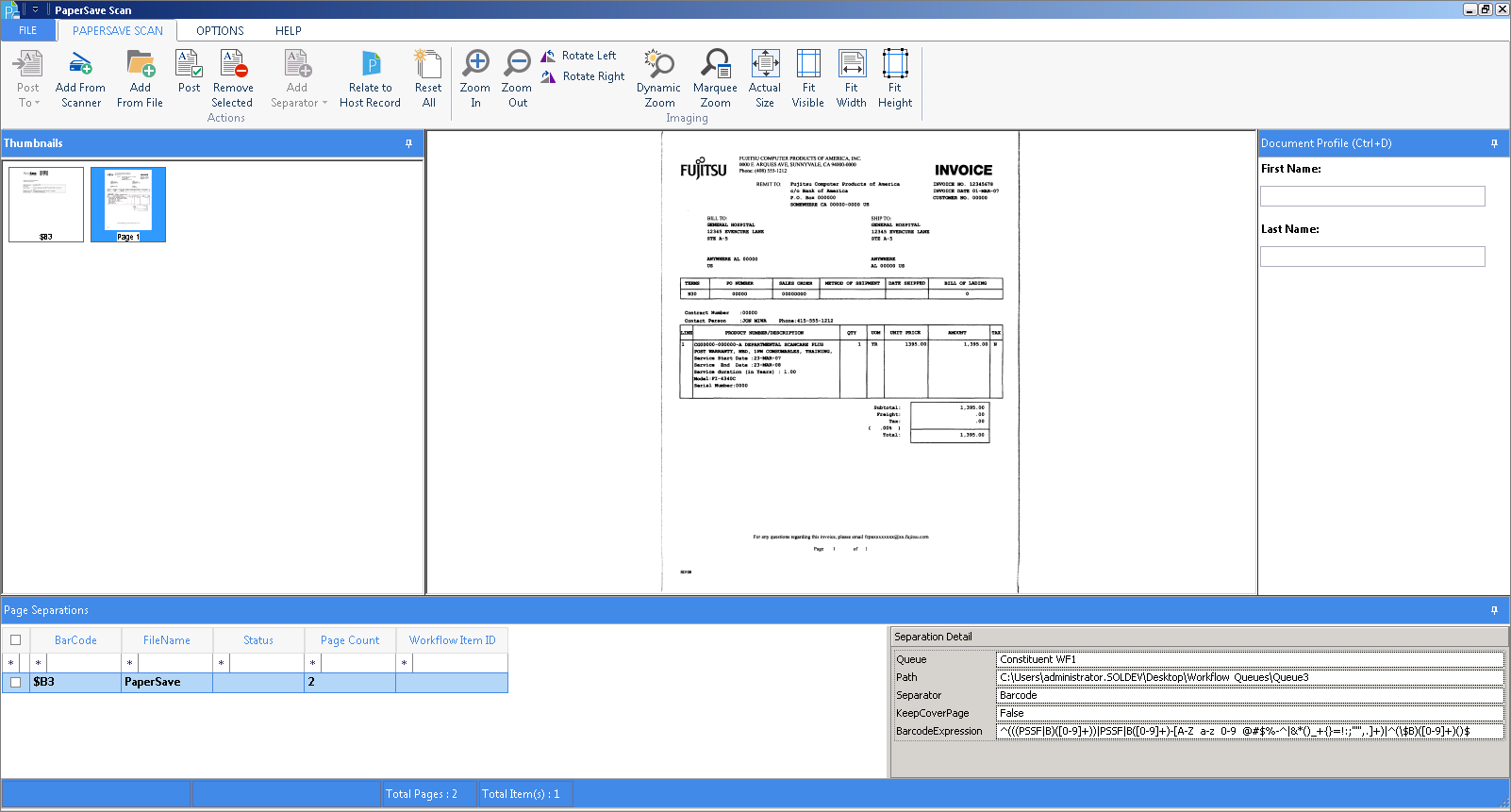
PaperSave Scan is used primarily by users to scan and or load stacks into ScanLater and PaperSave Workflow watch folders. Users can also use PaperSave Scan to scan one time documents and relate them to host records without being a user of the host application.
Users can now directly post the documents from PaperSave Scan into PaperSave Application Server without depending on PaperSave DropPoint Processing Service (Earlier know as, PaperSave Batch Scanning Service). With PaperSave 5.3, we have removed the dependency on PaperSave DropPoint Processing Service which required active service for processing. Below are the few considerations that are taken care with the implementation of this feature:
| • | You will get prompt confirmation on the status of the post. |
| • | You will now have the facility to view the error details for the documents that failed during posting. |
| • | Moreover, various validations that were done after posting the document are now done before posting by PaperSave Scan. |
It should be noted that, you can only attach TIFF files using PaperSave Scan and the first page of these TIFF files should be a barcode coversheet. If the first page of the TIFF file is not a barcode coversheet, then PaperSave Scan will reject the file and display an error message in the case of ScanLater.
In case of the ScanFirst queue, you can attach TIFF files using Capture without a barcode coversheet. If the file does not have a barcode coversheet, the PaperSave Scan will ask you to generate a barcode coversheet and then you will select "Yes" to generate a barcode coversheet.
Note: |
The barcode coversheet is only required for the ScanLater option. |
In PaperSave Scan, we now support one of the most conventional yet useful features i.e. cut, copy and paste.
Following is the list of shortcut keys:
| • | ctrl+shift+c to Copy |
| • | ctrl+shift+x to Cut |
| • | ctrl+shift+v to Paste |
Note: |
If the document(s) is cut, the document(s) will disappear from the stack. Only one barcode coversheet is allowed during a cut operation and not multiple. The first barcode coversheet cannot be cut. |
We have also provided thumbnail views for the following types:
| • | Tiny |
| • | Small |
| • | Medium |
| • | Large |
Once the view is set, it stays the same unless it is changed, for a particular user.
You also have the facility to drag and drop the documents in the bottom panel of the screen.
 |
| Click on image to magnify/shrink |