Installing PaperSave Client for Blackbaud Financial Edge
PaperSave Client for Blackbaud Financial Edge must be installed, where Blackbaud Financial Edge client is installed, whether that is on a Terminal Server, Citrix Server, or a local workstation.
1) During the installation of the client, users must be logged off from Blackbaud Financial Edge. If PaperSave is installed on a local workstation, only the local user will need to be logged off of Blackbaud Financial Edge. If Blackbaud Financial Edge is installed on a terminal or Citrix server, all users will need to be logged off of Blackbaud Financial Edge .
2) Please make sure that .Net Framework 4.7.2 or higher is installed on your machine before you start installing PaperSave Client for Blackbaud Financial Edge.
3) Currently, PaperSave Client for Blackbaud Financial Edge supports Blackbaud Financial Edge Windows only.
4) You will be allowed to install PaperSave Client for Blackbaud Financial Edge only if the PaperSave Application Server and PaperSave Web Client both are hosted on https.
Installation Steps
To install the PaperSave Client for Blackbaud Financial Edge, follow the below mentioned steps:
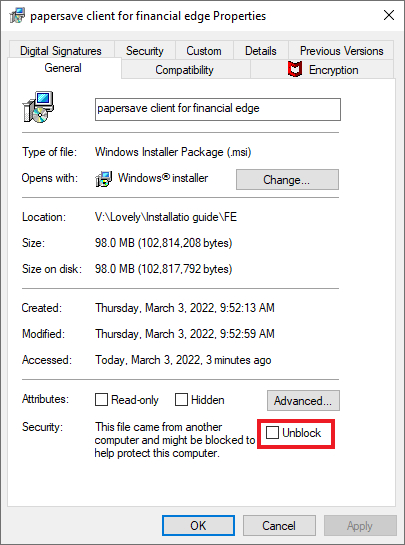
1) Click here to download Blackbaud Financial Edge msi. Once the setup is downloaded, double click on "papersave client for financial edge.msi". If the file is blocked, then unblock the file by right-clicking on the file and select the Properties option. This will open papersave client for financial edge Properties screen. Now, mark the Unblock checkbox to unblock the file.
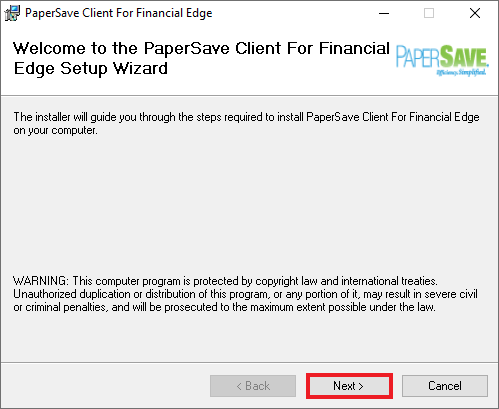
2) PaperSave Client for Setup Wizard welcome screen opens. Click on the Next button to continue.
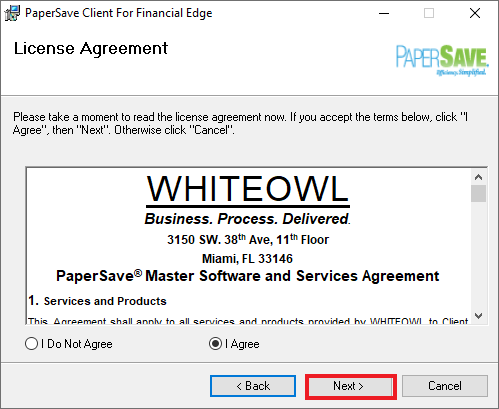
3) License Agreement screen opens. Review the License Agreement and select the "I Agree" option, and then click on the Next button.
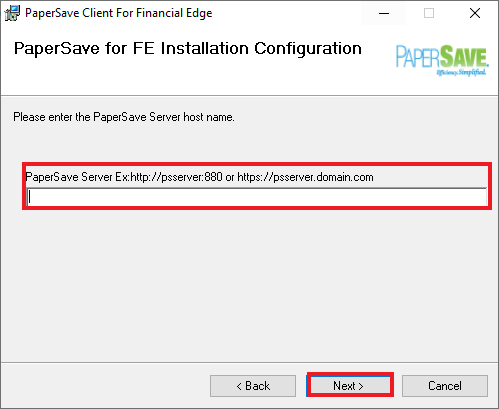
4) On the PaperSave for FE Installation Configuration screen, enter PaperSave Application URL of your server. The URL should be in a format such as https://tenantid.hostname (For Example, https://1234.cloud.papersave.com). You can contact PaperSave team for hostname details. Click on the Next button.
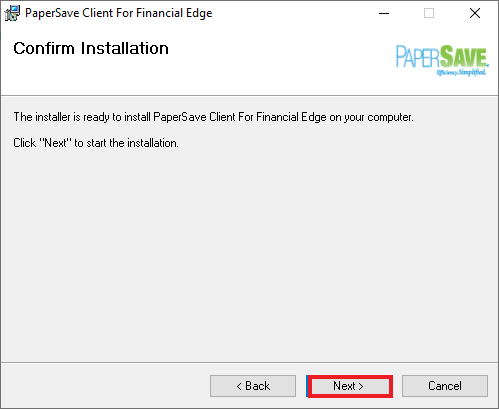
5) Click on the Next button to confirm the installation.
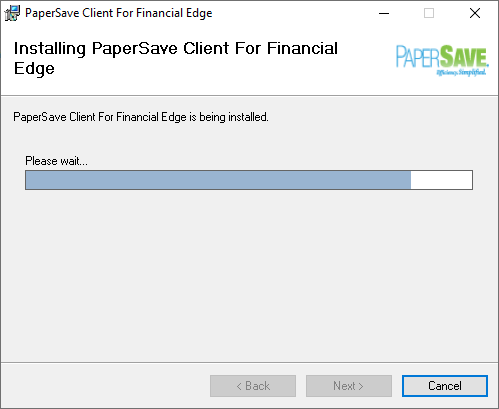
6) You will see the installation progress, as shown in the below screen.
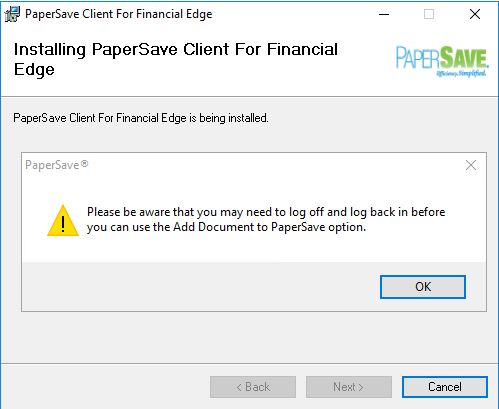
7) You need to ensure to log off and re-login, before using Add Document feature of PaperSave.
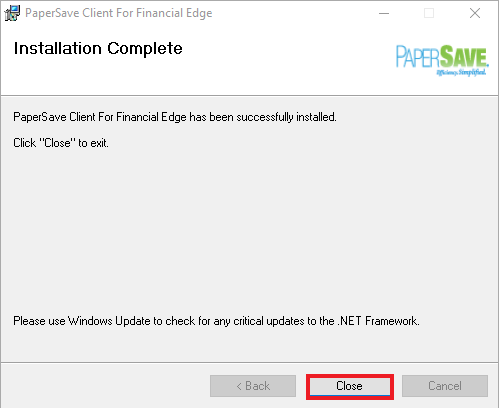
8) When the installation is completed, click on the Close button.