
Deleting Integrated App Instance
Follow the below steps to delete an Integrated App Instance:
1) Click on Integrated App Instance in the Application Integration section of the Configuration Area.
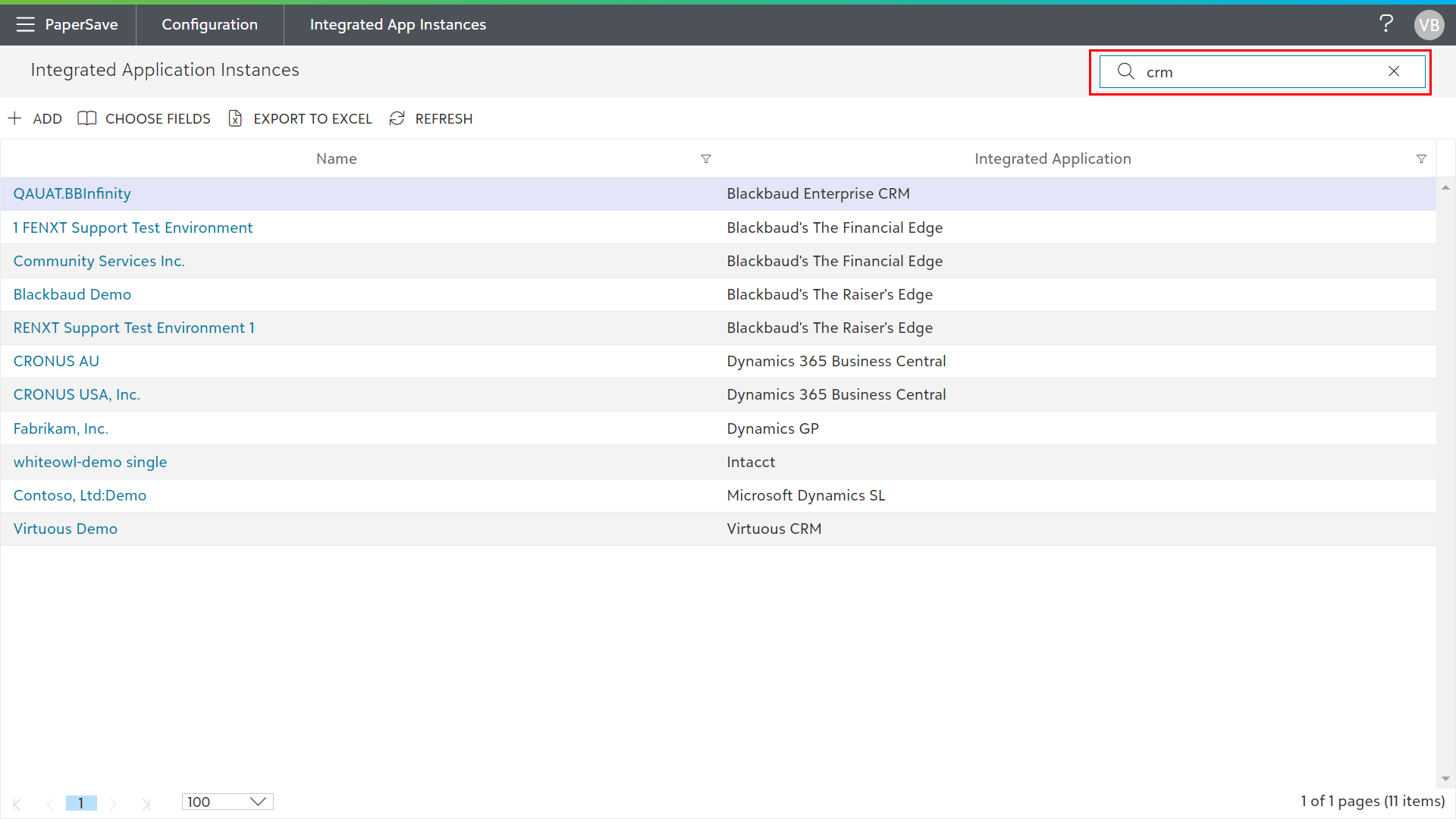
2) You can select the desired integrated app instance from the list or enter the keyword in a quick search to find the integrated app instance from the list as shown in the below screen.
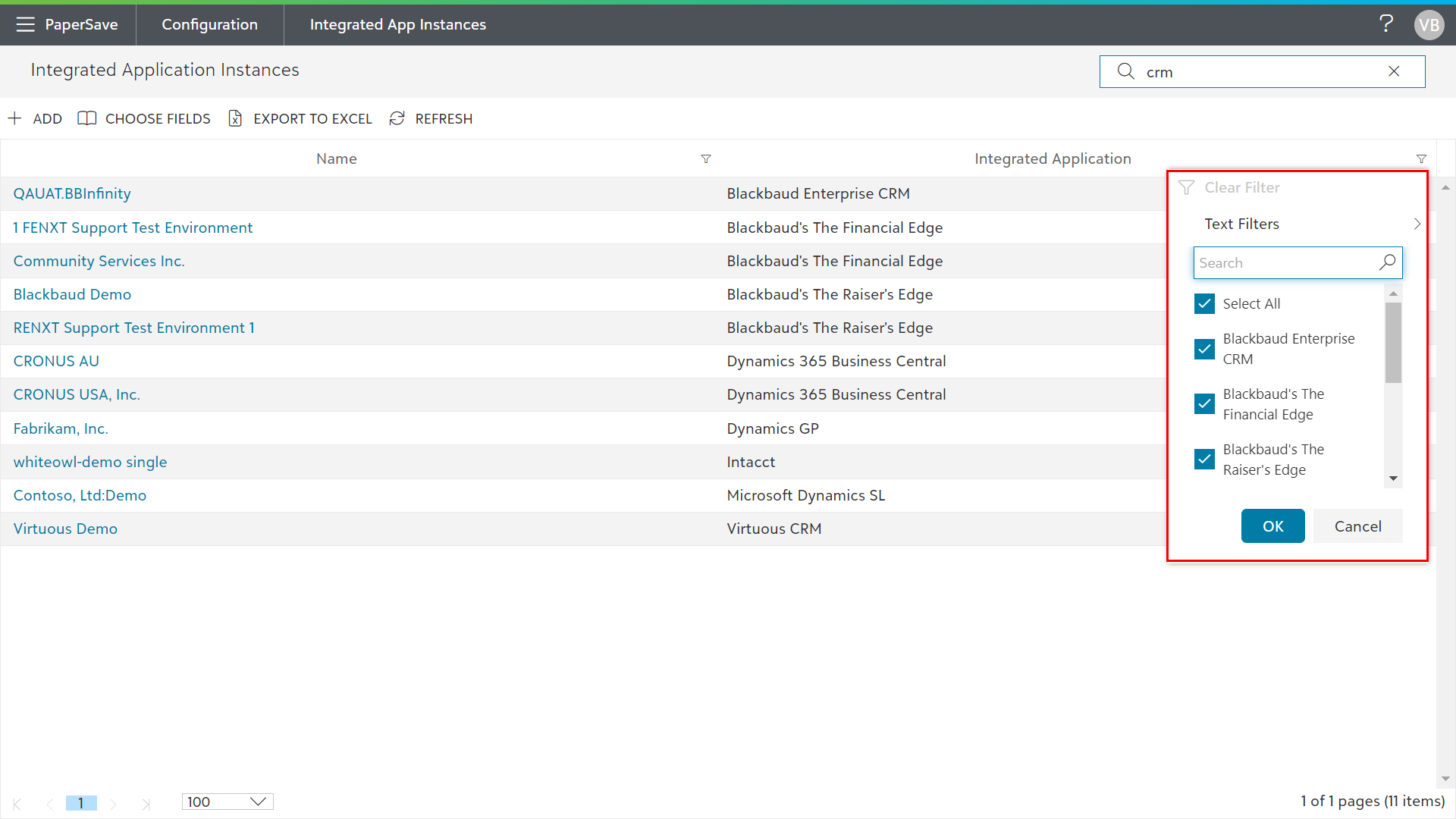
- Also, you can use a column filter to narrow the search within the list of integrated app instances, as shown in the below screen.
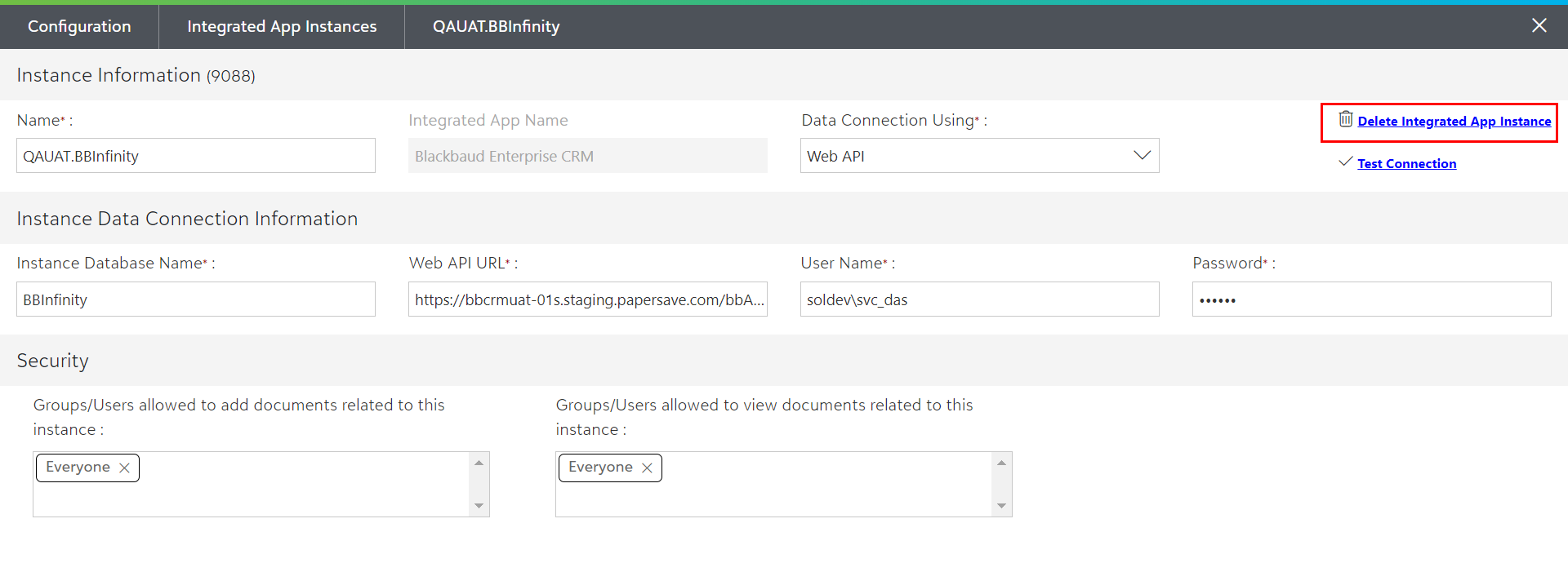
4) Now, click on the existing integrated app instance to open it in the edit mode and click on the Delete Integrated App Instance option within the full-page dialog box as shown in the below screen.
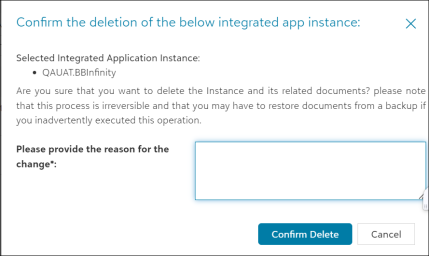
5) On clicking the Delete Integrated App Instance option, a dialog box will pop up. You must provide the appropriate reason to delete the integrated app instance and then, click on Confirm Delete option, as shown in the below screen.
Note: PaperSave includes the reason for the deletion of an instance in the audit log.
6) You will see a notification (in the top right corner of the screen) based on the success/failure of the delete operation.