Set Custom Shortcut Order
You can define the order in which the custom shortcuts should appear on PaperSave Home.
The following are the steps to set the desired order of the custom shortcuts:
1) Click on the SET SHORTCUT ORDER option from the list toolbar as shown in the below screen.

2) The Manage Home Page Shortcut Order dialog box will appear as shown in the below screen.
3) Select the scope from the "Set Home Shortcut Order for" drop down list to view the related shortcut list.
4) To change the order of the shortcuts, you can use either of these ways:
- Drag the shortcut using the Ellipse icon as shown in the below screen.
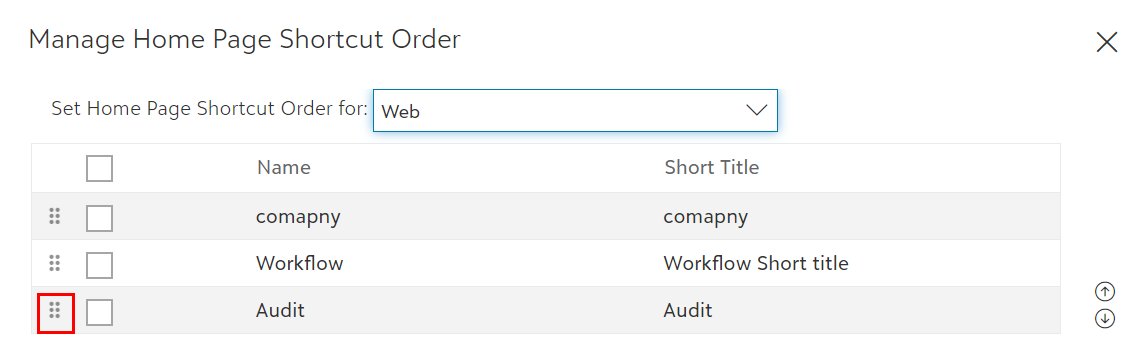
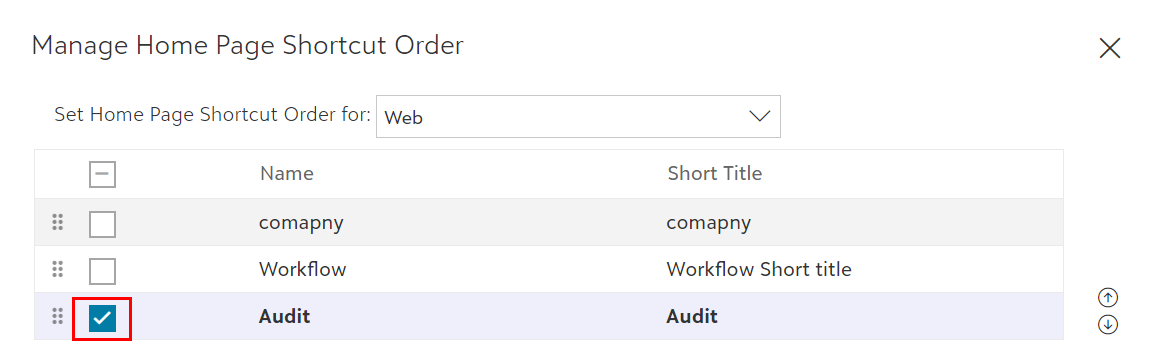
- Select one or more rows and move them using the arrow keys in the lower right-hand corner of the dialog box, as shown in the below screen.
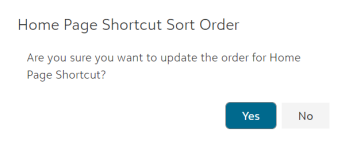
5) Now, click on the X in the upper right-hand corner and click Yes to apply the change or No to cancel the operation.
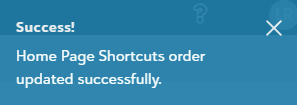
6. If the order is updated successfully, you will see a success message notification in the top-right corner. Else, it will show the failure message notification.