
Managing User
You can manage Users for tenants with Onelogin, Microsoft Entra ID authentication and Okta.
Watch the video to know how to manage a user in PaperSave.
List Toolbar options for Users:
- +ADD: Click on +ADD to create a new PaperSave User.
- CHOOSE FIELDS: You can set desired preferences for the fields to be displayed in the current list of Groups using Choose Fields. Learn more about Choose Fields.
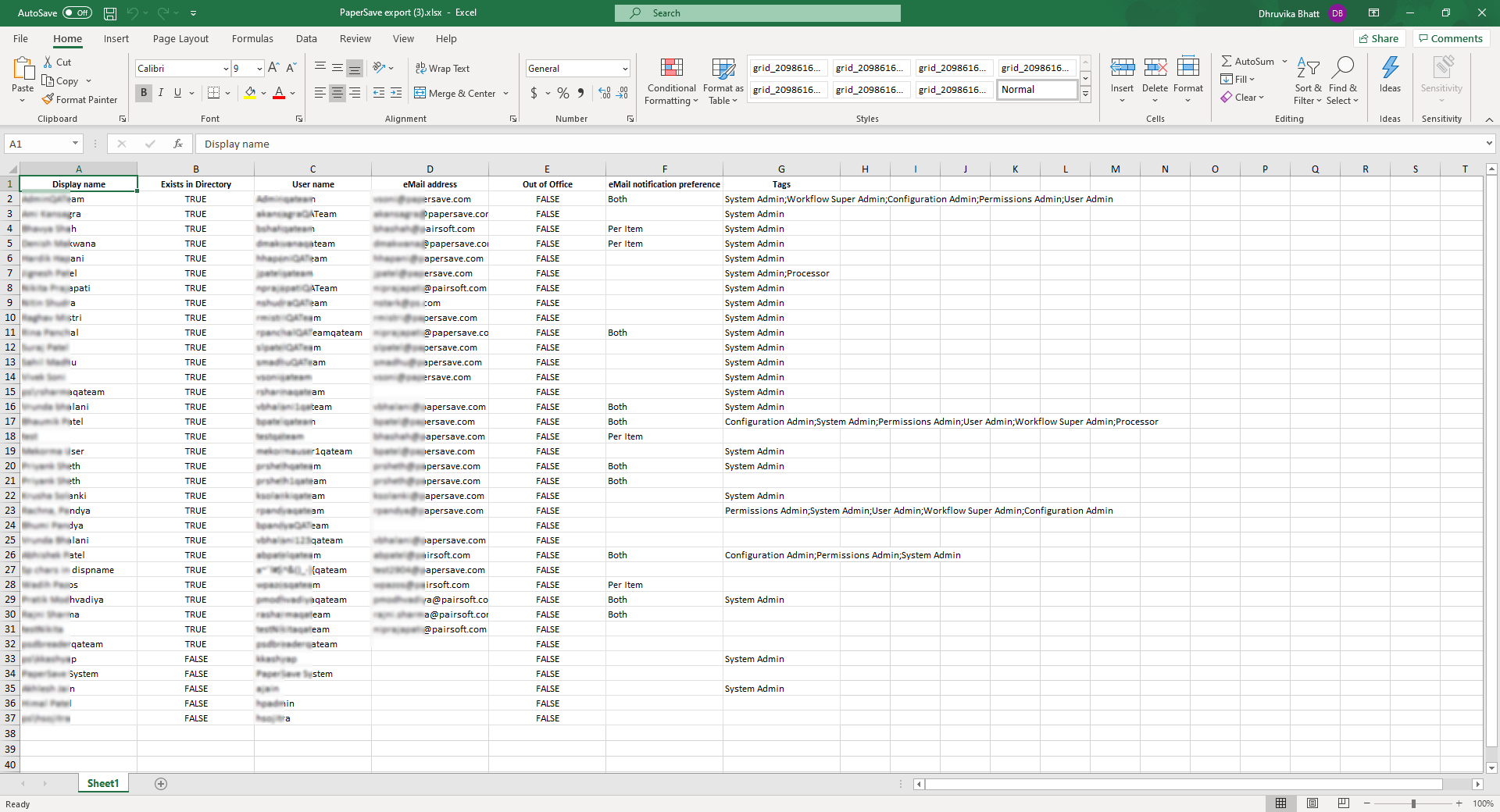
- EXPORT TO EXCEL: You can export the complete or selected list of users from the list to Microsoft Excel sheet. The downloaded Excel file will appear as shown in the below screen.
- IMPORT TAGS FOR USERS: You can import the tags for specific users from a .CSV file with a predefined format (having two columns titled Username and tags separated by semicolon). Once you upload the file in the predefined format, the data from the file will be added to the Users list.
1) Click on IMPORT TAGS FOR USERS. Select your CSV file from the dialog box and click on Open.
2) Once you upload the file in the predefined format, the data from the file will be added to the Groups list.
- SWITCH TO LIST VIEW: Click on this option to view the list of users in the List view, as shown in the below screen.
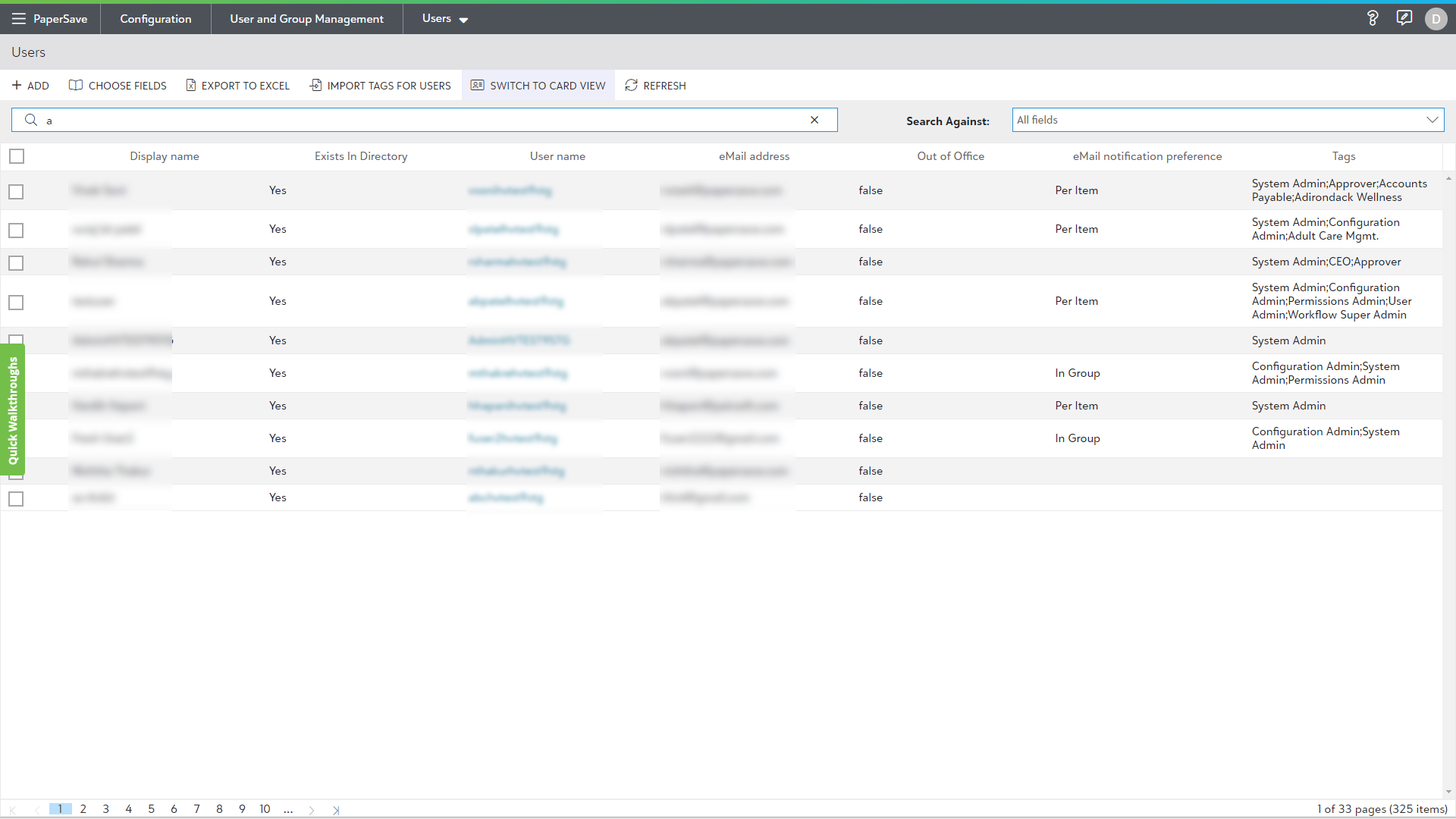
- SWITCH TO CARD VIEW: Click on this option to access the list of User details in Card style, as shown in the below screen.

- REFRESH: Clicking on Refresh updates the recent changes in the Users list.