Adding Workflow Quick Measure
You can perform specific calculations on the Workflow and Document Type fields by adding Workflow Quick Measures for the selected Workflow.
Watch the video to know the steps to add the Workflow Quick Measure.
Following are the steps to add a Workflow Quick Measure:
1) Click on Workflows tile in the Workflow & Automation section of the Configuration Area.
2) Select your desired workflow from the list and scroll down to the Workflow Quick Measure section, as shown in the below screen.

3) Click on the “+ADD” option from the list toolbar, as shown in the below screen.

4) Now, enter all the required details.
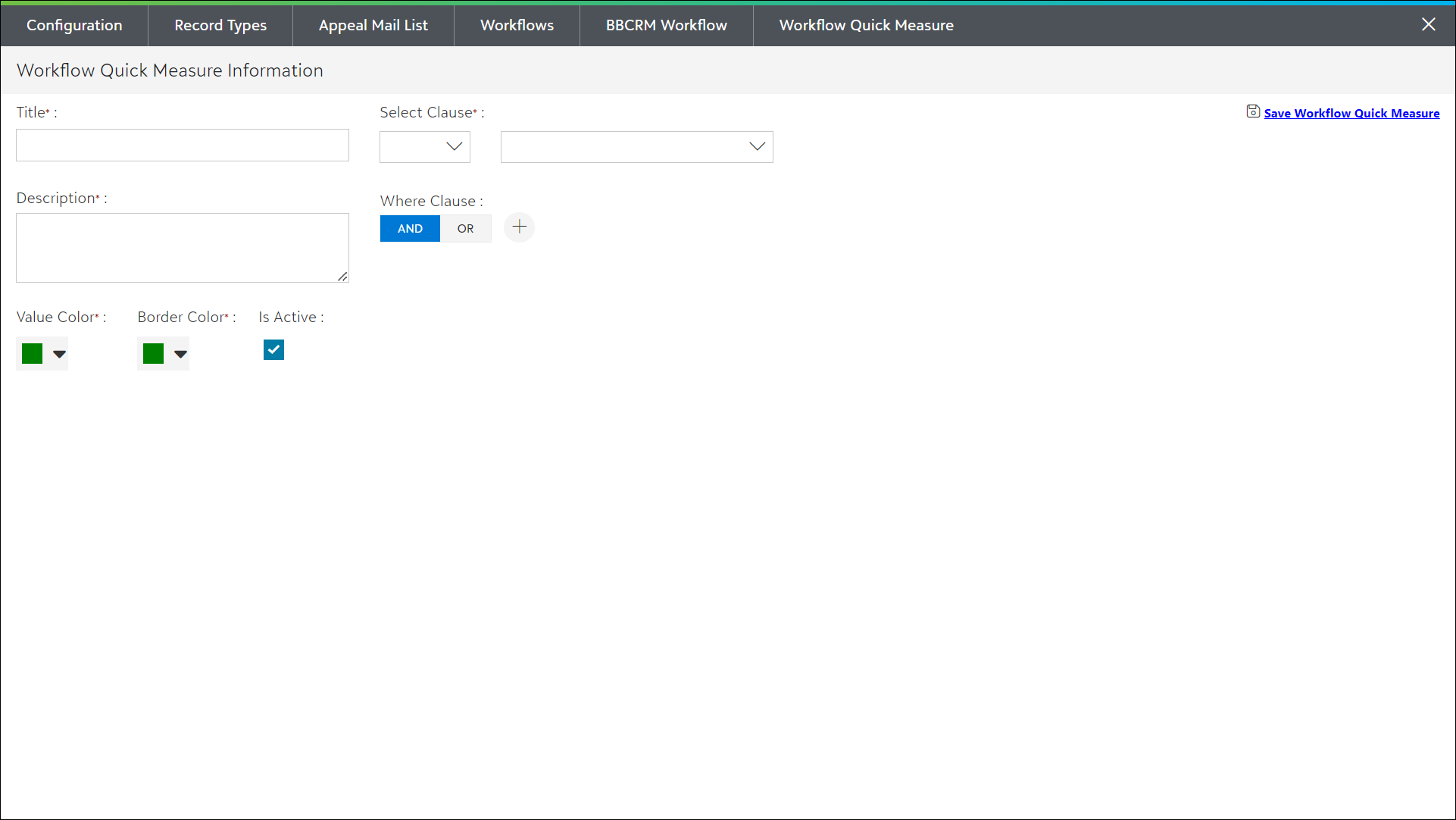
- Title: Enter the text to be displayed as the name of the Quick Measure above the list toolbar of the Workflow item list.
- Description: Enter the description to provide more information to display it when hovered over the Workflow Quick Measure title.
- Value Color: Select the color to be set for the Quick Measure output.
- Border Color: Select the color to be set for the title.
- Is Active: You can check/uncheck this option to control the display of the Quick Measure in the Workflow area. By default, this option is checked.
- Select Clause: Select the aggregate function (i.e., sum, count, min, etc.) and field from the drop-down lists to get the output accordingly.
Example: If you select aggregate function as SUM and Field = Amount, then the output will show the total of the amount field values.
The available Aggregate functions are as follow:
| TOP1 | This function returns the 1st value in the list for the selected field. |
| SUM | This function gives the sum of the values in the selected field. |
| AVG | This function calculates and returns the average value of the selected numeric field. |
| MIN |
This function returns the minimum value of the selected field. Note: If the selected field contains alpha characters, then it will return the smallest, that is, A is smaller than C. |
| MAX |
This function returns the maximum value of the selected field. Note: If the selected field contains alpha characters, then it will return the greatest, that is, C is greater than A. |
| COUNT | This function returns the total number of rows with the values in the selected field. |
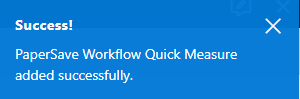
5) Click on the Save Workflow Quick Measure option to save the newly created Workflow Quick Measure and it will prompt the success/failure notification as shown in the following screenshot.