
Performing Advanced Search
Advanced Search allows you to define a custom query and narrow down the search result by adding filter conditions. You can add filters for the Integrated application or PaperSave to search for specific item(s) within the "Set Search Criteria" panel .
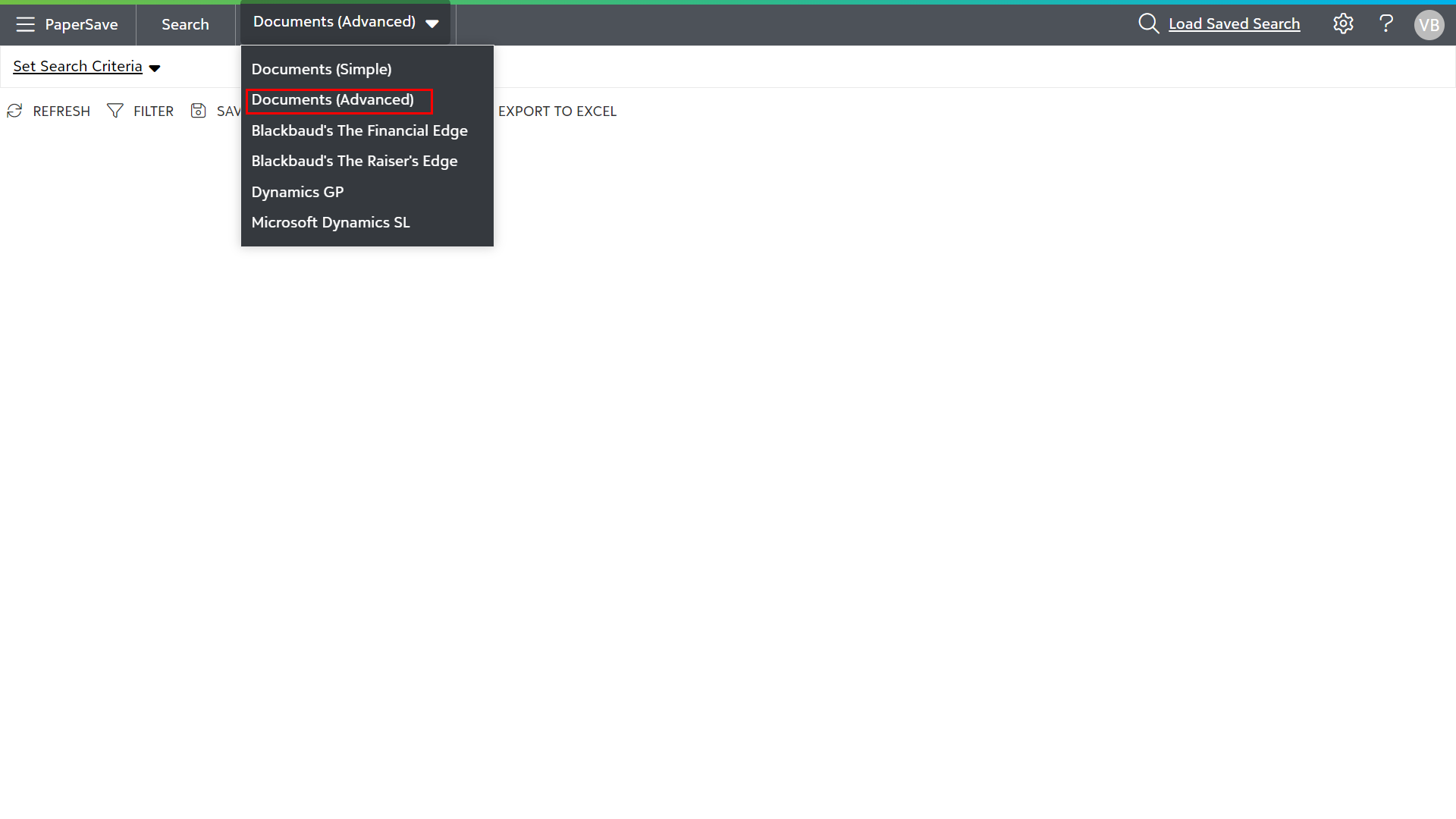
1) From the application bar, click on drop-down search option and select Document (Advanced) from the list.
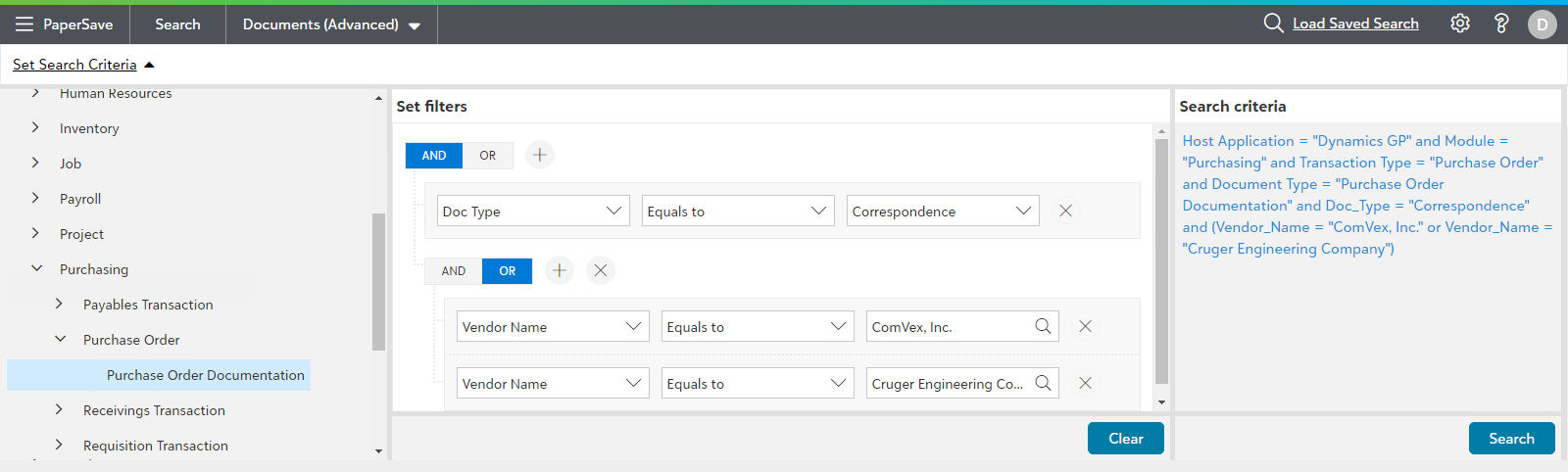
2) Click on the Set Search Criteria option to expand the panel if its not visible.
3) You can select the Module, Record Type and Document Type from the context menu on the lefty by clicking on the > arrow to expand the selection. Lets say for example ,you select Dynamics 365 Finance > Account Payable > Vendor > Venodr documentation from the context menu.
Tip: Once you have added your conditions, you can combine them by adding them to a group.
4) Now, apply filters by adding and grouping conditions in the “Set filters” panel to get relevant list of items in the search results. You can use "AND/OR" operators to narrow or broaden the search for the added conditions.
5) After defining the conditions, you can validate the query in the Search criteria panel click on the Search button to view the results.
6) The search results will appear in a document list.
Note: Click here to navigate to the next topic "Saved Search".