
Unsubmitted Item list panel
Once you acquire the documents using any of the methods in File Capture options panel, the items can be accessed from unsubmitted items list before you submit the items. Unsubmitted item list comprises the list of Workflow items that are not yet submitted to the selected Workflow.
Watch the video to learn about the Unsubmitted Item list.
1) In the Item viewer, click on  icon to access the unsubmitted item list.

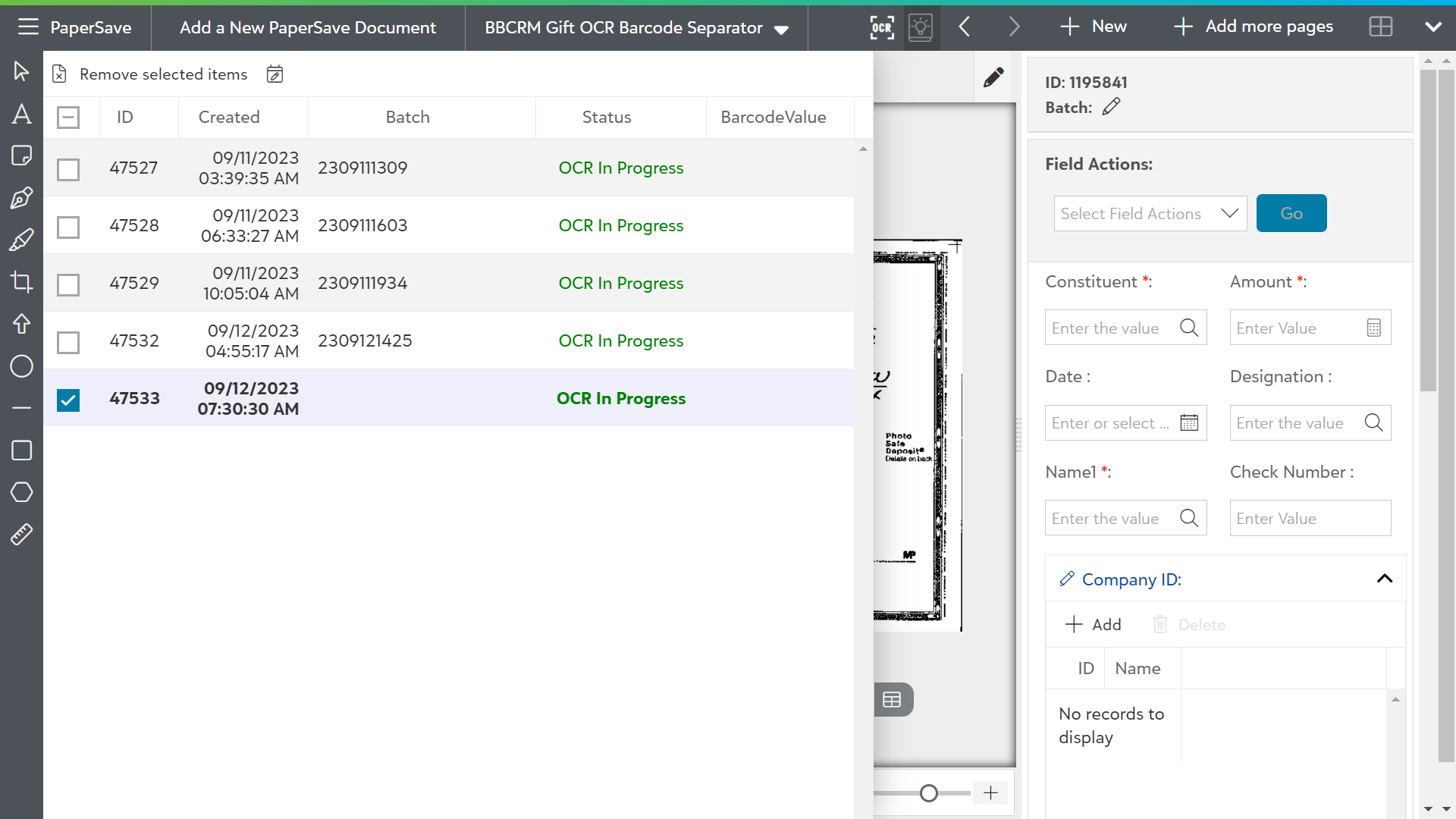
2) As you click on icon in the item viewer, a slide out panel with the list of unsubmitted items will launch in the left corner of the screen. You can see the profile field details for all the unsubmitted items as shown below.

3) Double click on the desired unsubmitted item from the list to open it in the item viewer.
4) Select the items from the list that you want to discard and click on "Remove selected items" to remove them from the unsubmitted Item list.
You can click on to perform Mass update field for all the unsubmitted items.
The unsubmitted item list displays the list of unsubmitted items. You will see the properties of each item in the grid including the item ID, Batch, Status, Actions, and other columns in each item row.
The following are statuses that may show for unsubmitted items in the list:
1) OCR in Progress
Workflow items acquired through the Workflow Area go through a process where Optical Character Recognition (OCR) is used to read and extract data off of the documents that are captured. The area will show a status of “OCR in progress” while this process is executing.
2) Script Execution
A status "Script Execution" displays for an item if an OnOCRDataRetrieved Event script is getting executed on the Workflow item.
3) OCR Error
The status of "OCR Error" displays red hyperlinked text on an item when an error is encountered while going through the OCR process. Clicking on the hyperlink reveals the details of the exact error encountered. When errors are encountered, you will have the opportunity to re-initiate the OCR process by clicking on the “Retry” hyperlinked text in the Action column.
 Retry option gets displayed only when there is any item with OCR Error as status.
4) OCR Completed
A status of "OCR completed" displays for an item once it has gone through the OCR process successfully. You can expect to see data injected into fields captured by the OCR process with the confidence score of the capture once you see an item with this status.
5) Submission in Progress
A status of "Submission in progress" displays on an item when you submit an item. This status shows until the item is either submitted successfully or an error occurs.
6) Submission Error
The status of "Submission Error" appears on an item if an error is encountered during the process of submission. Clicking on the hyperlink will reveal the details of the exact error encountered. When errors are encountered, you will have the opportunity to re-initiate the submission process by clicking on the “Retry” hyperlinked text in the Action column.
7) Completed
A "Completed" status gets displayed briefly on an item when the submission completes successfully. A completed item disappears from the unsubmitted items list after displaying this status for a couple of seconds.