
Workflow list Status Bar
The status bar at the bottom of Workflow list displays details such as Workflow items per page, Page numbers, Filters applied hyperlink (to denote if any filters are applied on the Workflow item list or not), Clear Filters (option to remove the Filters from the current list) as shown in the below screen:
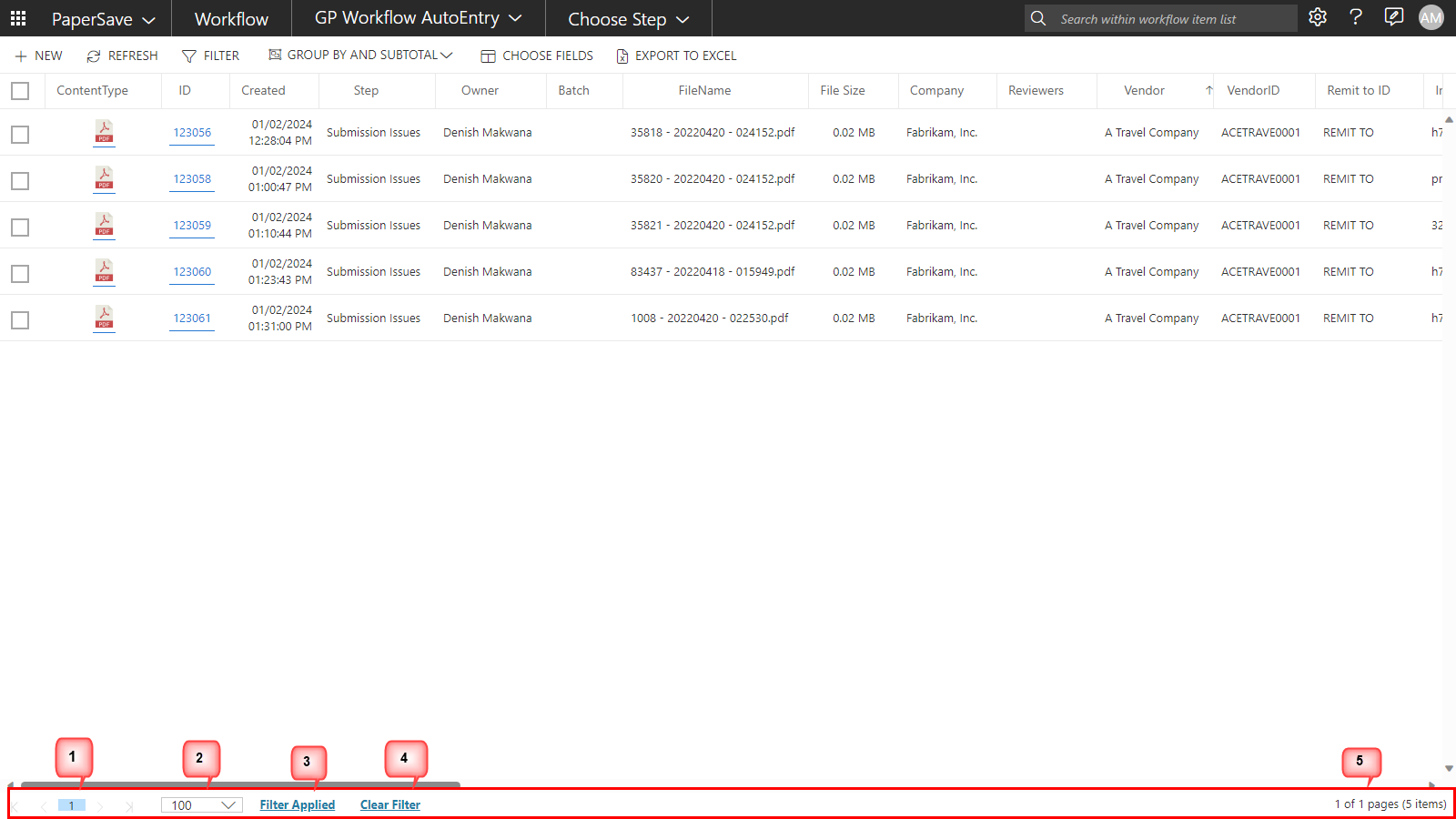
Following are the option in the Status bar of Workflow list:
1) Page number
This option displays the page number in the Workflow Item list. It enables the user to traverse between various pages in the Workflow Item list.
> : This option enables you to move to the next page in the Workflow item list (in case of multiple pages).
< : This option enables you to move to the previous page in the Workflow item list (in case of multiple pages).
|< : This option enables you to move to the first page in the Workflow item list (in case of multiple pages).
>| : This option enables you to move to the last page in the Workflow item list (in case of multiple pages).
2) Page size/ no of items per page
This option enables you to define the maximum number of items to be displayed on a single page in the Workflow Item list. The default value is 100 items per page. The other options are 200, 500, and 1000.
3) Filters Applied
It displays “Filters Applied” if you have applied any filters on the Workflow items. Click on the hyperlink to edit the filter condition.
4) Clear Filter
This option displays “Clear Filter” if you have applied any filters on the Workflow items. Click on the hyperlink to clear the applied filters.
5) Current of Total Page and Total Items
This option displays the current page number with a total number of pages and total number of Workflow items (current page) in the Workflow list.
For e.g.: X of Y pages (Z items);
where,
X: Current page number in the Workflow item list,
Y: Total number of pages in the Workflow item list,
Z: Total number of items in the selected Workflow.