
Adding a new document to an Integrated App record
You can add new documents to an integrated app record using various file capture options such as scan documents using TWAIN compliant scanner or Fujitsu fi-NX series scanner, uploading files from your file explorer, and generate a barcode to scan the documents in a batch at a later time.
Follow the below steps to add a new document to an integrated app record:
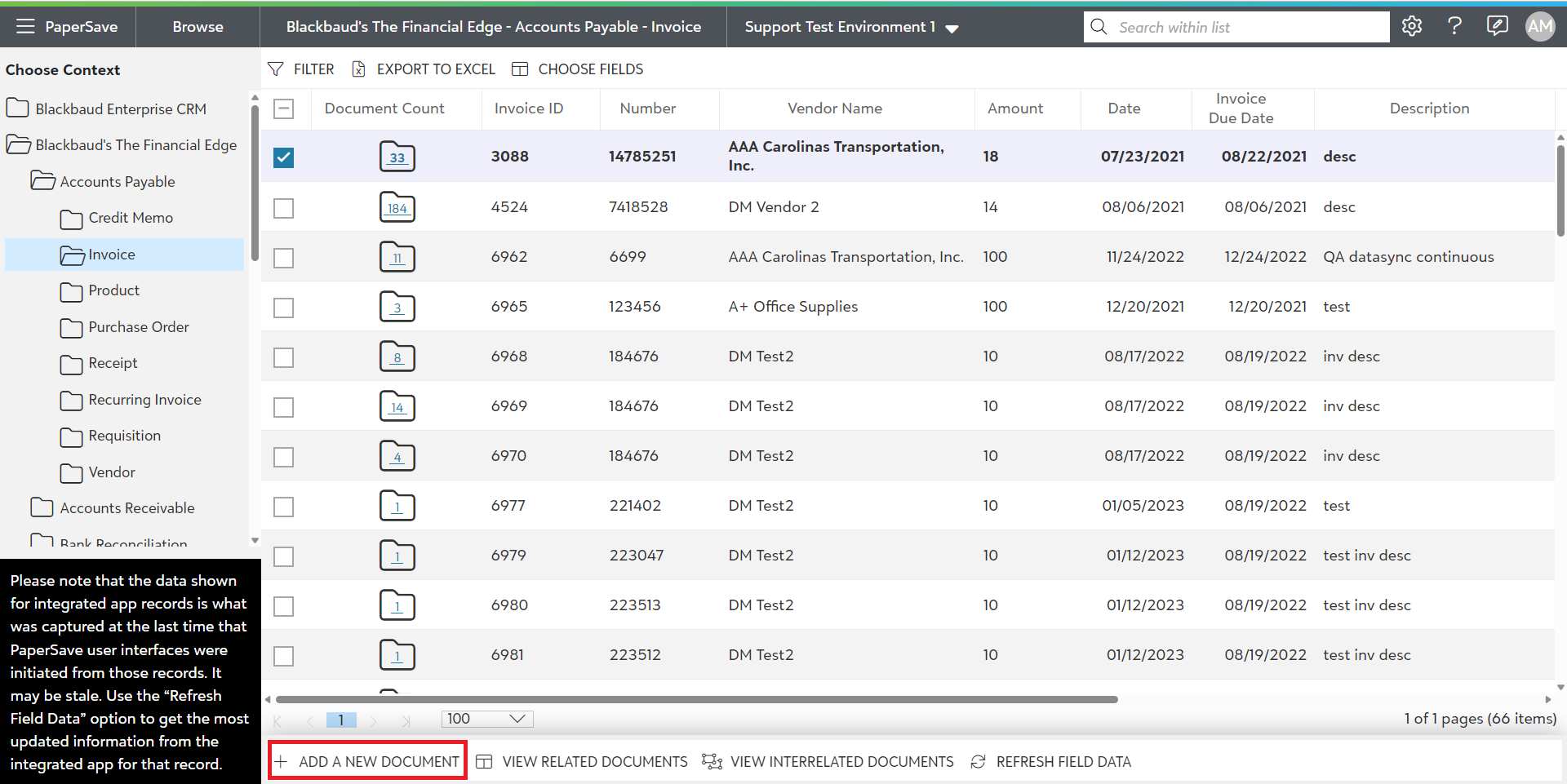
1) Choose the desired context in the left tree view. you will see list of records for the selected integrated application context.
2) Select the desired record for which you wish to add a new document.
3) Click on the option titled "ADD A NEW DOCUMENT" from the slide up panel that pops up from the bottom of the screen as shown in the below screen.
The following are the topics related to adding a new document to an integrated application record:
- File Capture options panel to add new document to integrated app
- Setting a Batch and default field values for the documents as they are scanned/uploaded through the app.
- Validating the documents in item viewer.
- Saving the documents to an integrated app record.