
Integrated App Search settings
You can define your preferences related to Integrated Application Search in the Settings menu from within the Gear icon  as shown below:
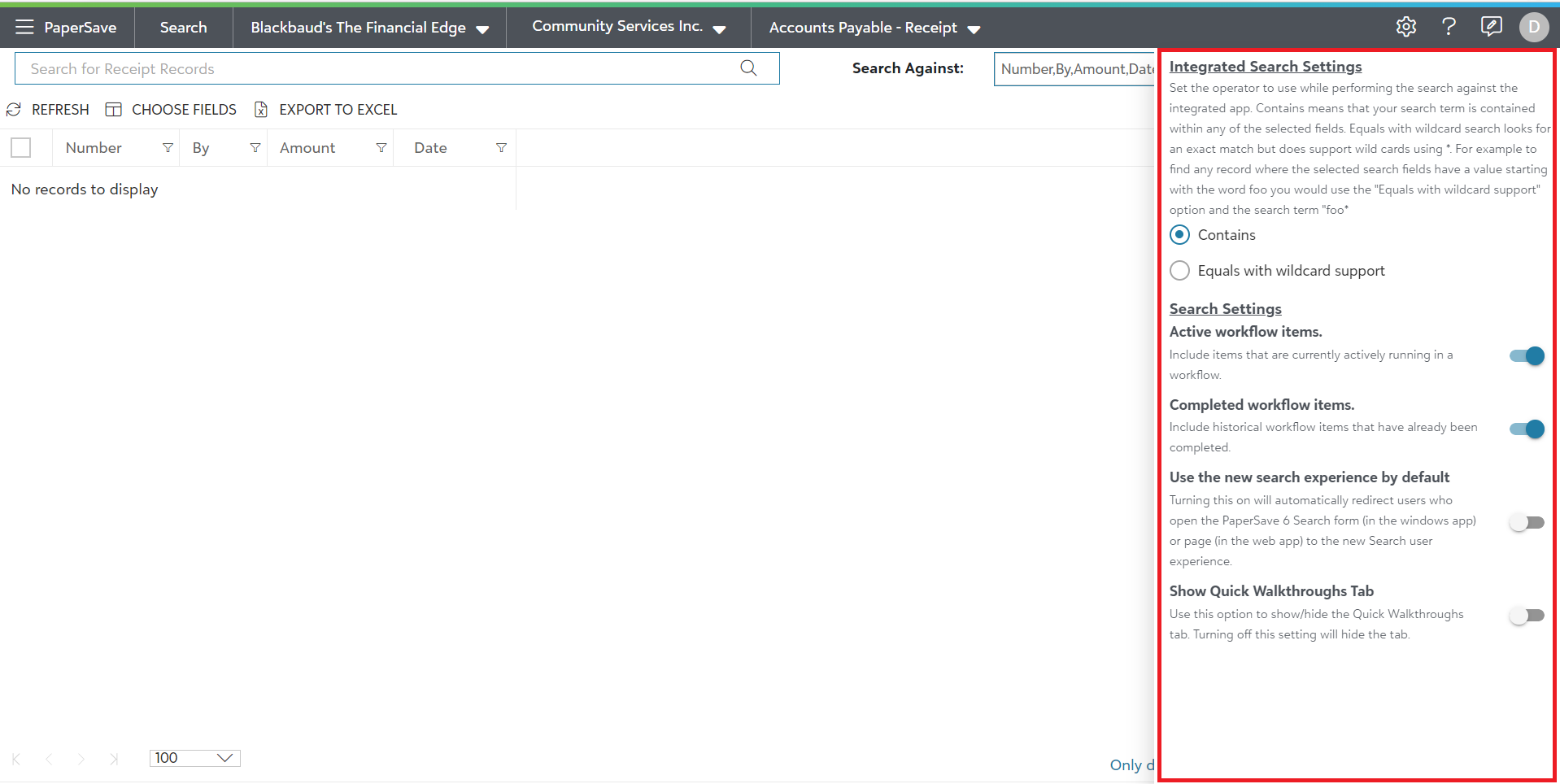
Integrated Search Settings
You can set the operator to use while performing the search against the Integrated application records.
- Contains signifies that your search term is contained within any of the selected fields.
- Equals with Wildcard support signifies that search looks for an exact match with the support for wild cards using "*". For e.g. - you can use the "Equals with wildcard support" option and the search term "fab" to find any record where the selected search fields have a value starting with the word "fab".
Search Settings
The options available in the Search settings section apply to all search types including Simple and Advanced Searches:
Active Workflow items
Includes items that are currently active in a Workflow. This will have such Workflow items that are not yet associated with an integrated application record.
Completed Workflow items
Turn "ON" this option to include historical Workflow items that have already been completed.
Note: This setting requires the current user being in the Workflow security principle for “users who can view Workflow items that they do not own."
Use the new search experience by default
Turn ON this option to automatically redirect users who open the PaperSave 6 Search form (in the windows app) or page (in the web app) to the new Search user experience.
Show Quick Walkthroughs Tab
Use the toggle option to show/hide the Quick walkthroughs tab on the screen.
Note: The options you select in the Settings Panel will be available for all search types. Hence, any changes made when in any search area will be reflected globally for the current user.