
ScanNow using TWAIN compliant scanner
Watch the video to learn about how to scan documents using TWAIN scanner.
1) Click on the "ScanNow™ using any recommended TWAIN compliant scanner" option in the file capture options panel to add a document from a TWAIN compliant scanner as shown below.
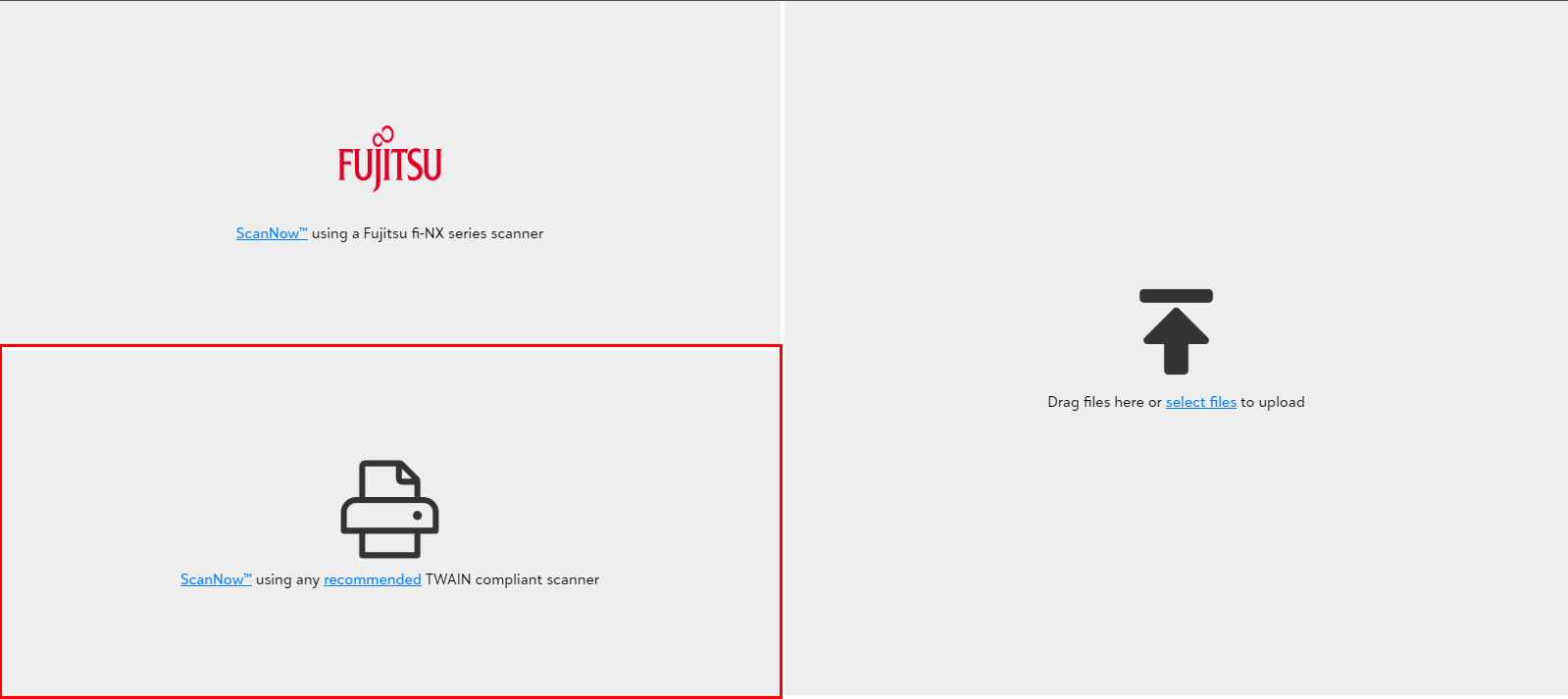
2) You shall be prompted to pick a scanner from the available list of scanners upon clicking ScanNow™ using recommended TWAIN compliant scanner.
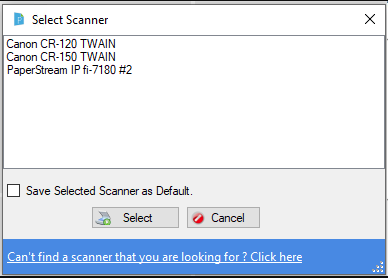
3) You can define your favorite scanner as default so that you do not have to choose it again next time.
Tip: The app will prompt you to download and install the PaperSave Windows Client upon scanning for the first time. You must download it as per the given instructions to scan documents using the TWAIN scanner.
Note: The scanning utility and the TWAIN scanning only works on Windows operating system, Whereas Scanning on a Mac can only be accomplished with the Fujitsu fi-NX series scanner option.
The ideal configuration for PaperSave supported TWAIN Compliant Scanner is as shown below:
For Output Type: PDF
| 16 GB RAM | |||
| Page Side | DPI | Scan Type | Total Pages |
| Single | 200&300 | Black & White/Color/Gray | Upto 600 |
| Duplex | 200&300 | Black & White/Gray | Upto 600 |
| 200 | Color | Upto 200 | |
| 300 | Color | Upto 40 | |
| 8 GB RAM | |||
| Page Side | DPI | Scan Type | Total Pages |
| Single | 200&300 | Black & White/Color/Gray | Upto 600 |
| Duplex | 200&300 | Black & White | Upto 600 |
| 200 | Color | Upto 200 | |
| 300 | Color | Upto 40 | |
| 200 | Gray | Upto 400 | |
| 300 | Gray | Upto 120 | |
For Output Type: TIFF
| 16 GB RAM | |||
| Page Side | DPI | Scan Type | Total Pages |
| Single | 200&300 | Black & White/Color/Gray | Upto 600 |
| Duplex | 200&300 | Black & White/Color/Gray | Upto 600 |
| 8 GB RAM | |||
| Page Side | DPI | Scan Type | Total Pages |
| Single | 200&300 | Black & White/Color/Gray | Upto 600 |
| Duplex | 200&300 | Black & White/Color/Gray | Upto 600 |