PaperSave Configuration for Blackbaud Add-Ins
To configure PaperSave tile for Blackbaud The Financial Edge NXT (Henceforth referred to as FE NXT), you need to register the application by using the below-mentioned steps:
Note: If you are an existing PaperSave user using Blackbaud FE NXT Plugins from Google Chrome or Mozilla Firefox, Please refer this section to uninstall the FE NXT Plugins as PaperSave no longer supports the browser plugins. Once you have uninstalled the FE NXT browser plugins, then you can proceed with the below steps to connect PaperSave with Blackbaud FE NXT Application.
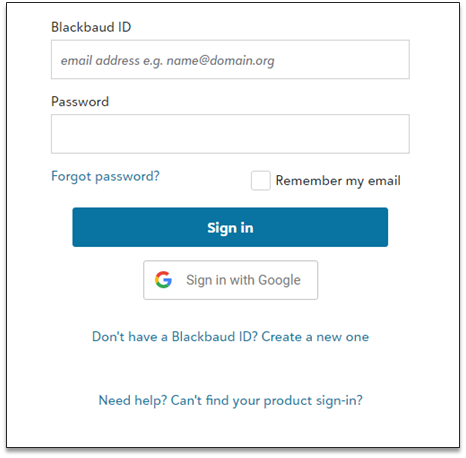
- Sign in to the Financial Edge NXT as shown in the below screen.
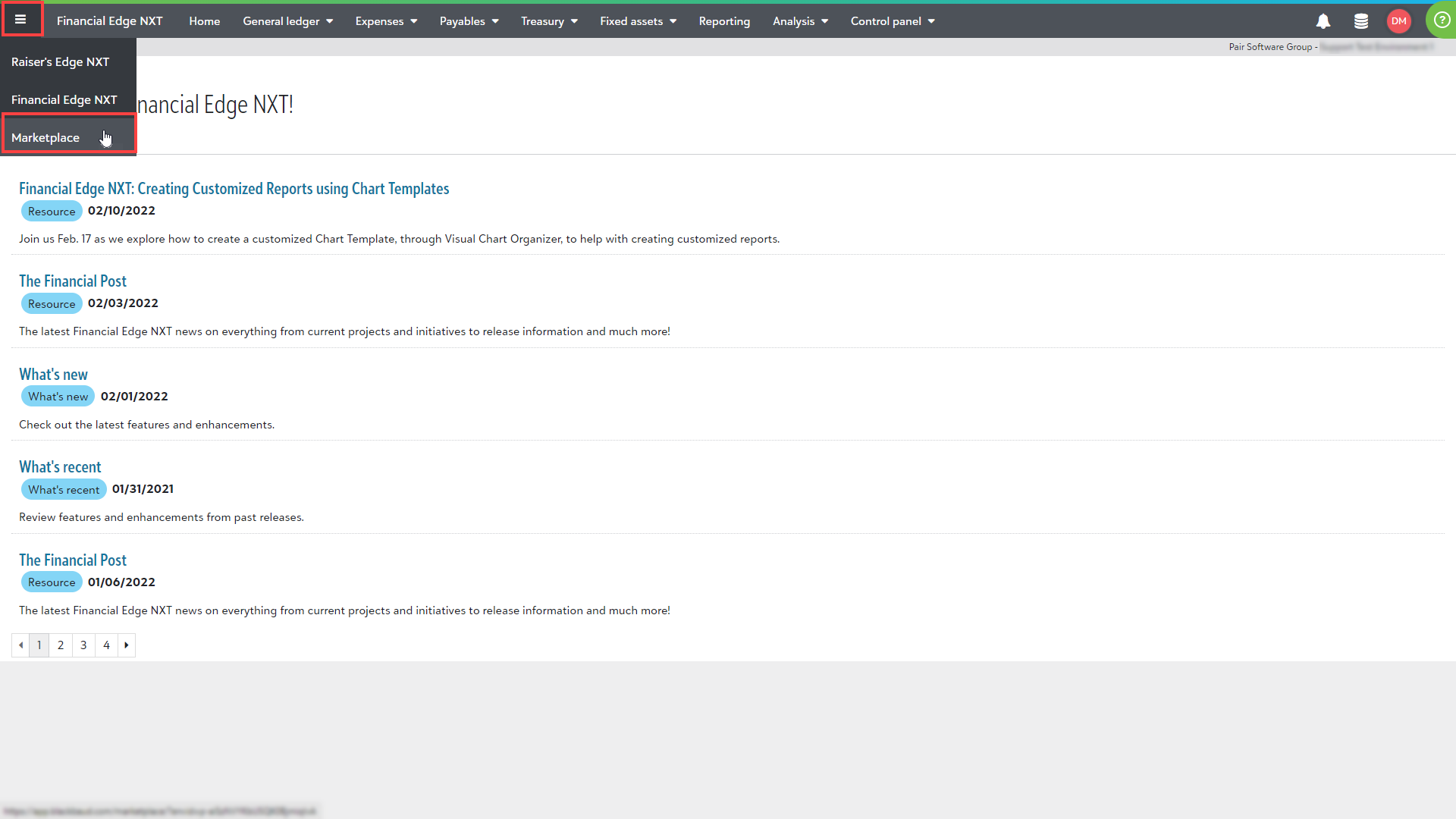
- Navigate to Market by clicking on Ellipse icon as shown below from the application bar.
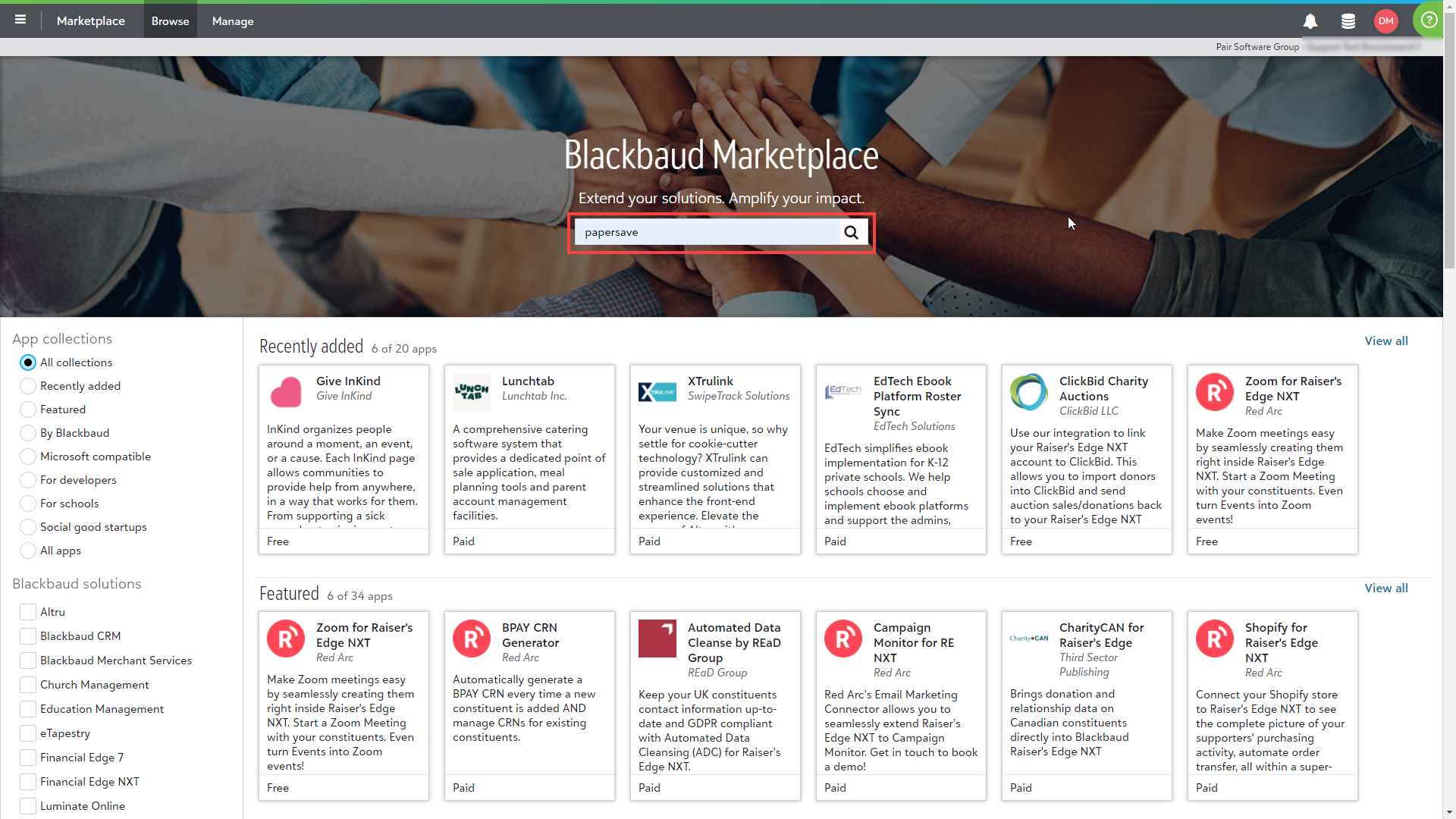
- Enter the keyword PaperSave in the search bar to find PaperSave application.
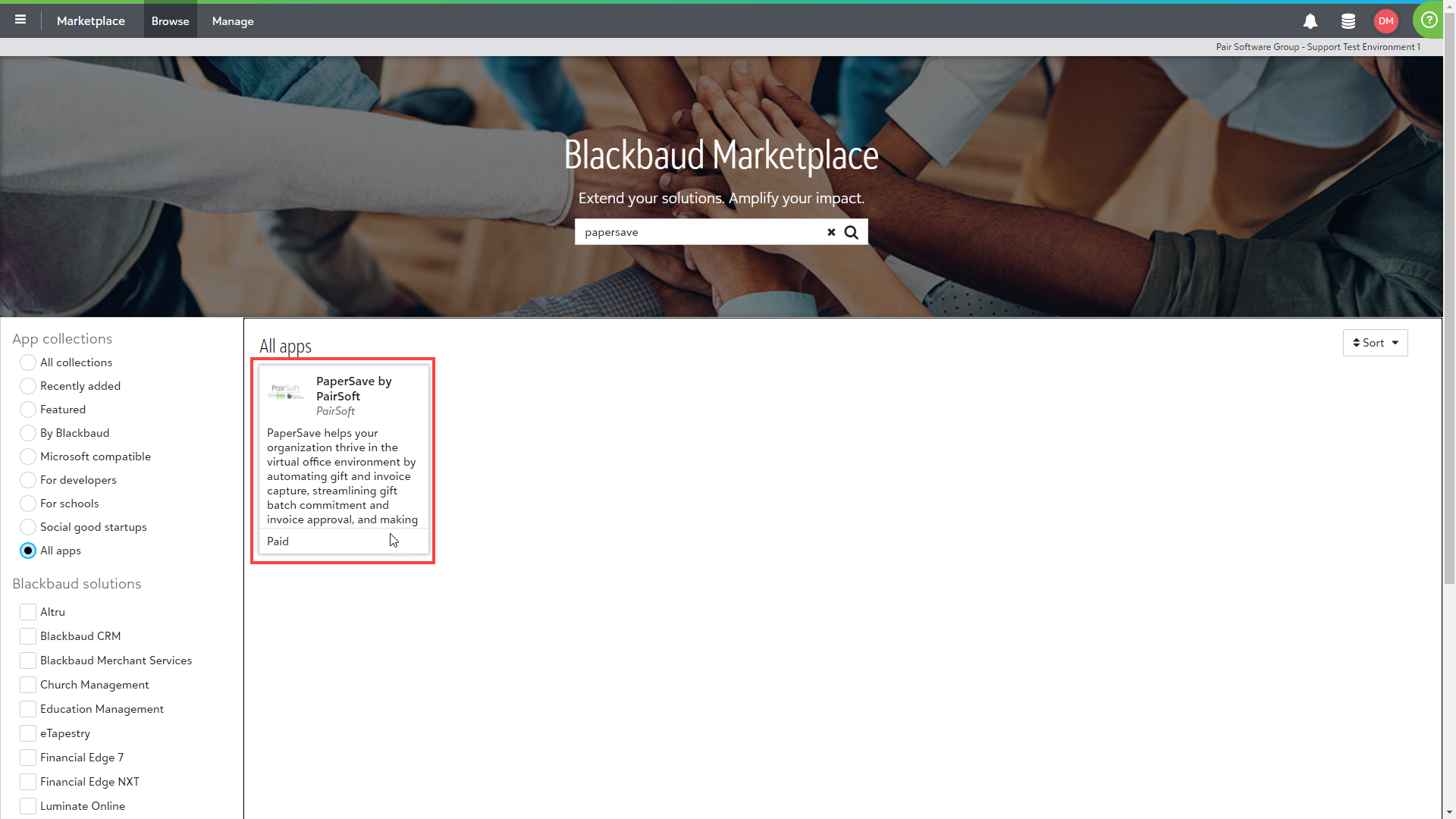
- Once you find PaperSave application, click on it to open.
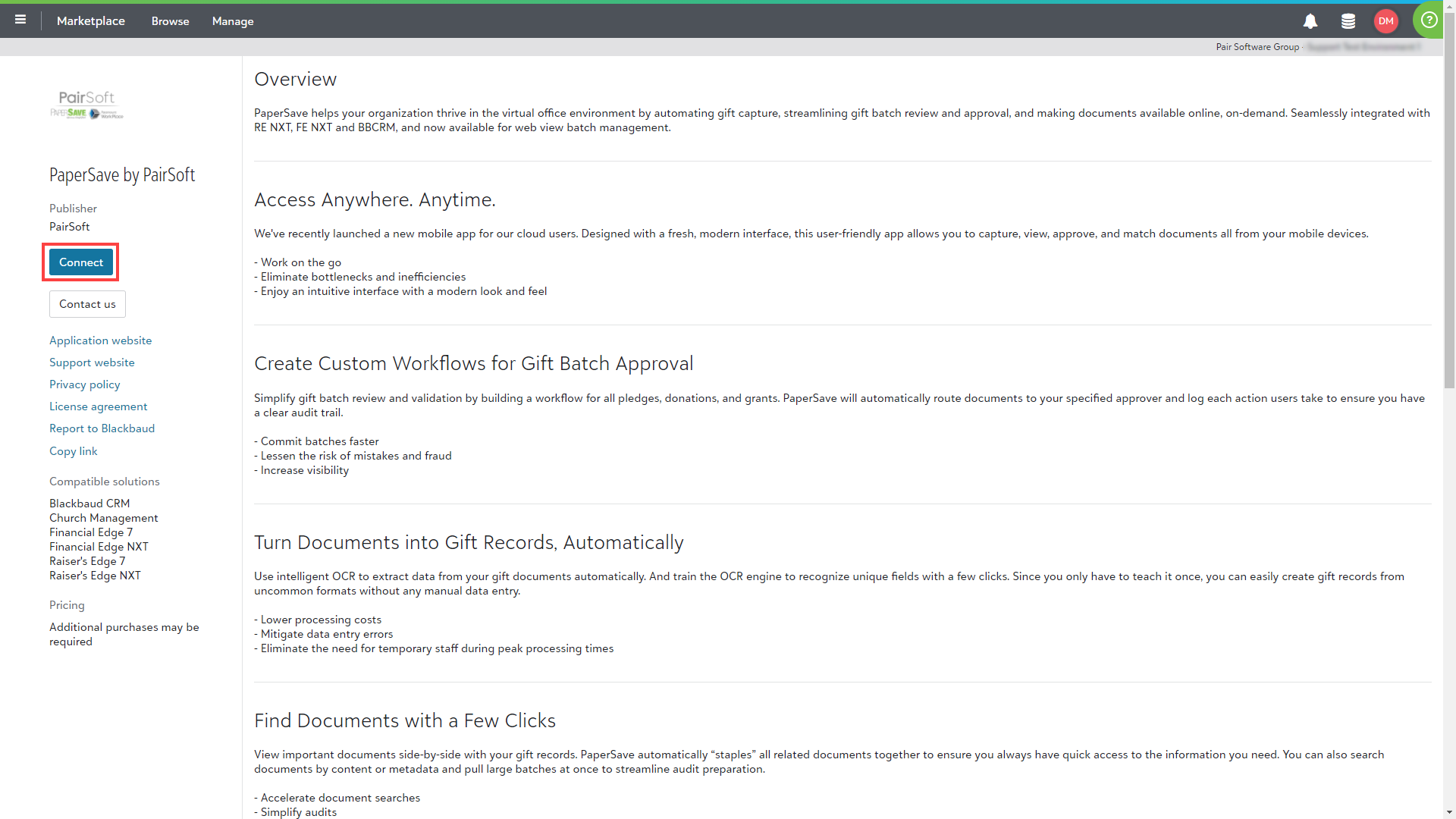
- Now, click on Connect button as shown below.
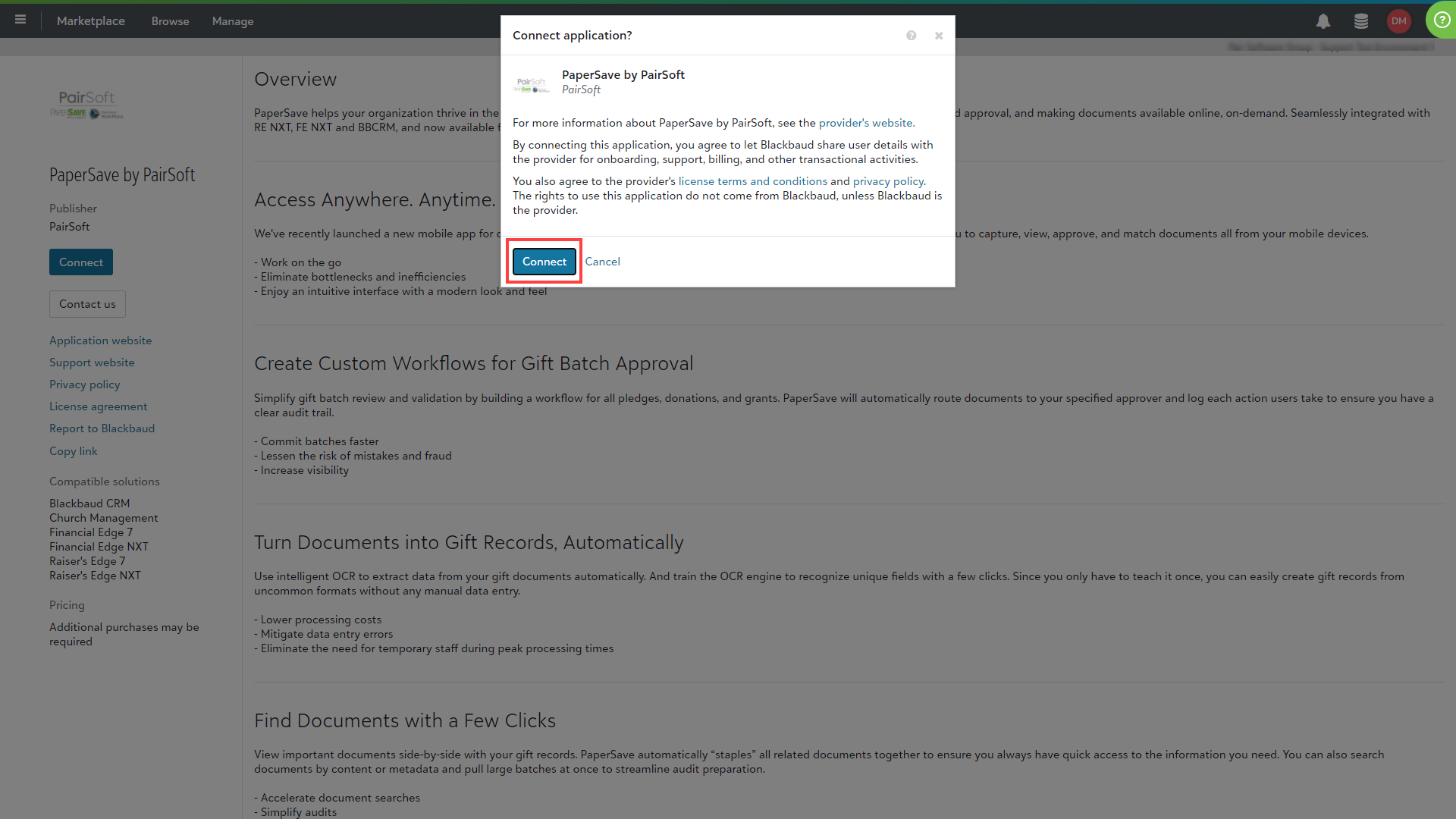
- when clicked on Connect button, a confirmation message dialog box pops up as shown below. Click on Connect to use PaperSave, and Cancel or X to close pop-up dialog box.
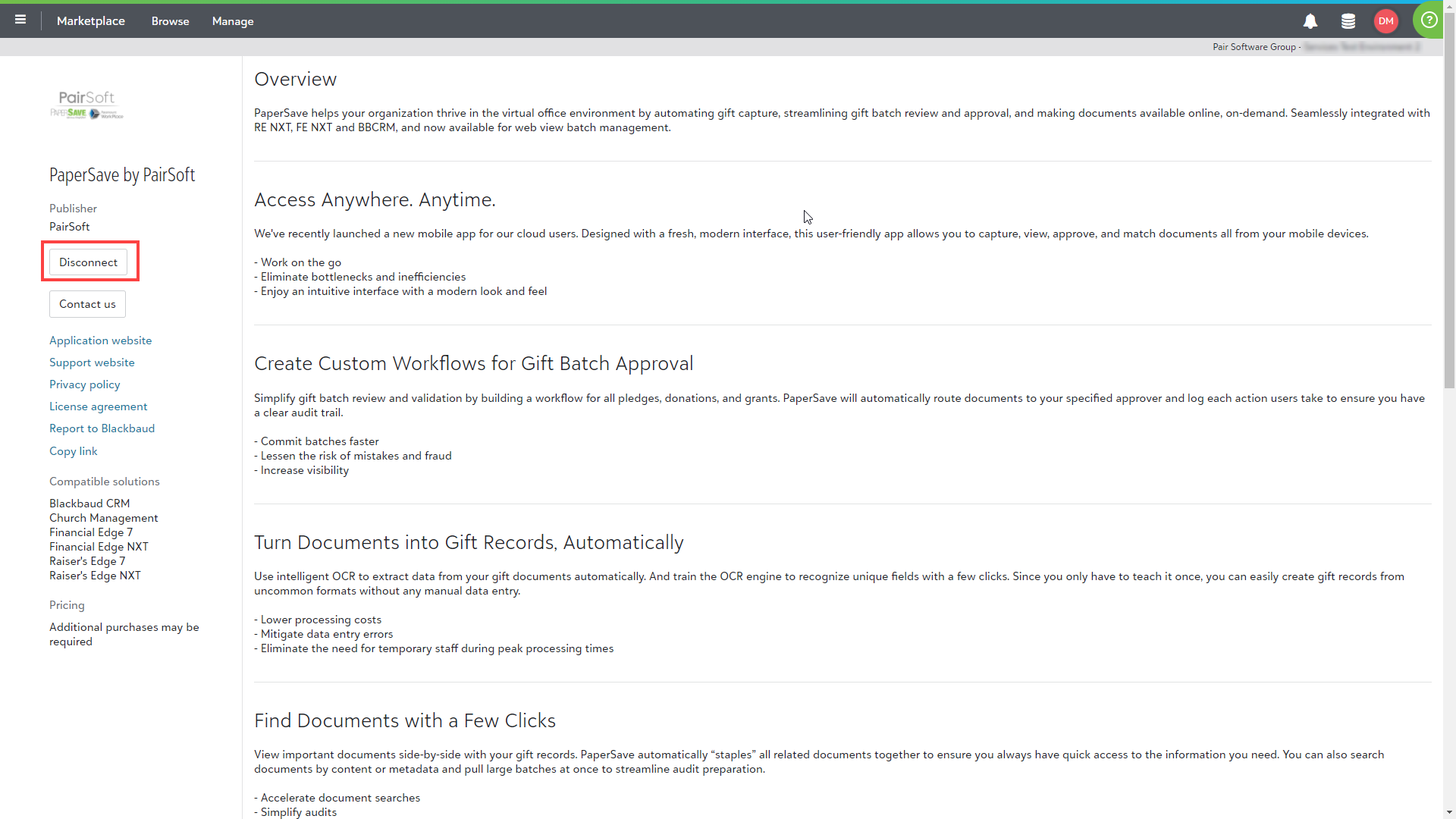
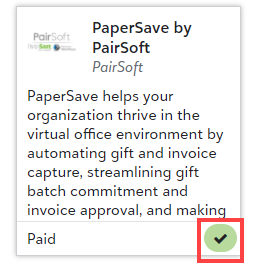
- Upon successful connection of the application, Connect button gets converted to Disconnect button and PaperSave application's tile displays tick as shown in the below screens.
Note: Except for Environment Admins, other users can only see  instead of Disconnect button, which remains disable.