
File capture option panel
You can select any of the file capture options as shown in the below screen to acquire the documents and add to the selected document type of the integrated app record.
- ScanNow™ using TWAIN compliant scanner
- ScanNow™ using Fujitsu fi-NX series scanner
- Drag items or Select the files to upload
- Click to generate a barcode to scan the document in a batch at a later time
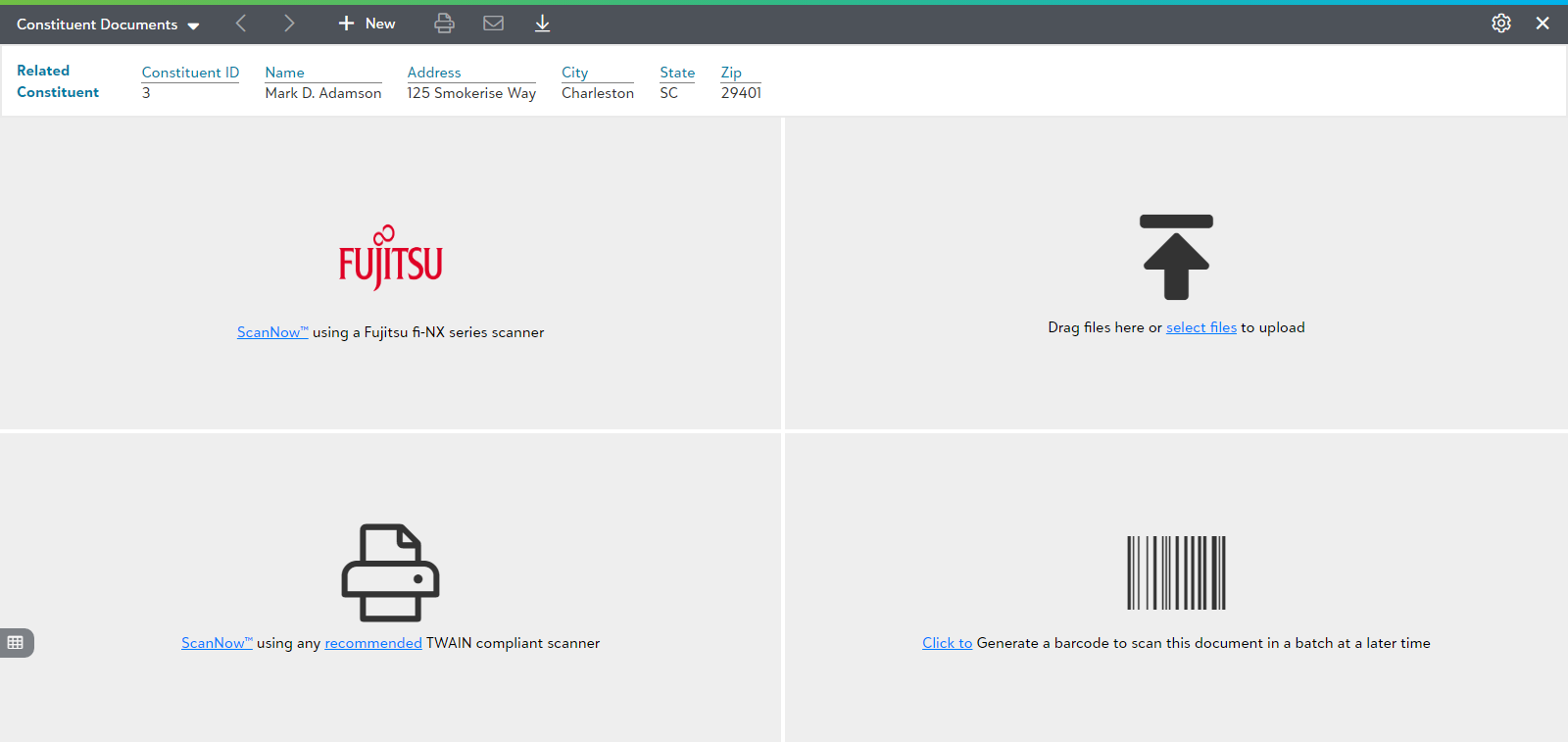
Top level toolbar in file capture options panel
The file capture options panel has a top level toolbar in file capture options panel as shown below:

The following is the brief description of various options in the Top level toolbar in the file capture options:
- Choose Document Type: Select the desired document type from the available list to acquire a document for that particular document type as shown in following snap.
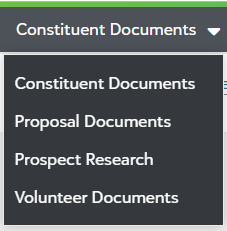
- Previous
 : Clicking on this option will navigate you to the previous document in the unsubmitted item list.
- Next
 : Clicking on this option will navigate you to the previous document in the unsubmitted item list.
- NEW
 : This option switches to the file capture options panel.
- Print
 : This option lets you print the selected document from the unsubmitted view.
- Email
 : This option lets you send the selected document via email.
- Download
 : This option lets you download a copy of the current document.
Settings panel
You can control the behavior of various app features from within the Settings panel as shown in the following figure. Click on  to open the settings panel to access various settings options available in the app’s unsubmitted document view.
The following video explains different options in File Capture Settings panel in brief