A ScanLater/Recapture stack
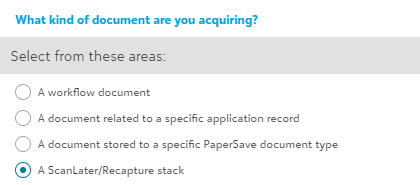
PaperSave offers you the “A ScanLater/Recapture stack” option in the Acquire area to add a stack of documents to previously generated ScanLater coversheets. Follow the below steps to use this option:
1) Choose “A ScanLater/Recapture stack” in the Acquire area, then click on the “Next” button in the lower right corner.
Note: There must be a barcode separator sheet at the beginning of the stack.
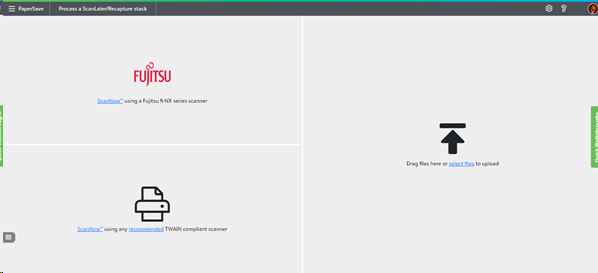
2) You will be directed to the “Process a ScanLater/Recapture stack” page to select your preferred acquisition method, as shown on the below screen.
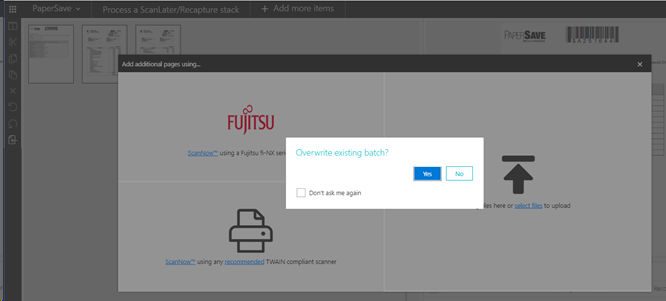
3) Once you add a stack of papers using your desired method, you may be prompted to overwrite the batch value set when the barcode coversheet was created, or create a new batch name, as shown in the below screen.
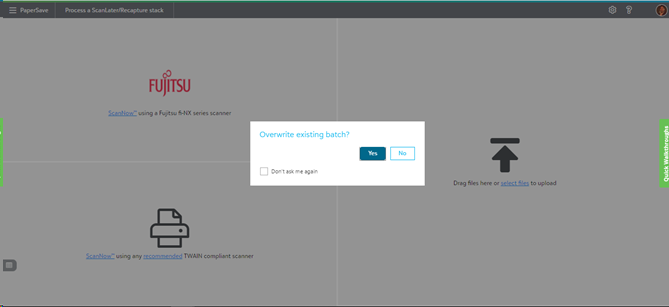
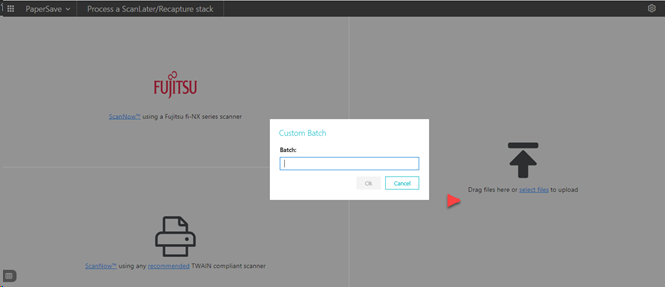
4) If you select “Yes” to overwrite the batch name, you will see a dialog window where you can enter the new batch name, as shown in the below screen. If you select “No”, the items will open in the “Page Manipulation View”.
5) If there are one or more unsubmitted item(s) for ScanLater/Recapture, then you will be directed to the “Page Manipulation View”, showing the unsubmitted items with the option to “Add more items”. When you click on “Add more items”, a popup window will appear for you to select your preferred acquisition method, as shown in the below screen. You may be prompted to overwrite the existing batch name.
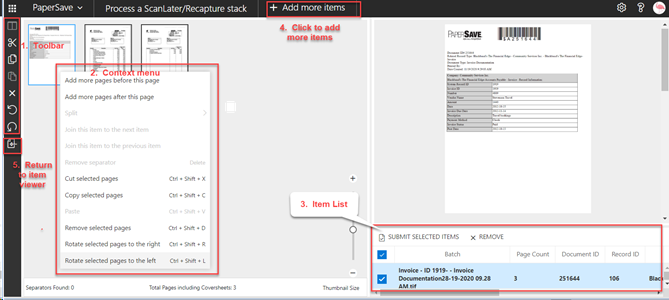
6) Once the items are processed, they will open in “Page Manipulation View”, where you can perform various operations before submitting them, such as:
- Add, copy, remove, rotate pages, etc., using the options available in the Toolbar on the right.
- Manipulate the pages (thumbnails) using the Context menu, which can be accessed by right-clicking on a thumbnail.
- Submit or remove items using the ‘Item List’ toolbar in the lower right-hand corner. You can also submit items from the ‘Item manipulation view’ page.
- Add more items to the stack.
- Click on the ‘Return to Item manipulation view’ option to open documents in the content viewer to validate data, submit item(s), etc.
7) Once the document(s) have been submitted successfully, they can be accessed from the respective Integrated App Record or Workflow.
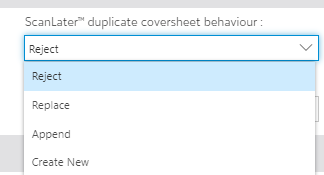
- Reject: It will not append the document to the existing coversheet.
- Replace: It will replace the existing coversheet with the newly added stack of papers.
- Append: It will merge the existing coversheet with the newly added stack of papers.
- Create New : It will create a new item for the newly added stack of papers without inheriting any details from the coversheet.