
Choose Context to browse PaperSave documents
You can access the PaperSave documents associated with an integrated application record as well as the PaperSave documents for different document types (non integrated application). You need to choose a context from the tree view (in the left corner) to start browsing the desired documents or records as shown in the below screen:
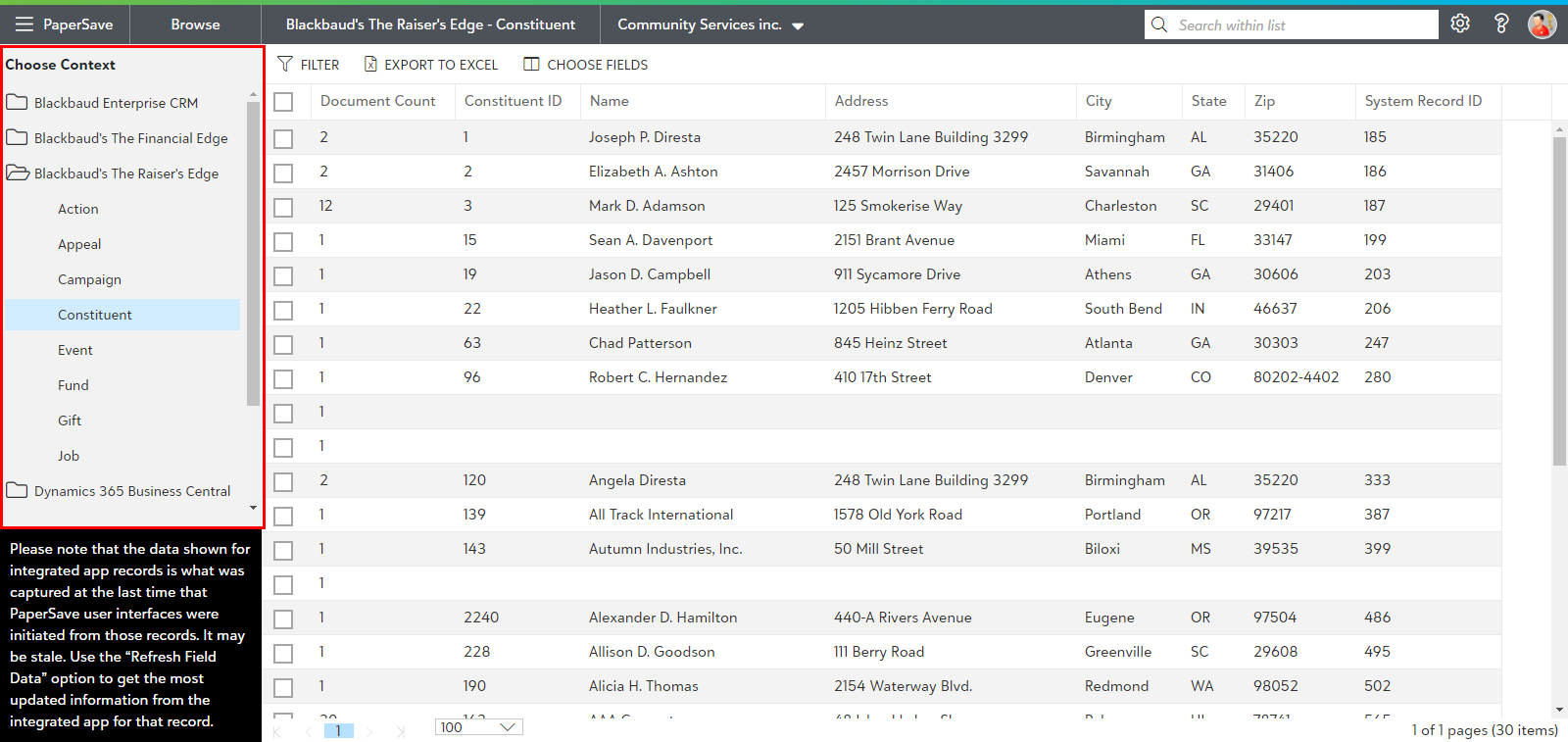
Choose Context for an Integrated Application
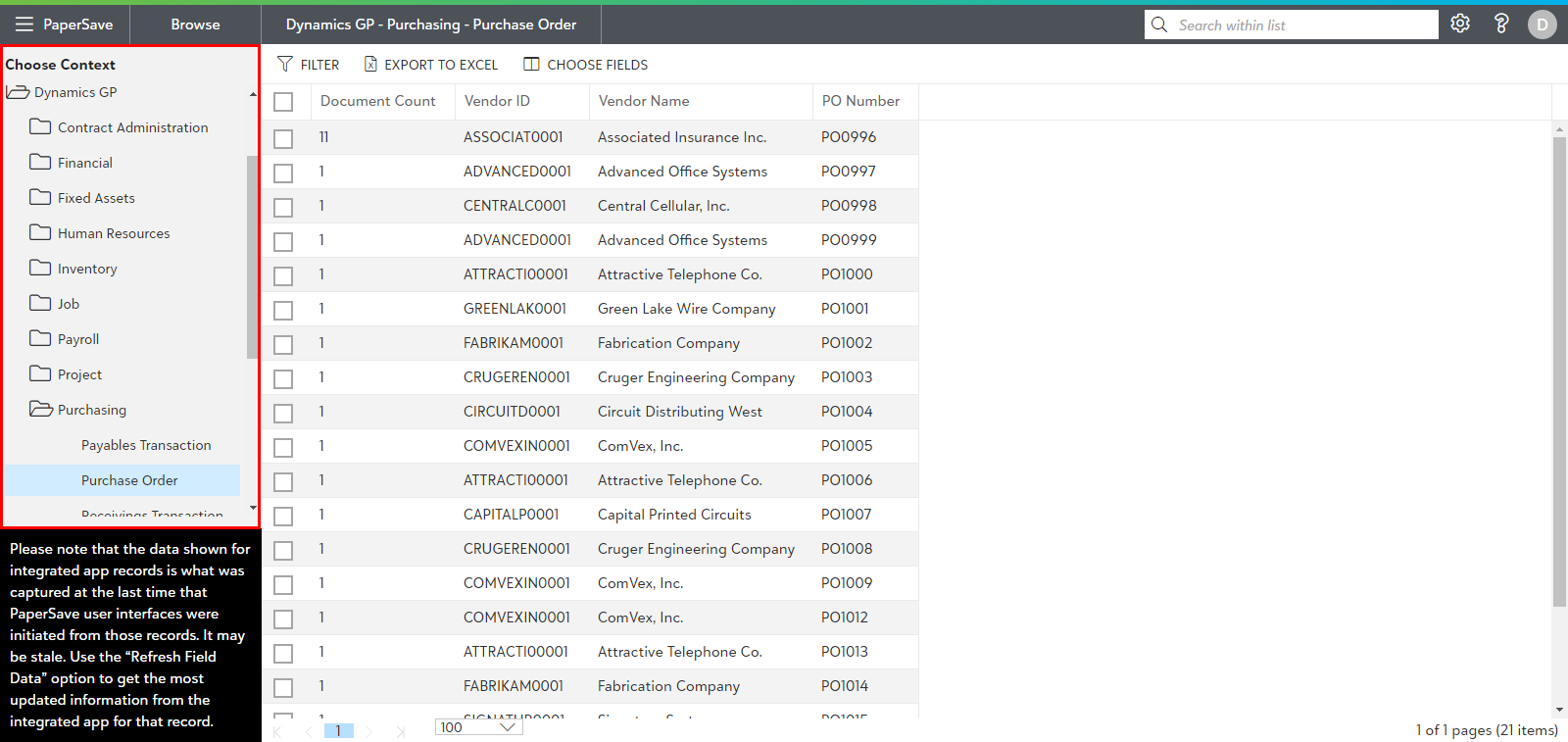
- Choose the context to browse the documents for the desired record type of an integrated application. The currently selected context is displayed in the Application bar in the format of "Integrated App - Module - Record type". For example - Dynamics GP - Purchasing - Purchase Order as shown below.
- If the Integrated application does not contain any module, then Browse Area displays the context in the format of "Integrated App - Record Type". For Example - Blackbaud's The Raiser's Edge - Constituent.
Choose Context for PaperSave (Non-Integrated application)
- Choose the context to browse PaperSave documents for desired document type as shown below:
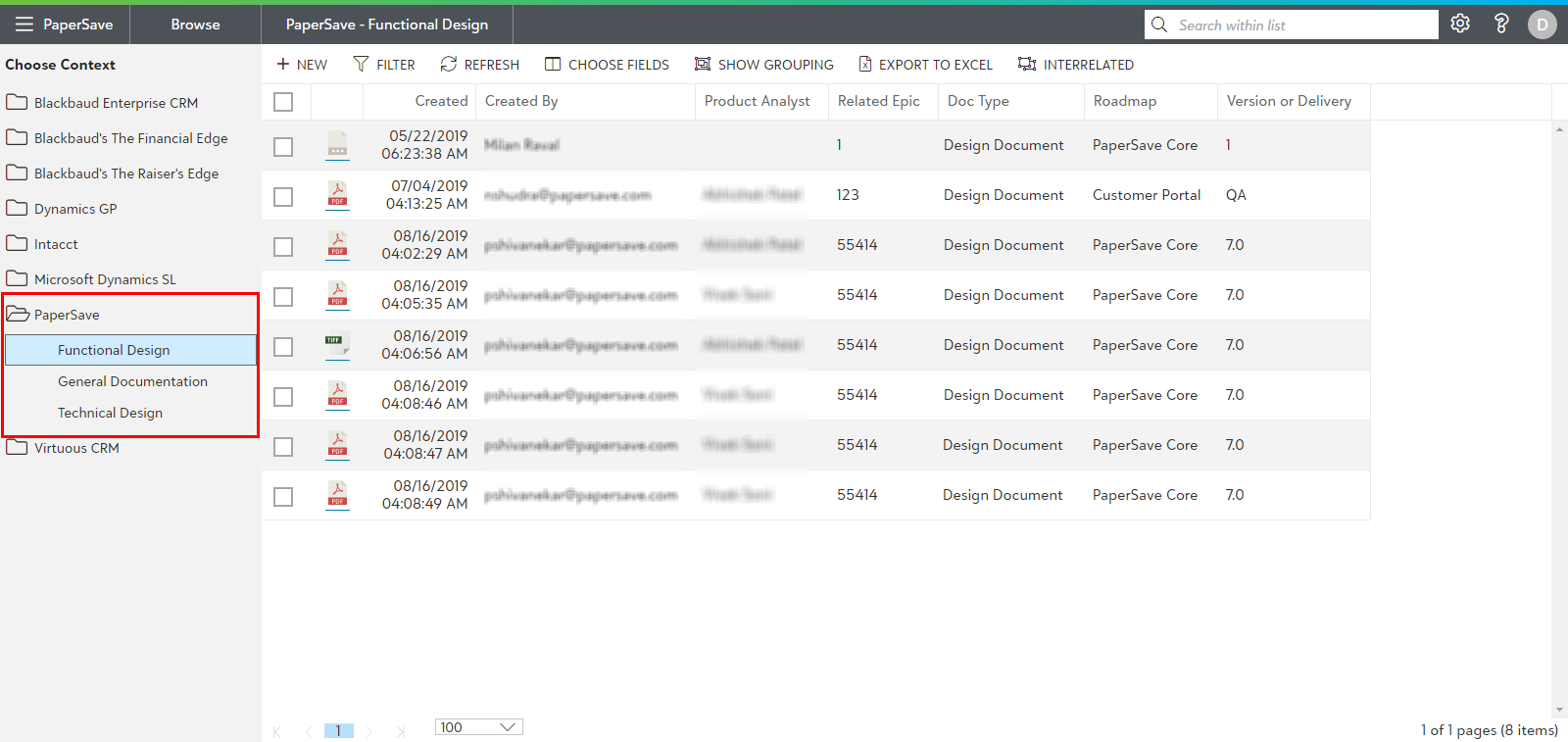
For PaperSave documents, it displays the context as "PaperSave - Document type" in the application bar.
Note: The Browse Area remembers and loads the previously accessed context the next time you log in to the Browse Area.