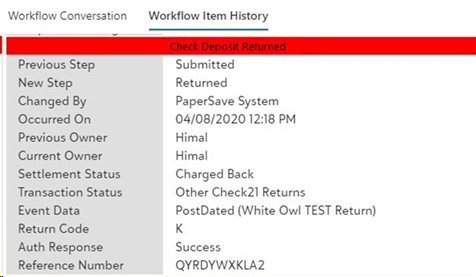
Check Status in Workflow Item History
Once you deposit a check and submit it to the Remote Deposit Service, you can track the status in the Workflow Item history panel.
Follow the below steps to view the status of items after they have been submitted to the Remote Deposit Service:
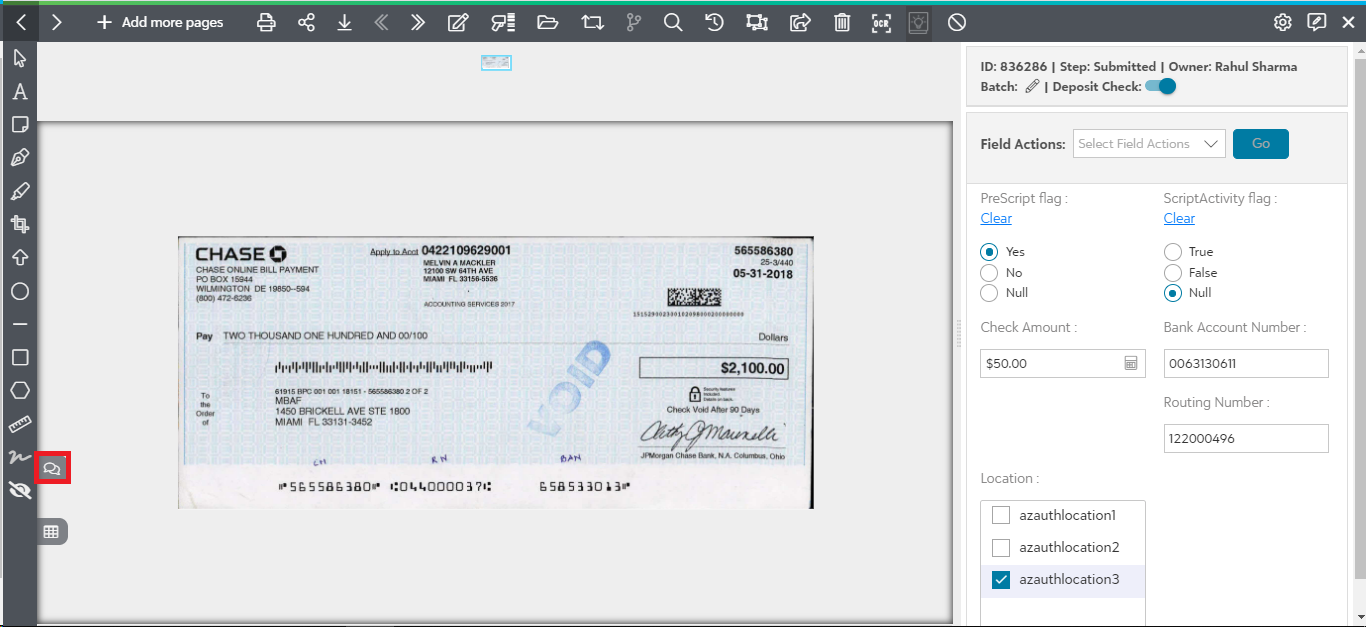
1) Click on the Workflow Item Tracking panel as shown in the below screen:
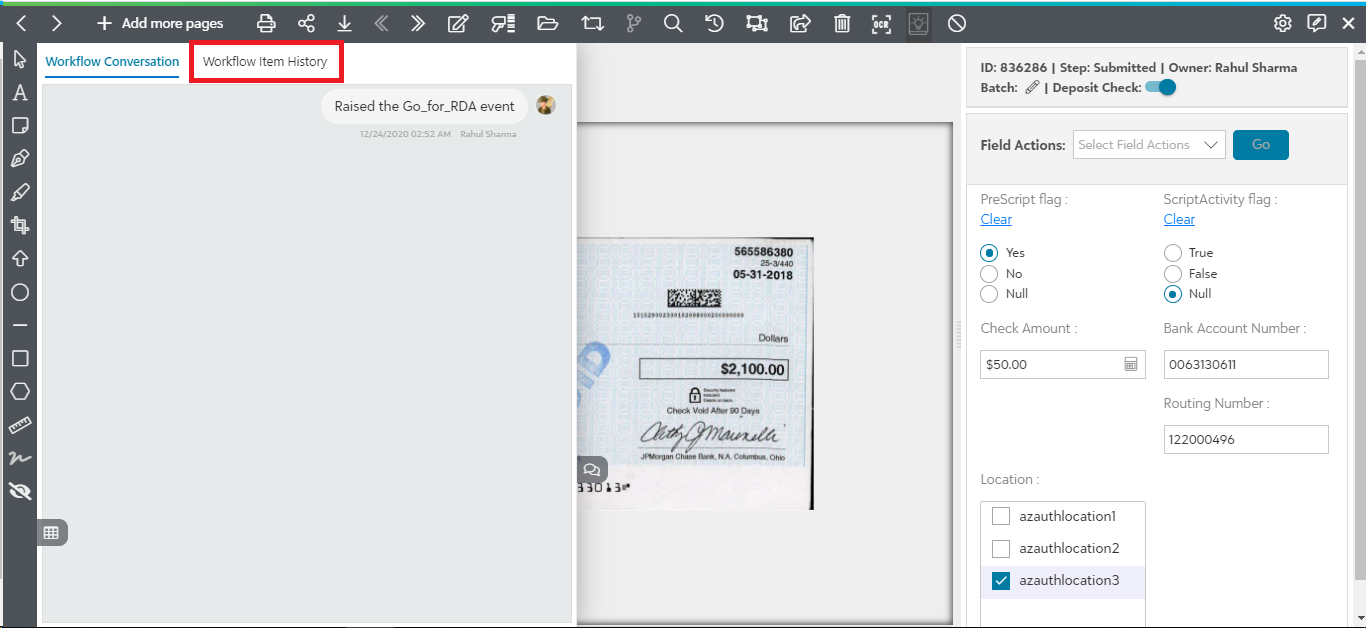
2) Click on Workflow Item History tab to view the current status of the item.
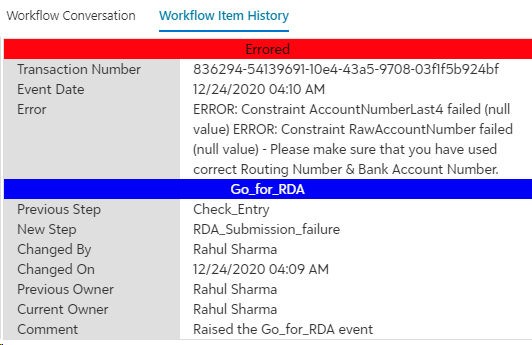
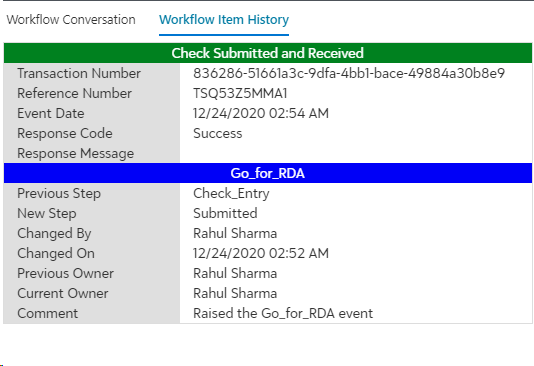
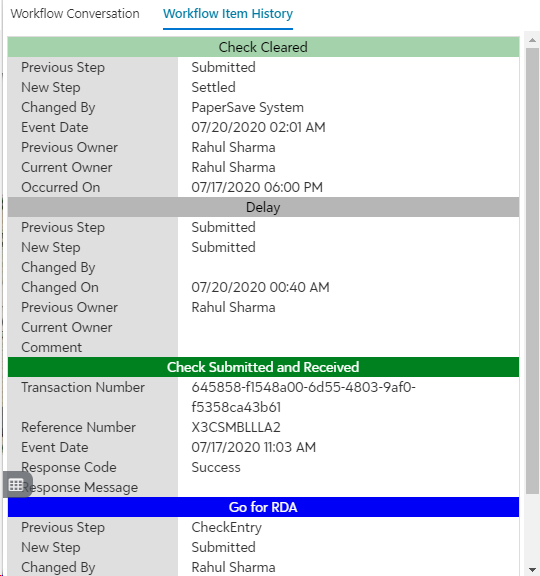
3) You will see the status of the items based on the results received from the Remote Deposit Service.
The following is a description of various statuses for checks submitted to the Remote Check Service:
- Errored: The error details will be displayed if the item could not be processed successfully with information that will explain the failure.
- Check Submitted and Received: It will show this status when the check is submitted successfully to the Remote Deposit service.
- Check Cleared: It will show this status when the Remote Deposit service marks the check as cleared.
- Check Deposit Returned: It will show this status when the Remote Deposit service marks the check as returned.