
Choosing a Workflow
The first step is to choose a Workflow from the available list of Workflows.
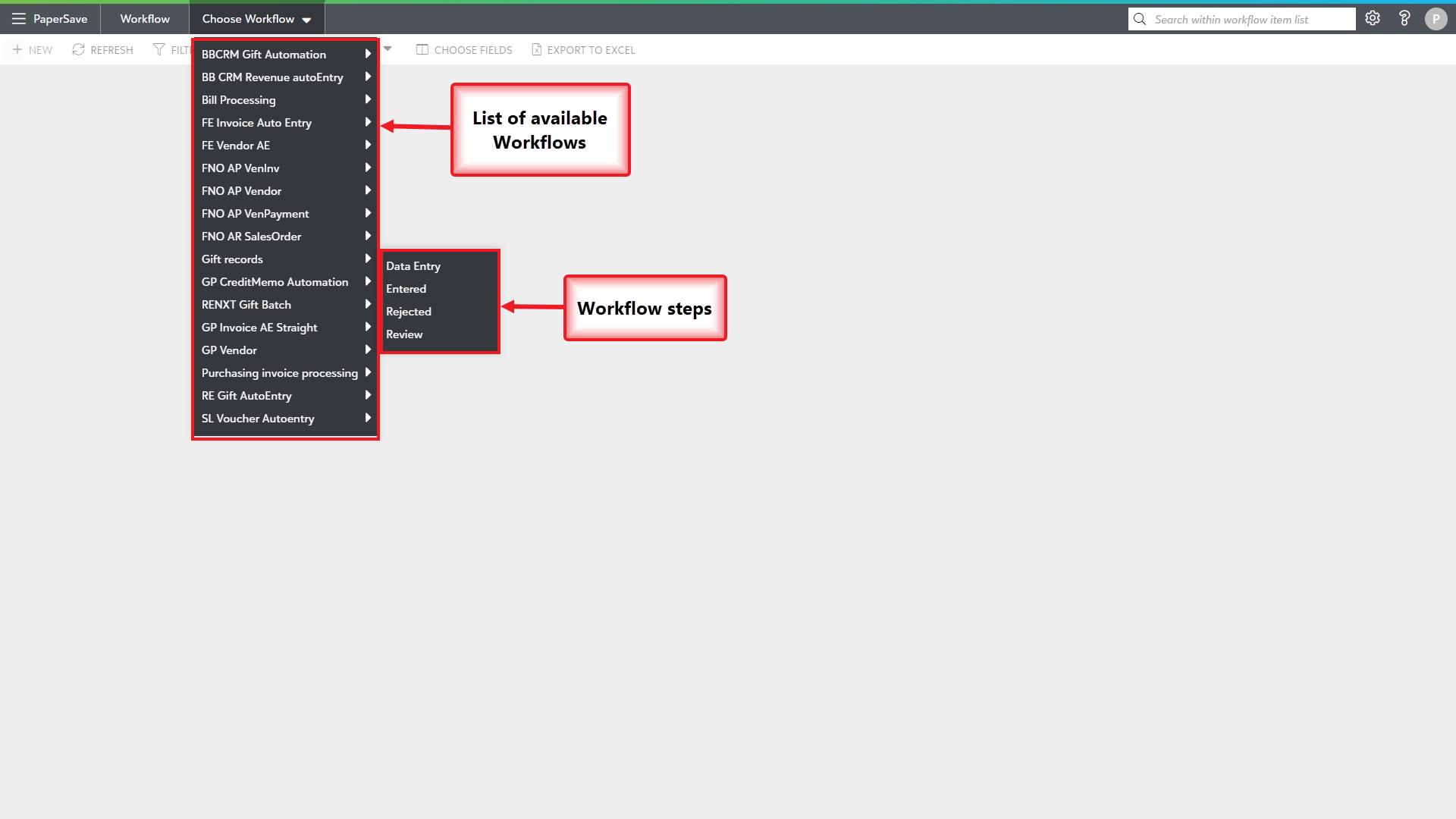
1) Click on the “Choose Workflow” drop-down in the application bar, as shown in the below screen.

2) Click on the desired Workflow from the drop-down list, as shown in the below screen. Also, you can optionally select the Workflow step from the "Choose Step" drop-down to view Workflow items in that step.
3) Once you have selected your Workflow and/or step, you will see all the related Workflow Items in the Workflow item list, as shown in the below screen.
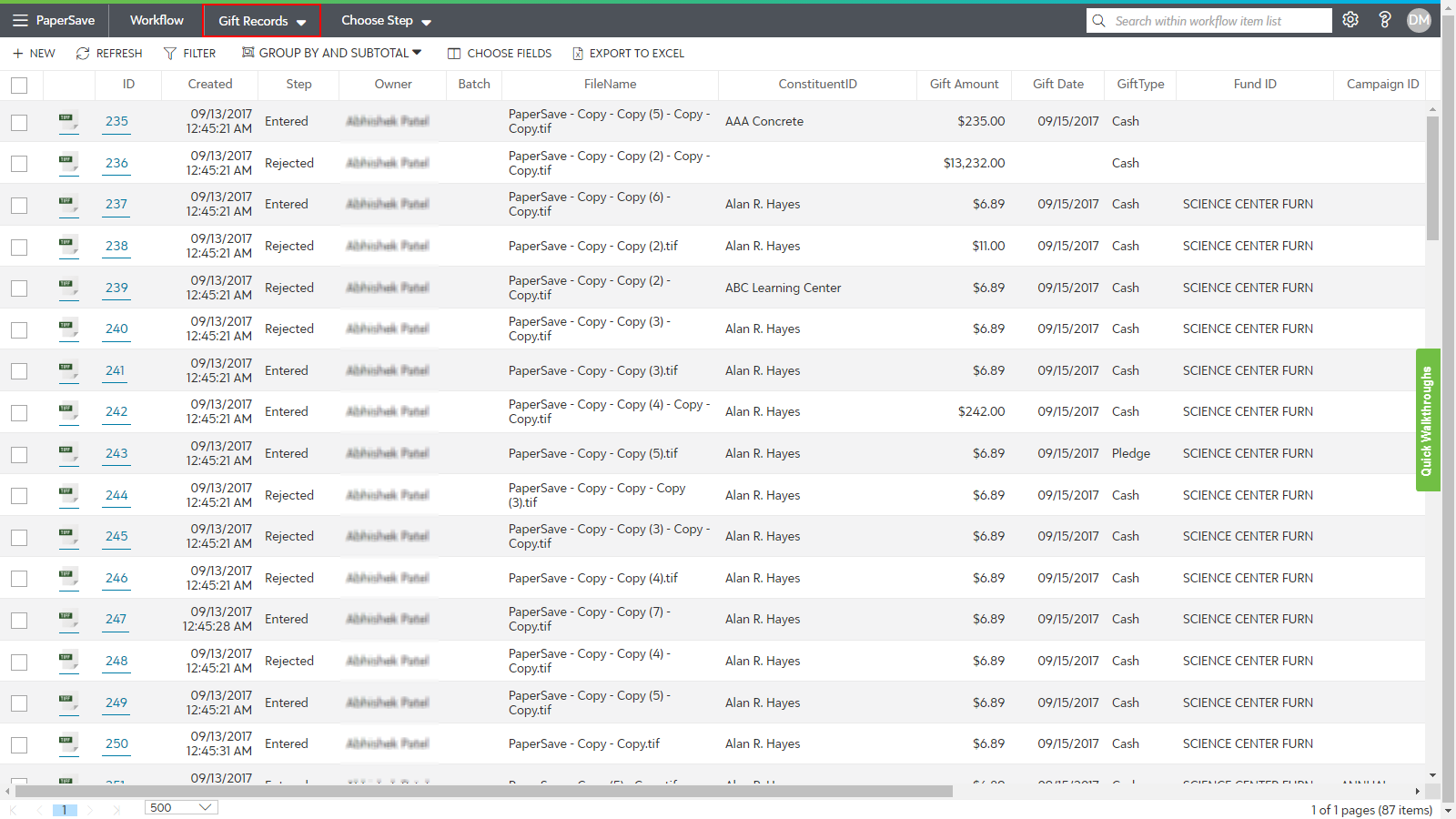
Workflow items will be displayed in the list only if any of the below conditions are met:
- The current user has rights to view items that they do not own for a specific Workflow(s).
- The current user is a Workflow Super Admin.
- The current user is the owner of an item in the Workflow.
Tip: User permissions for all the Workflows are managed from the Workflows tile in the Configuration Area.
Note: The Workflow items list will be loaded in the Workflow list based on the last accessed Workflow upon subsequent login.
Example:Suppose you accessed Workflow_A before exiting the Workflow Area last time. In that case, the Workflow items for Workflow_A will be loaded the next time you log into the Workflow Area.