Set Batch and Field Defaults
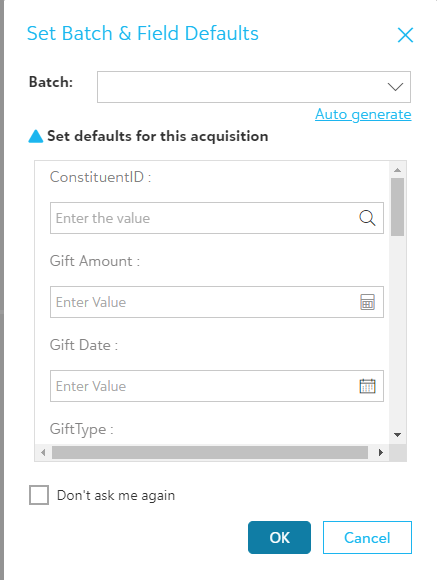
When adding items using either a scanner or uploading them from your file explorer, you will be prompted with a dialog titled: ‘Set Batch & Field Defaults’. This dialog lets you add the items you are acquiring to a new or existing batch and set default values for profile fields, as shown below.
Batch
This allows you to add the documents being acquired to a specific batch (group).
- You can manually enter that batch name or select it from the drop-down list to add the items to an existing batch. This drop-down list shows all the batches that currently have unsubmitted items.
- You can enter the batch name manually to add the document to a new batchor click on the "Auto-generate". link to assign an auto-generated number to the batch
Note: If you keep the batch field empty, then your items will be added without a batch name. The details of the batch for each item will be displayed in the batch column in the item list slide-out panel accessible from the file capture options panel and item viewer.
Note: The maximum character limit for manually entering the Batch details is 30.
The below special characters can be included in the batch name:
Special characters to be considered:
~ ` ! @ # $ % ^ & * ( ) _ - + = { } | [ ] \ ; : '" < > ? , . /
Spanish characters to be considered:
á, é, í, ó, ú, ñ, ü, ¿, ¡
French characters to be considered:
ë, ï, ü, à, è, ù, â, ê, î, ô, û, é, Ç
Setting defaults for this Acquisition
You can set default Profile field values here that will override other default values configured for the drop point, document type, or Workflow.
Note: The default values loaded in the profile fields will be driven by Drop points defaults first. If the drop point defaults are not set, then it will consider Document type defaults or Workflow field defaults. Otherwise, the profile fields will be empty and user can manually set the individual values.
Don't Ask me again
You can turn off the batch prompt by checking off “Don’t ask me again” and clicking on "OK". Your preference will be saved for subsequent acquisitions. You will no longer be prompted to add a batch or set default values for fields for items as they are acquired.
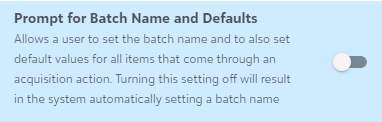
Tip: If you need to change the preference and turn the prompt back on, then you can do so from the settings panel by turning the toggle switch labeled: “Batch and Defaults” to "ON", as shown in the below screen.