
Show Grouping
This option allows you to cluster the items in the list based on the selected header columns. You can group columns by dragging the header of the column to the show grouping bar.
Follow the below steps to perform Show Grouping:
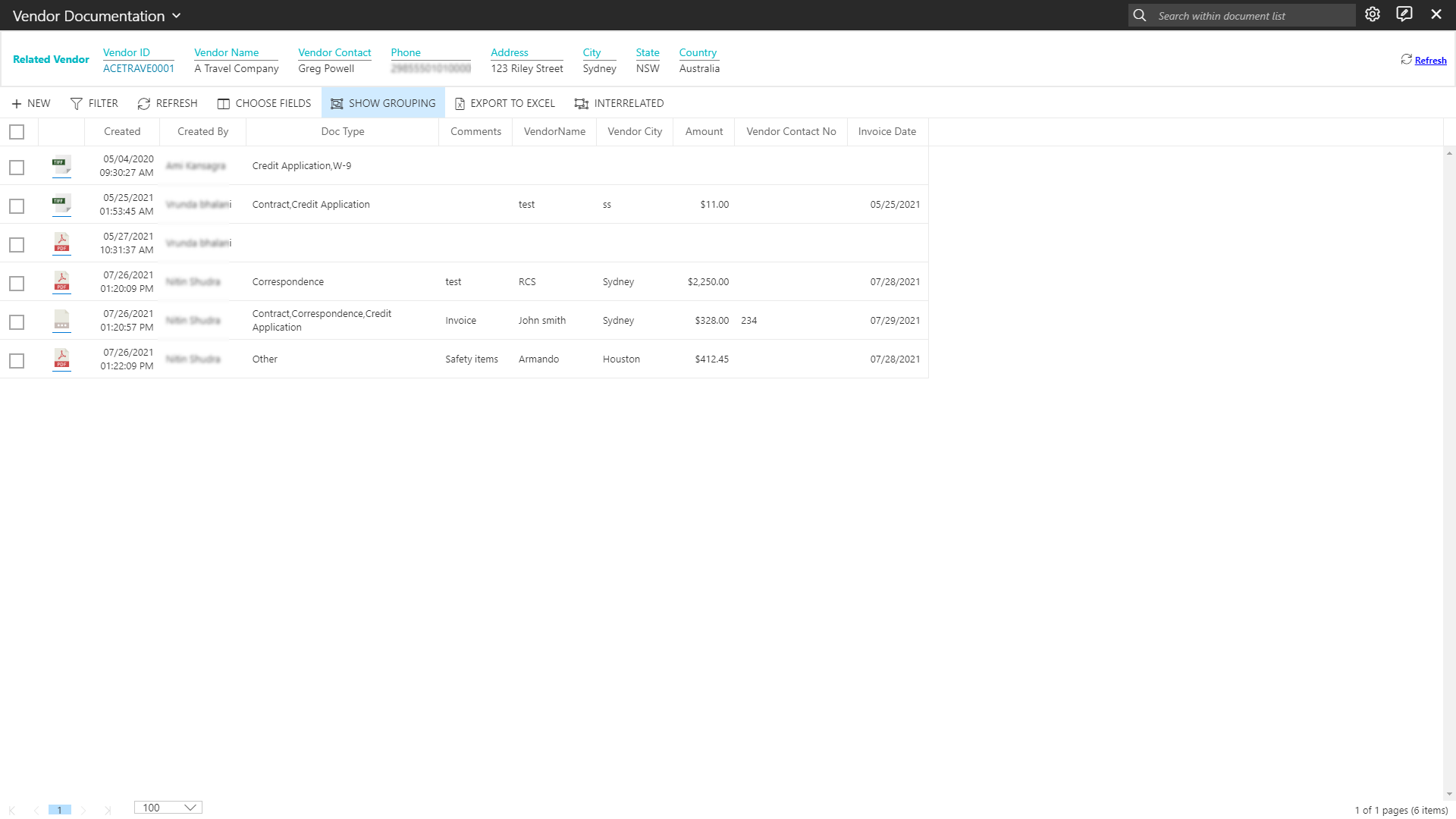
- Click on "SHOW GROUPING" from the list toolbar, as shown in the below screen:
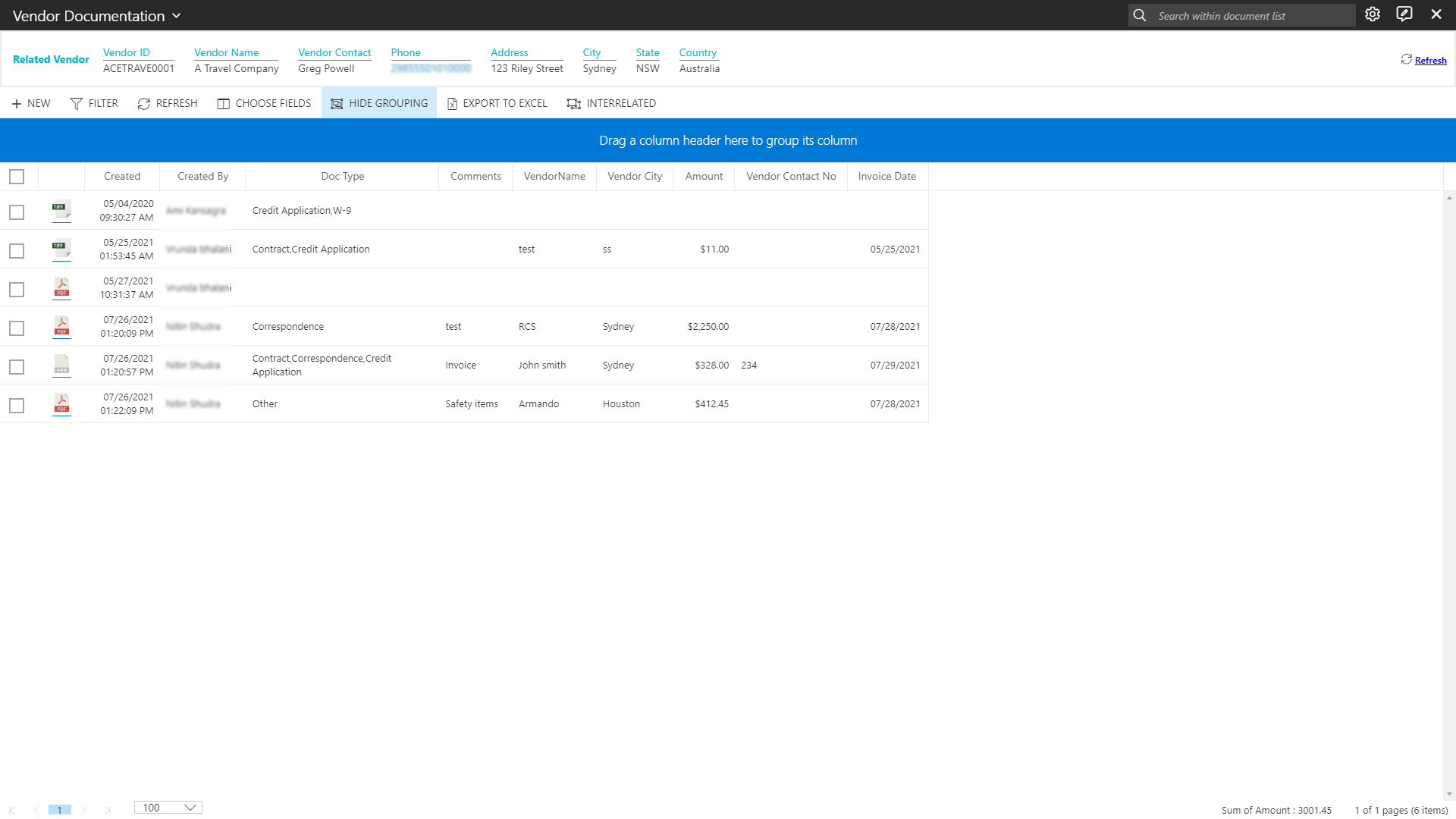
- As you click on "SHOW GROUPING" , a blue area that stated "Drag a Column Header Here to Group by the Column" will be displayed above the list. Choose the column you want to group by, and drag the heading to this grouping area.
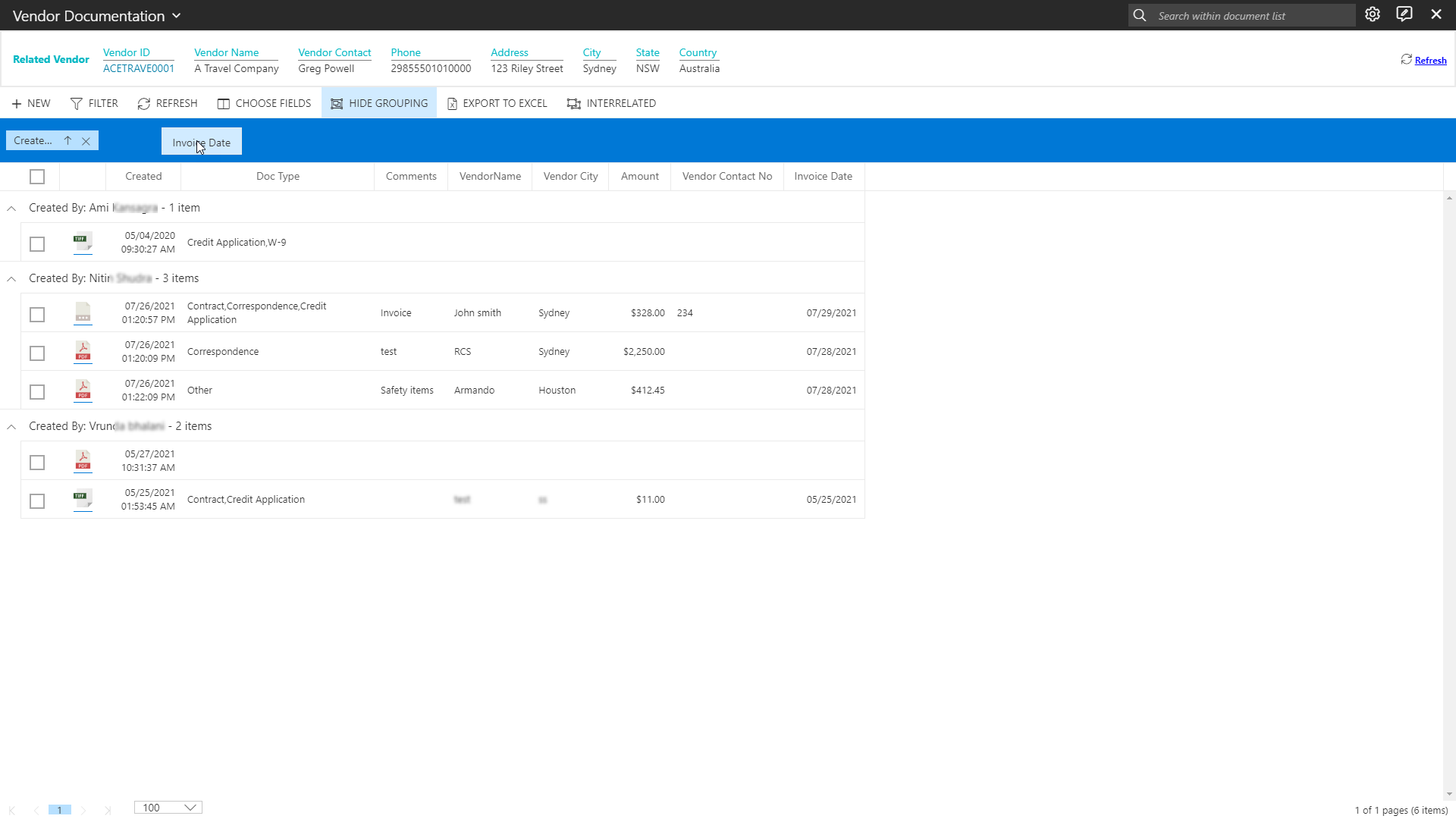
- For Example - Hold the "Created by" column and drag it to the grouping area. Now, hold the "Invoice Date" column and drag it to the grouping area. As expected, the items will be grouped based on the dragged header columns in the grouping area as shown below:
Note: Show Grouping filter will only work when the selected Page Size is either ALL or if the number of items in the list is less than the currently selected page size.
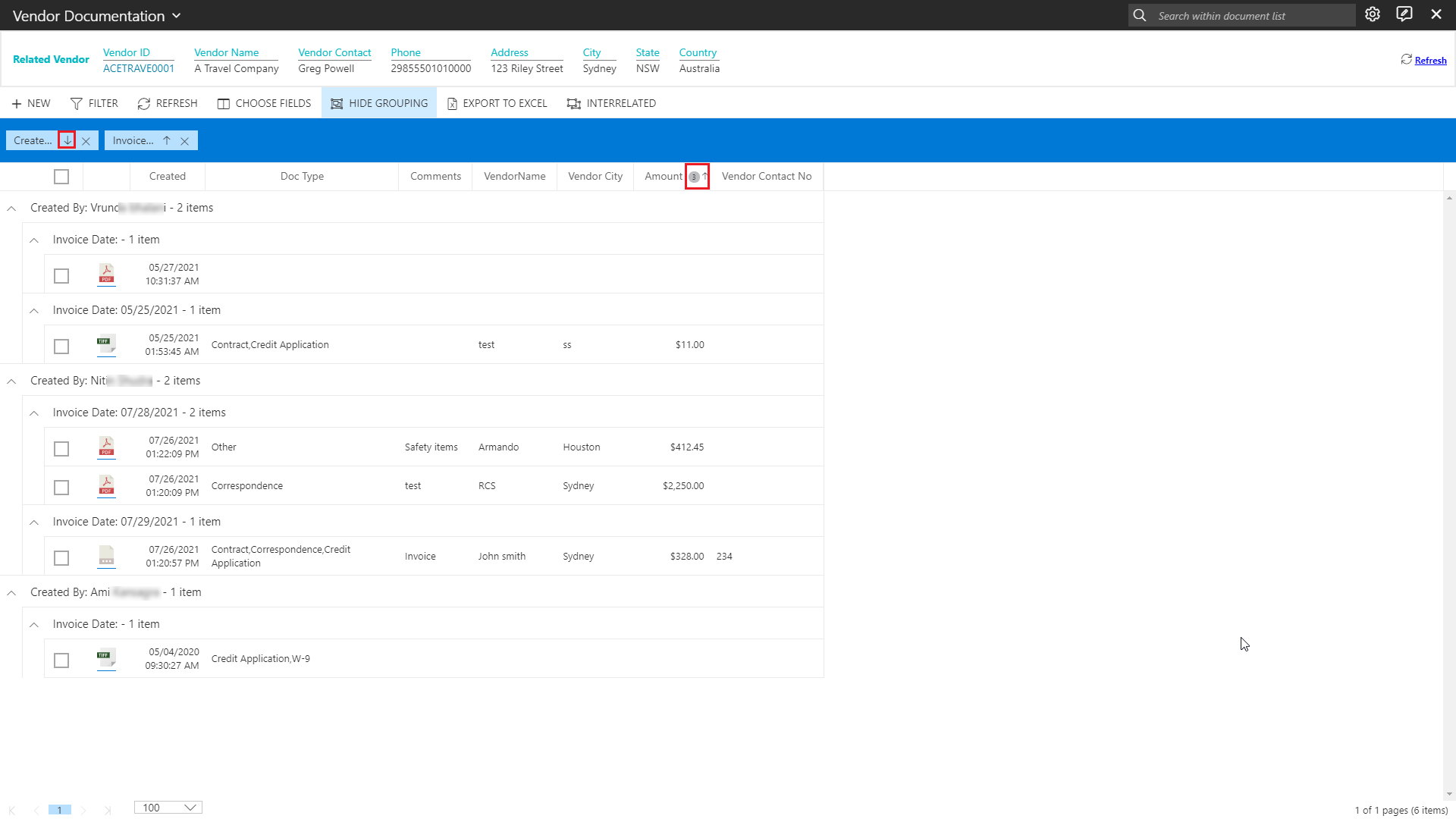
- You can also sort the column list by clicking on the upward/downward arrow in the selected group by column or by directly selecting columns, as shown in below screen.
HIDE GROUPING
Click on "Hide Grouping" in the list toolbar to hide the grouping bar. Thus, Hide Grouping option will load the list of items without applying any grouping conditions.
Note: If you have sorted the Group by column or directly sorted the column, clicking on Hide Grouping will not reset those columns.