
JOIN SELECTED ITEMS
This option allows you to merge two or more workflow items of any image type (i.e. pdf, tiff, gif, jpg, bmp, etc.) from the workflow item list.
Note: To perform the Join operation, you must have any of the below rights:
• Edit content and delete rights on the workflow
• Workflow Administrator
• Super Admin
Note: This option is enabled only when the selected items are present in the same workflow step and do not belong to the completed step.
Follow the below steps to merge the workflow items from the Workflow item list:
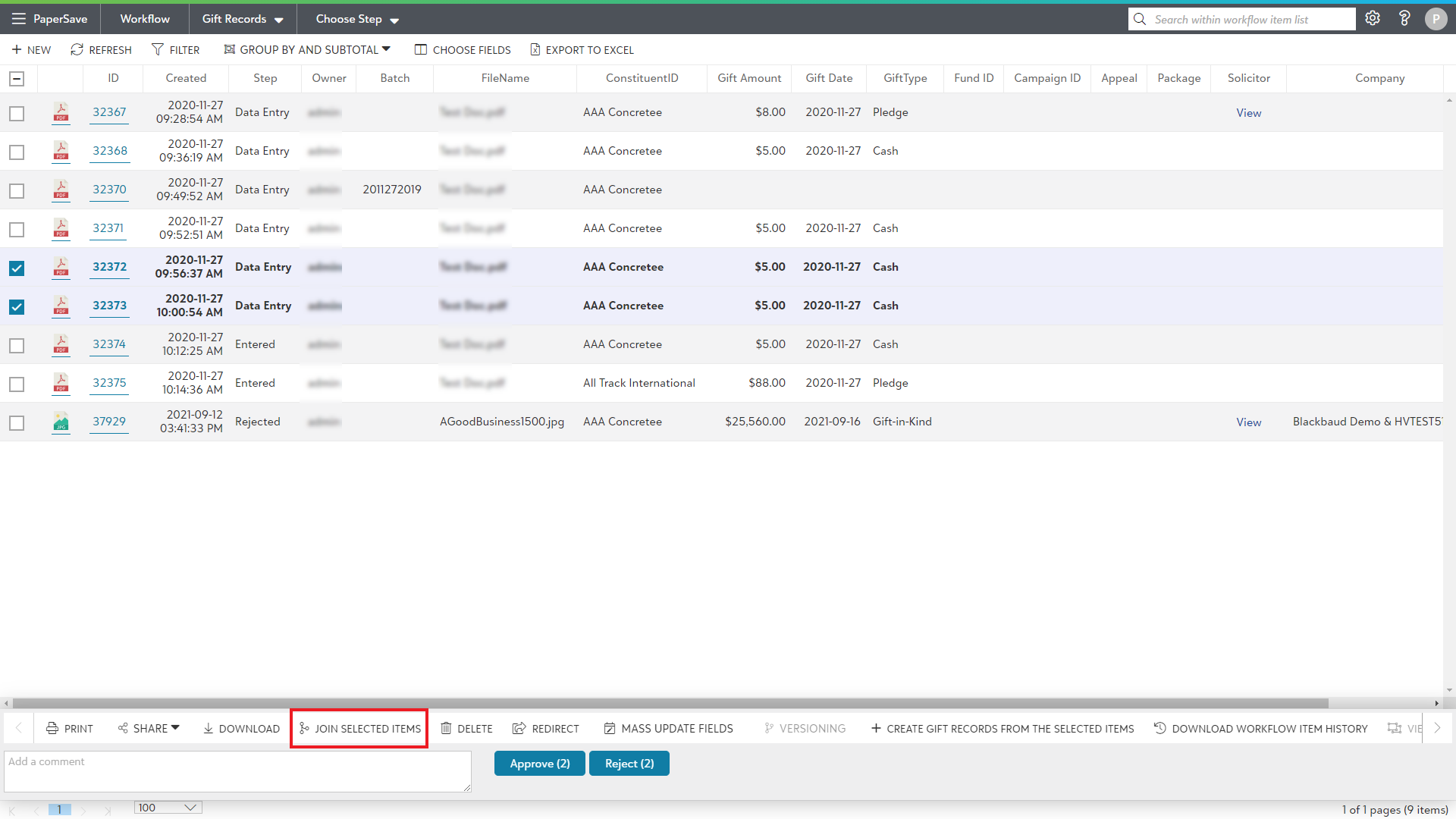
1. Click on any rows or checkboxes to select two or more items from the list. The items don't need to be consecutive.
2. Now, click on the Join Selected Items option from the slide-up panel as shown in the below screen.
3. The "Merge item actions" dialog box will appear as shown in the below screen, where you can move items up and down using the double ellipses to set the order of the merged item's content.
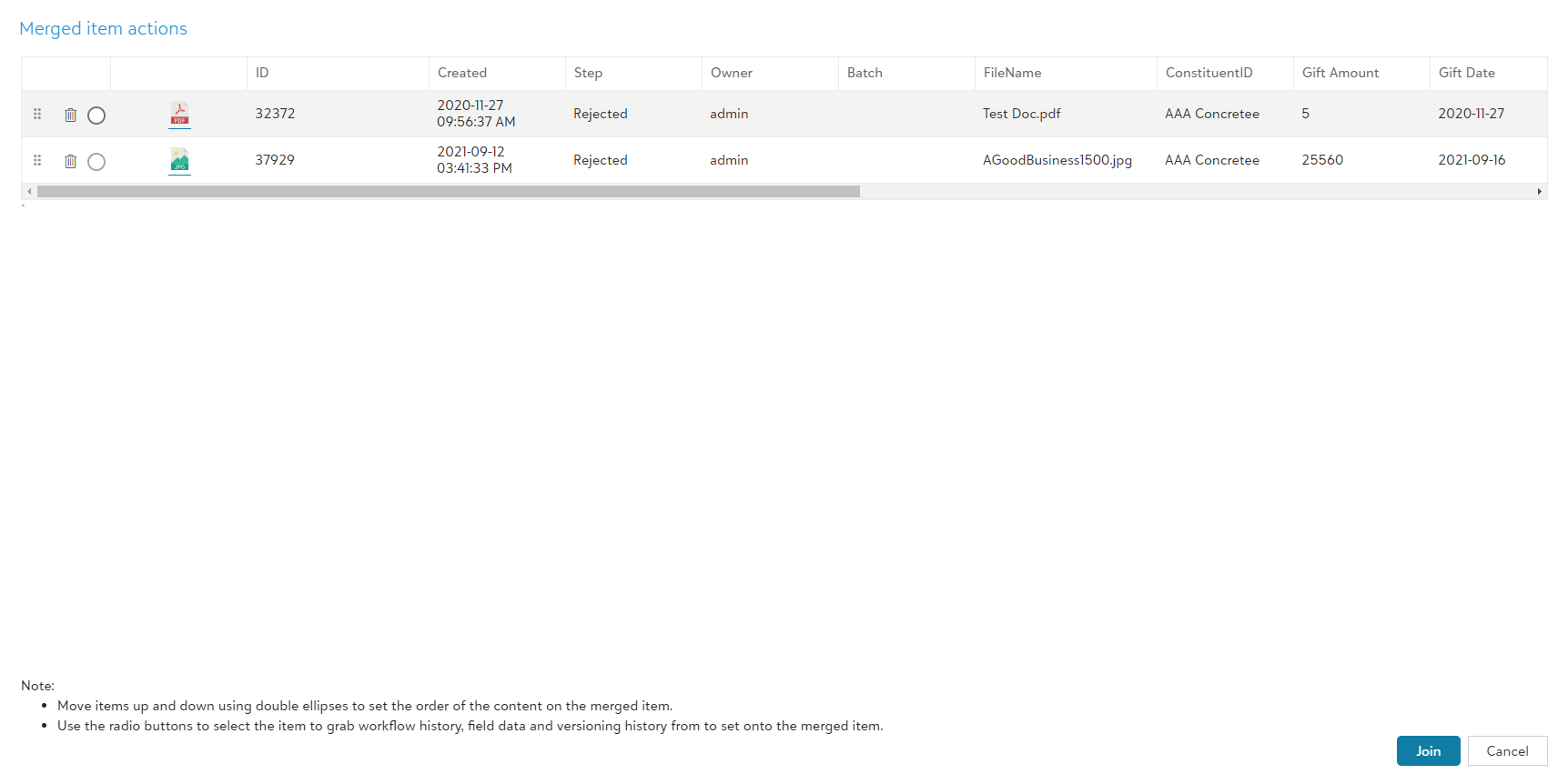
4. Choose the item using the radio buttons to acquire its workflow history, field data, and versioning history for the merged item.
- If the selected item is not Tiff/PDF, then the "Merge item type" option appears in the top right corner of the dialog box as shown in the below screen. This option contains a toggle switch to choose between PDF or Tiff type for the merged item.
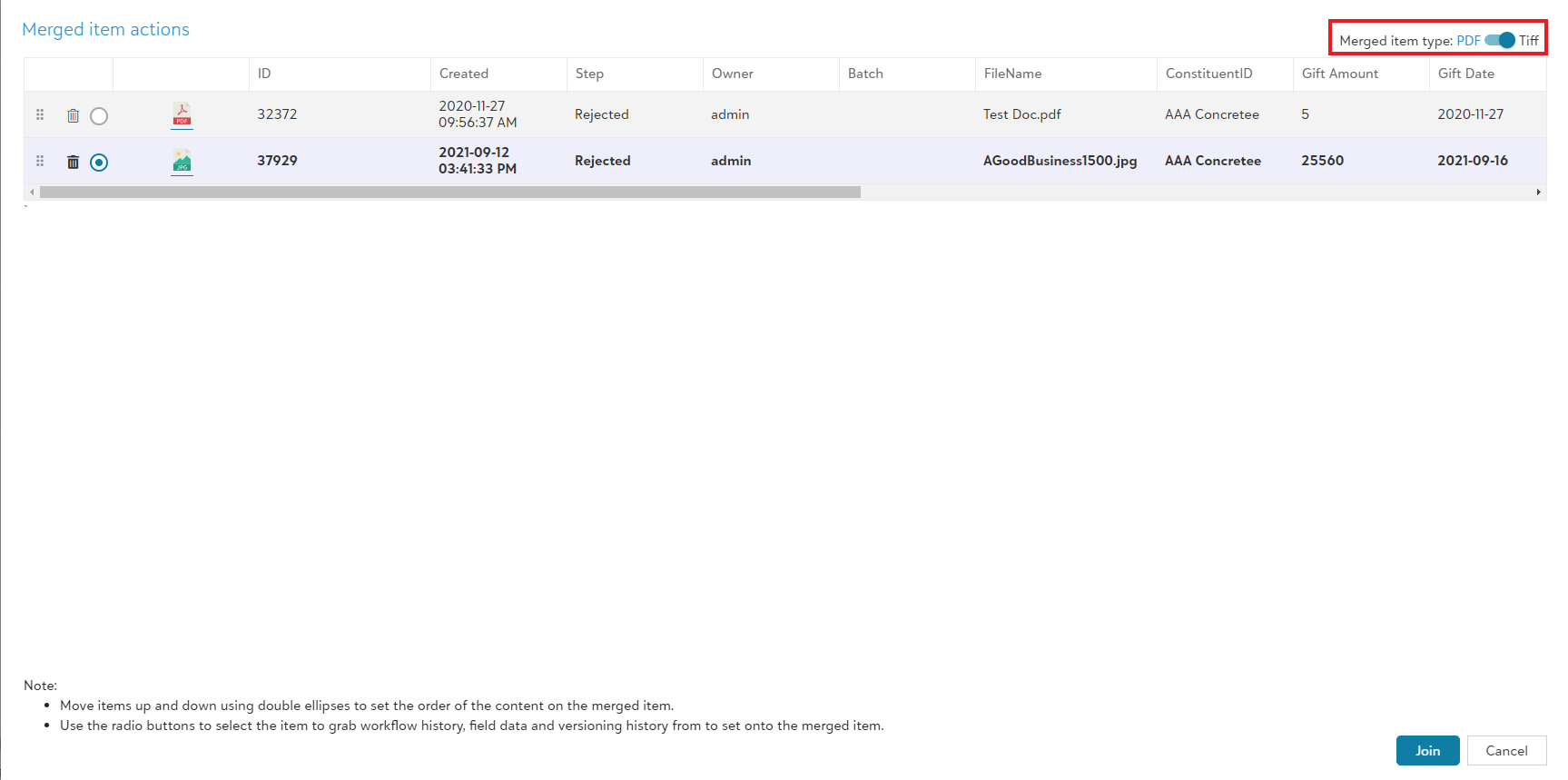
- Select Tiff from the toggle option to merge the documents with type "Tiff". Similarly, choose PDF from the toggle to merge the documents with the type "PDF".
Note: By default, PDF type is selected.