
Validate and saving the document in item viewer
When you acquire documents from the file capture options panel using any acquisition methods, the acquired documents will be listed in the unsubmitted item list until you are ready to validate and save or submit them. Unsubmitted documents can be selected from the item list and opened in the Item viewer once they are acquired successfully.
The following video covers validating Profile fields:
Various operations can be performed on the documents while working with them in the document viewer such as editing fields, adding annotations, saving one or more documents.
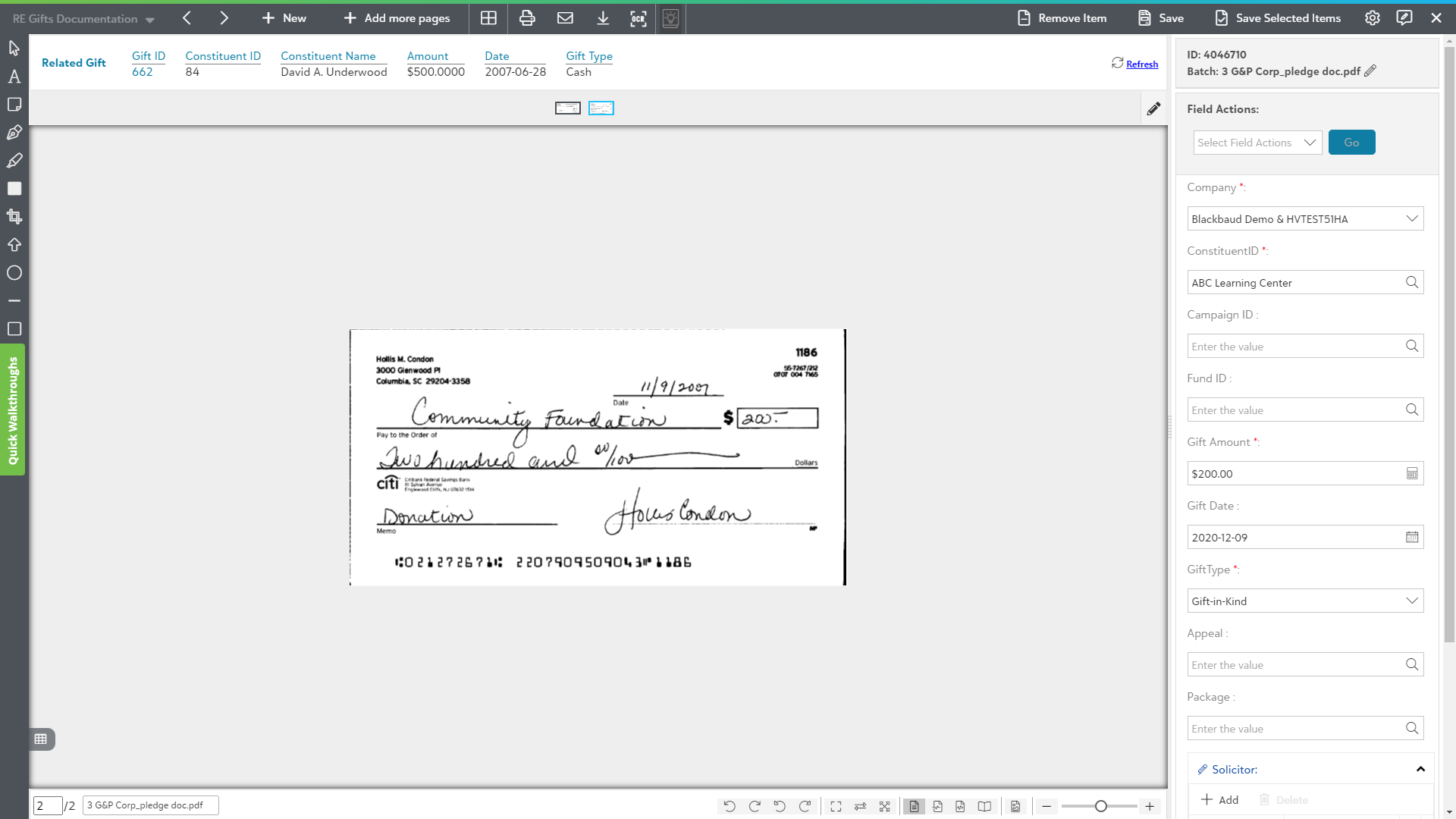
You can explore various topics for validating the documents:
- Top-level toolbar options for unsubmitted items
The following video explains various toolbar options for unsubmitted items in the Browse Area:
Page Manipulation View for unsubmitted items in the Browse Area:
This option will navigate you to Page Manipulation View for unsubmitted items where you can perform various operations such as cut, copy, paste, rotate, etc. on the unsubmitted items. Click here to know more about it.
Settings Panel in the item viewer:
The following video covers the Settings Panel for the item viewer(unsubmitted items) in the Browse Area:
- Using Image page options for unsubmitted items
Image page option toolbar in the browse area item viewer enables the user to add annotation symbols, drawings on the current document. User can use annotation symbol such as Text, Note, Pen, Ellipse, Line, Arrow, Polygon, Rectangle, Highlighter etc. Click here to know more about using annotations on the document.
Save document in integrated app record
You can save the document to add it to the integrated app record once you are done with the validation.
The following video covers how to save an acquired document:
- Click on the Save option in the top level toolbar of the item viewer as shown below:
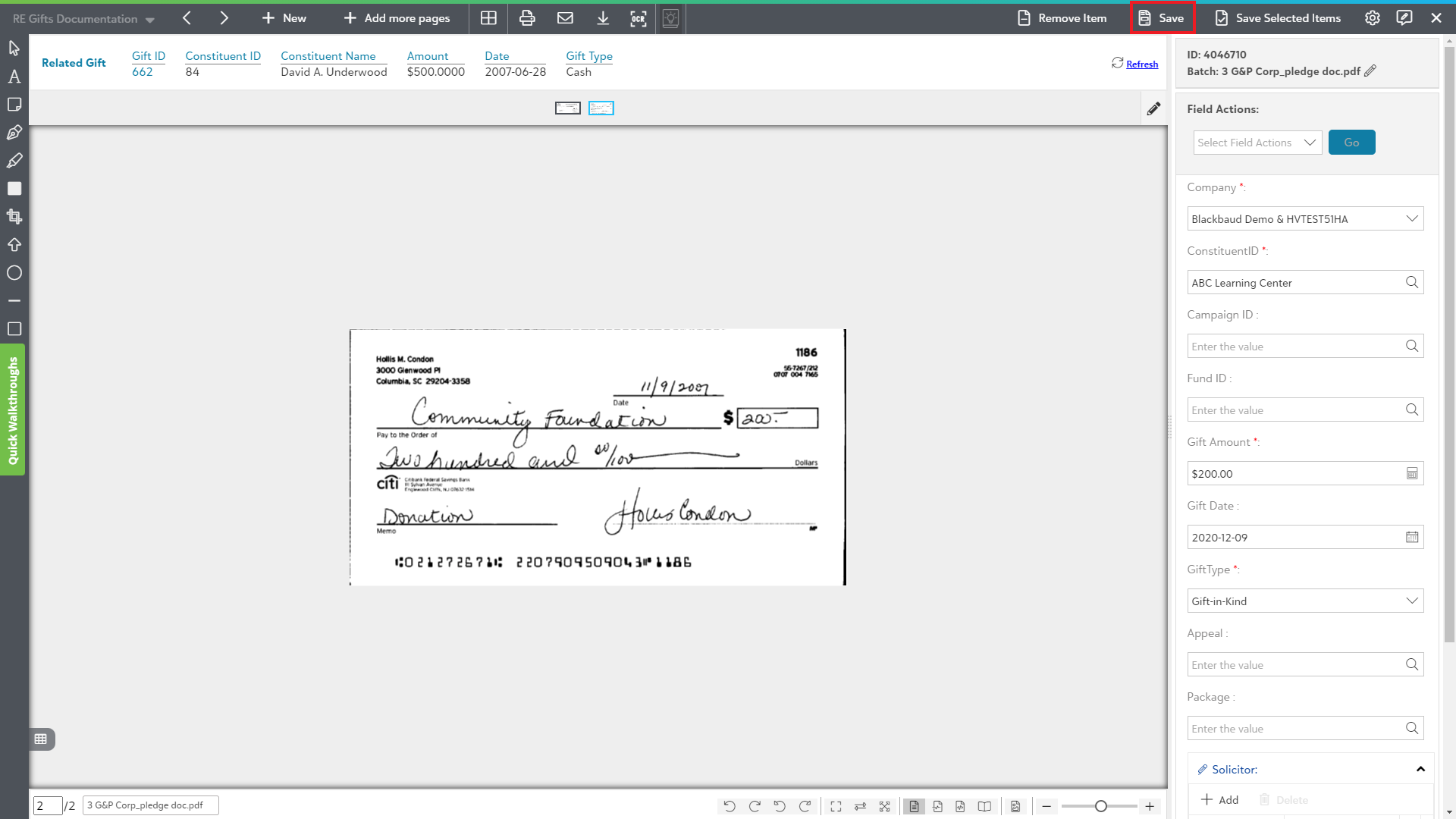
You will see a toast notification in the top-right corner of the screen showing the submission success as shown below. Similarly, it displays a failure notification in case of the submission failure. You can see the newly added document in the integrated app record.