
PaperSave Standalone documents
This option allows you to add or view the documents that are not related to Raiser's Edge. Such documents are added within the PaperSave Standalone document type.
Follow the below steps to add/view PaperSave documents:
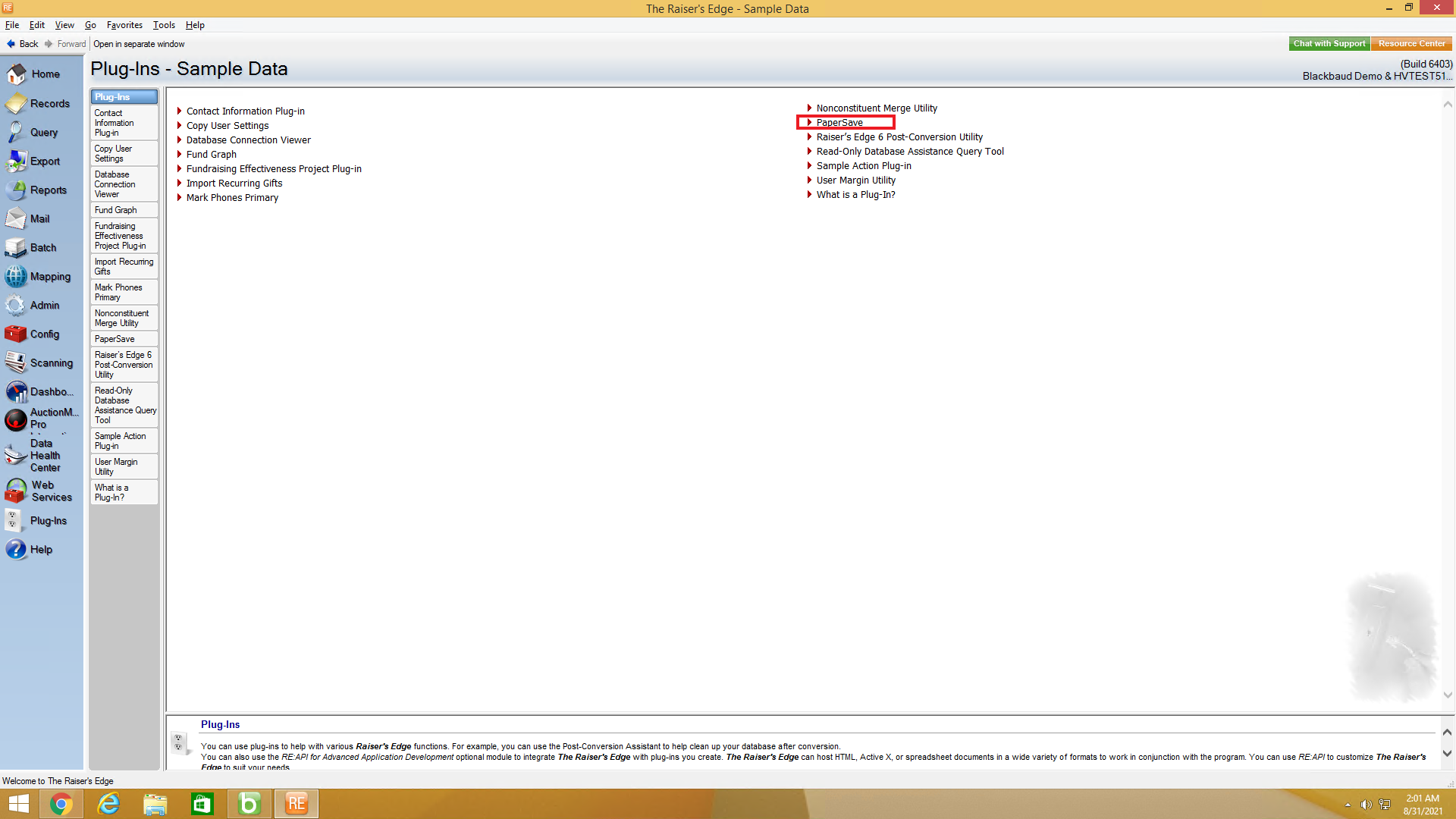
1) First, go to Plug-Ins in the Raiser's Edge bar and select PaperSave to open PaperSave Options window as shown below.
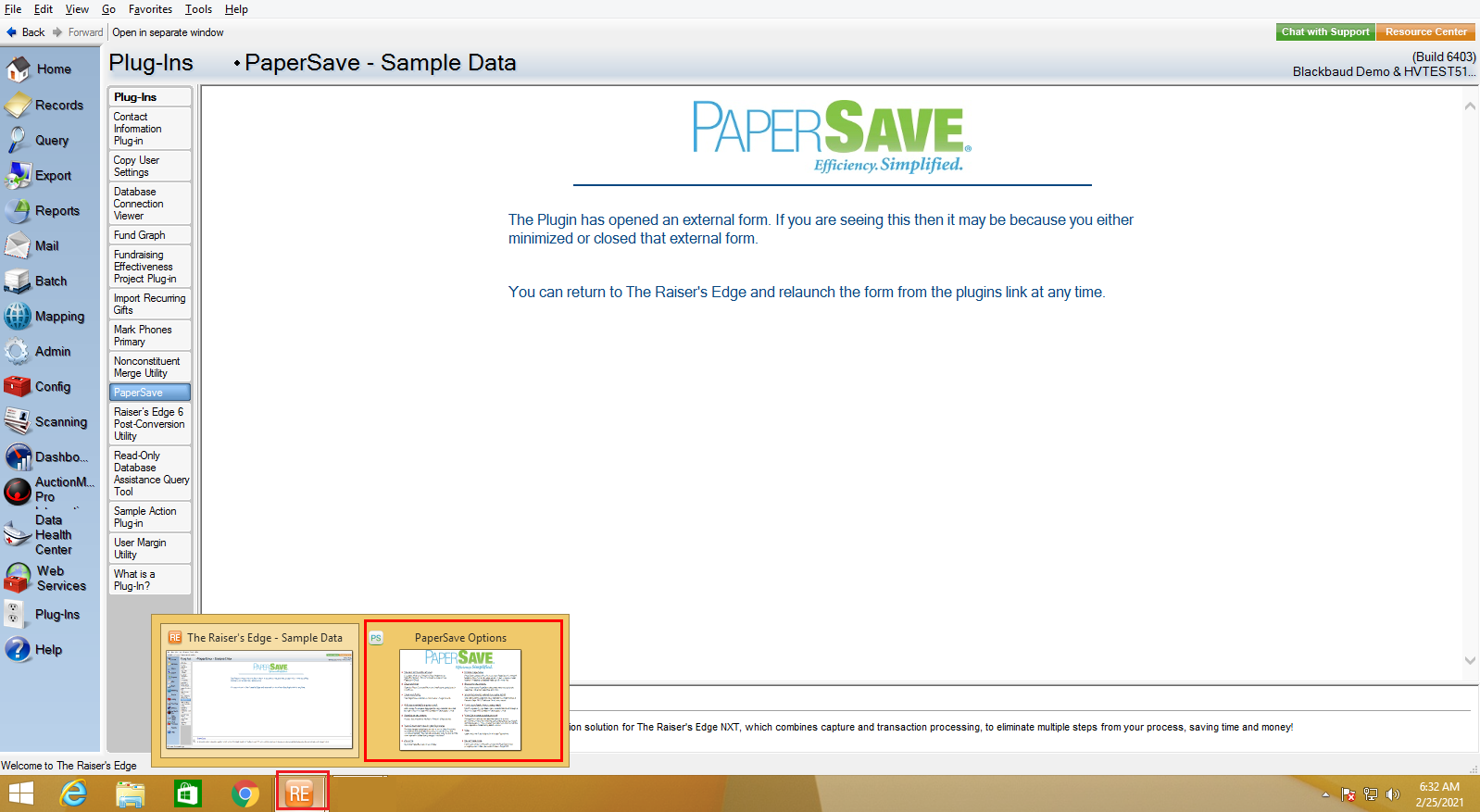
2) Once you click on PaperSave, it opens the PaperSave Options window, which gets automatically minimized. You can hover on the Raiser Edge application icon on the taskbar and select PaperSave Options to maximize the window, as shown in the below screen.
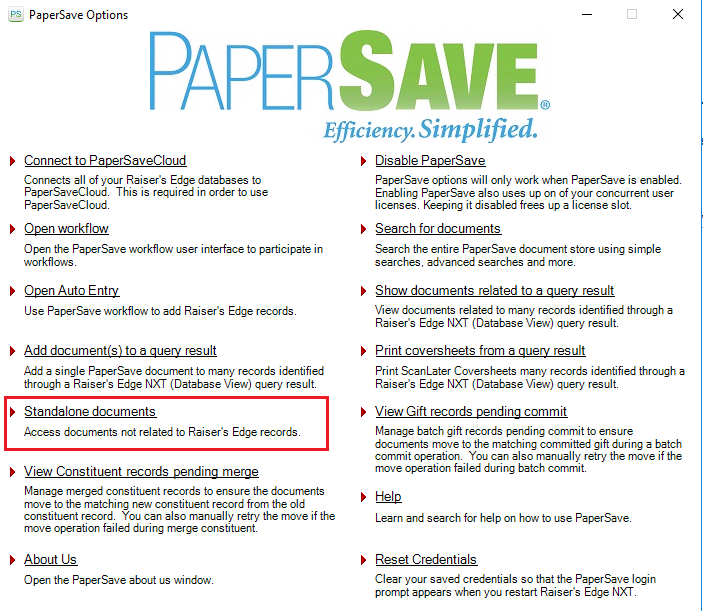
3) Now, click on the Standalone documents option from the PaperSave Options Window as shown in the below screen:
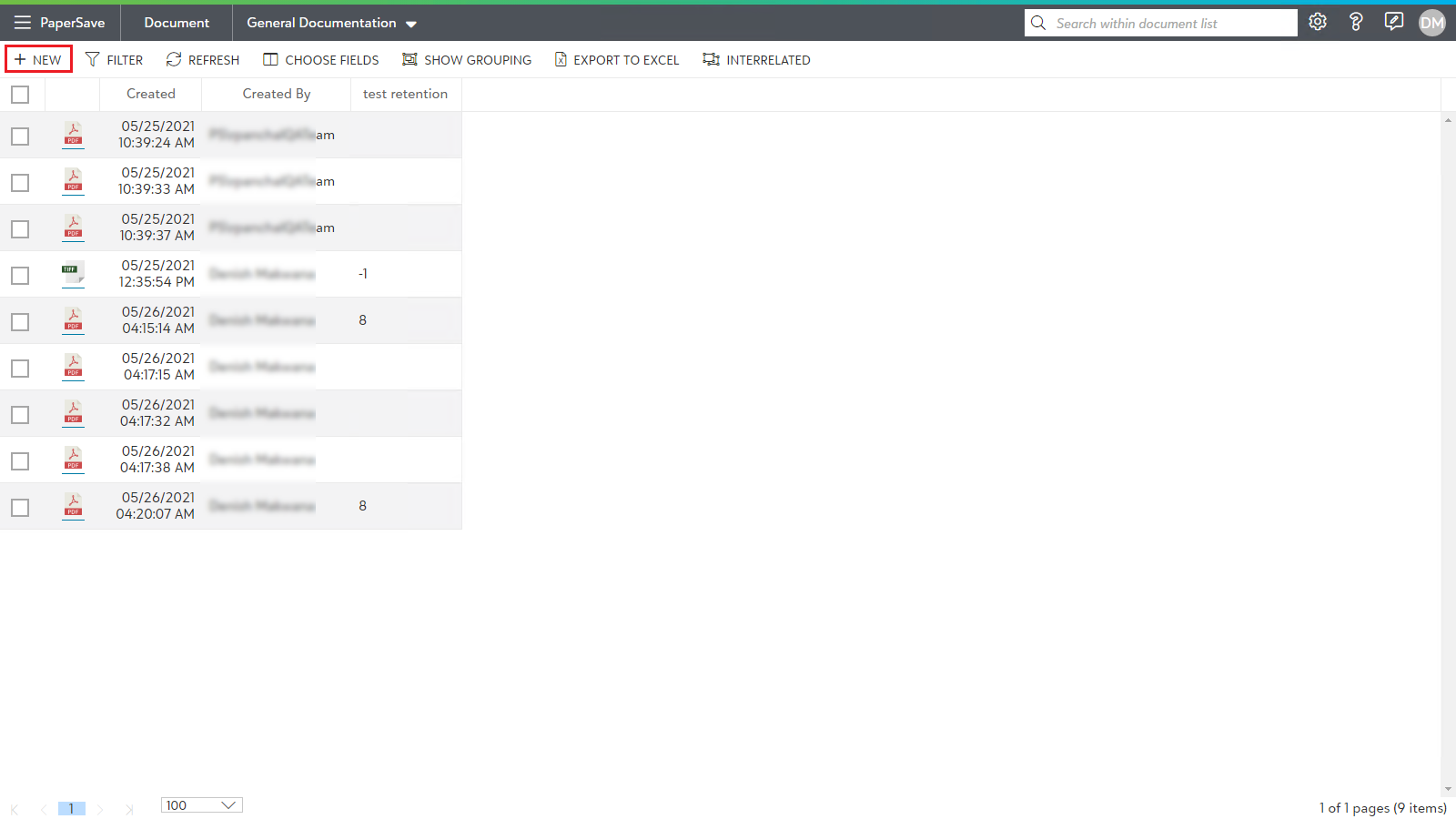
4) You can change the document type from the application bar (for example, General Documentation) and click on +New from the list toolbar to insert the document within the selected document type.
5) Select any of the desired method from the File capture options to acquire the document.
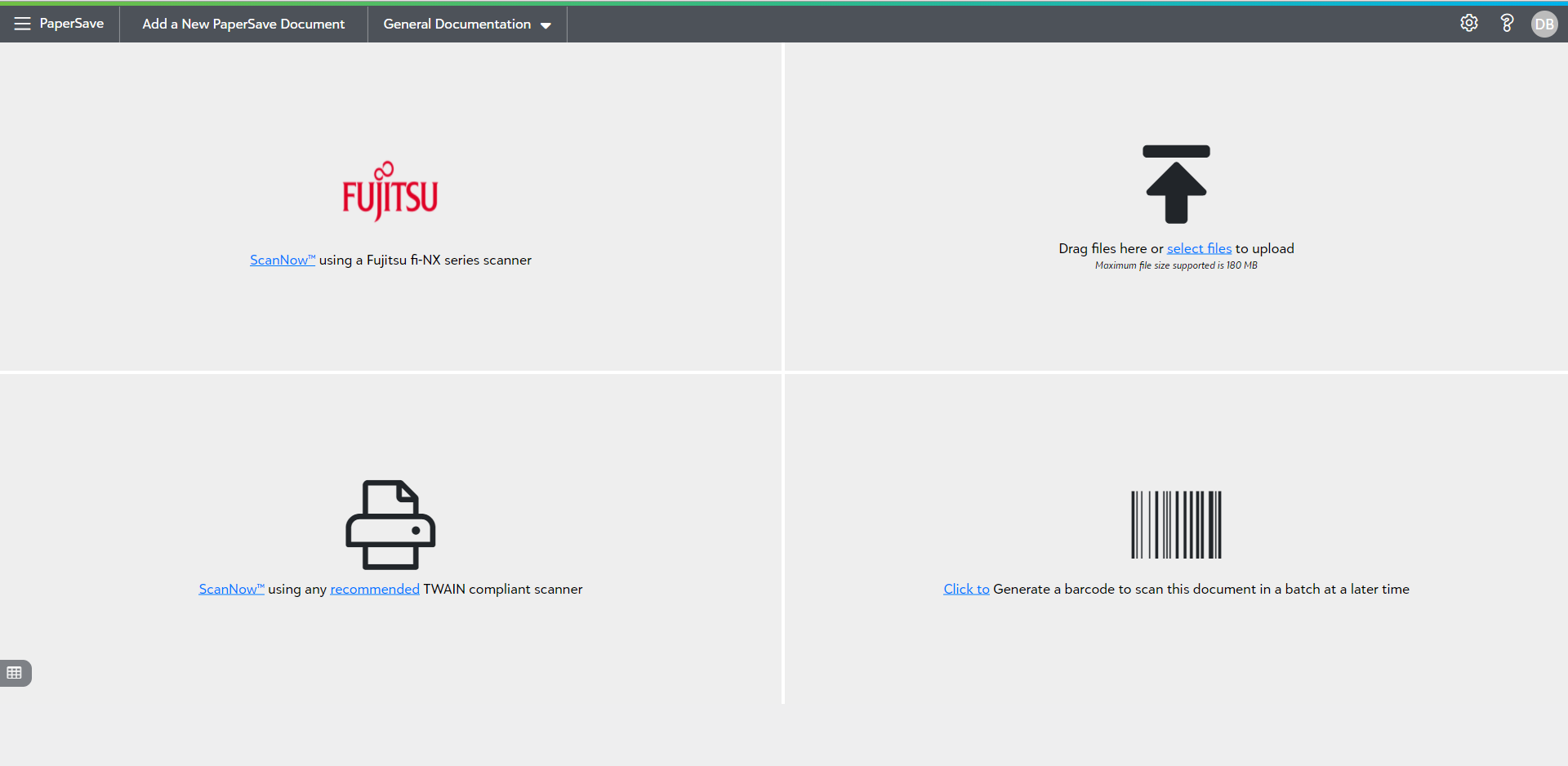
6) Once you have acquired a document, you can add profile field details, validate it, and save it to the PaperSave Document type.
7) Now, the document will be displayed in the PaperSave document list from Non Host Related Documents and the Browse Area of PaperSave application. Click here to learn more about PaperSave documents in the Browse Area.
Note: The documents added within the PaperSave document type cannot be submitted to the Raiser's Edge.