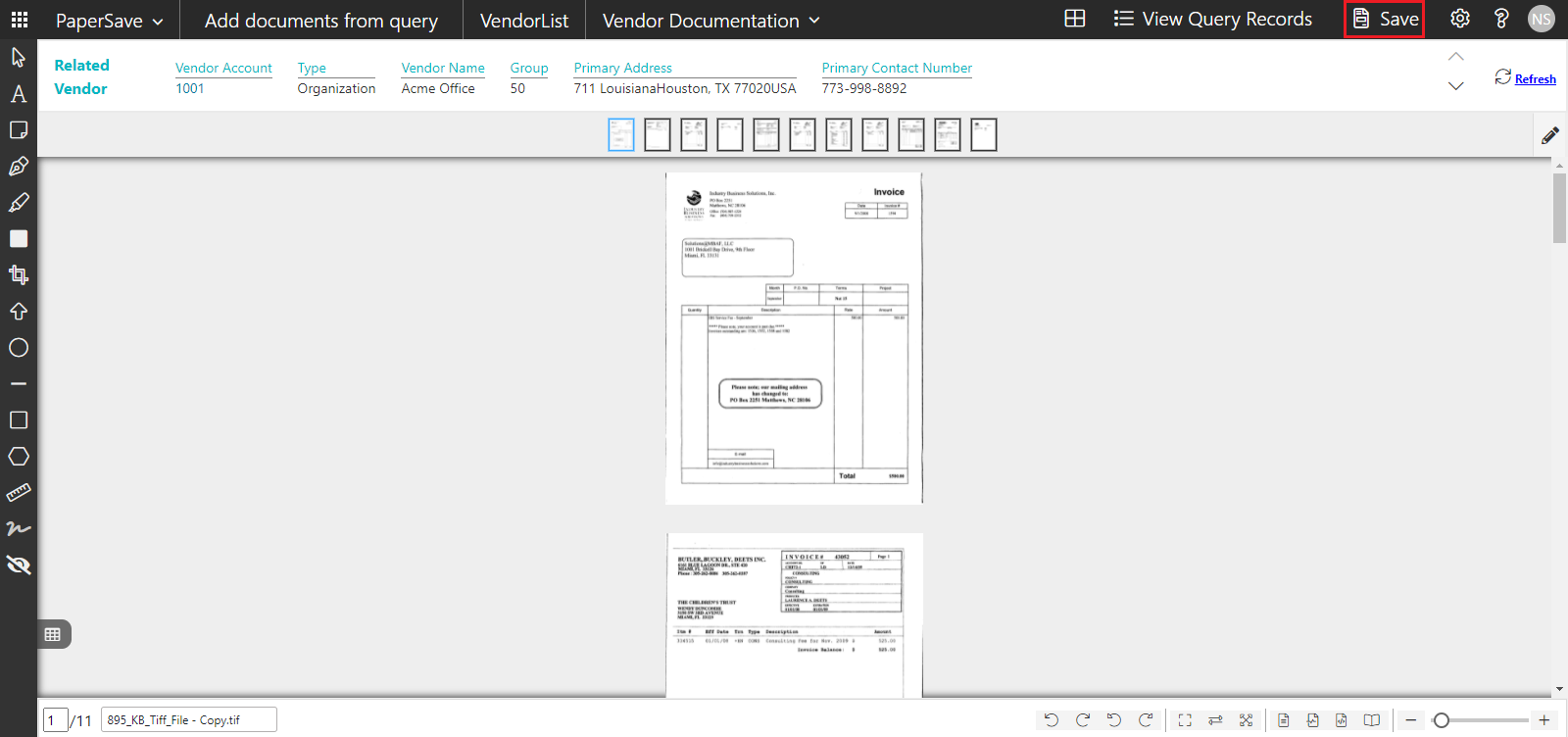
Add documents from query
When you will select more than one records from the Raiser's Edge list view and click on Add a new Document, you will be redirected to Add documents from query window.
The following are the steps to add documents to multiple records in Raiser's Edge:
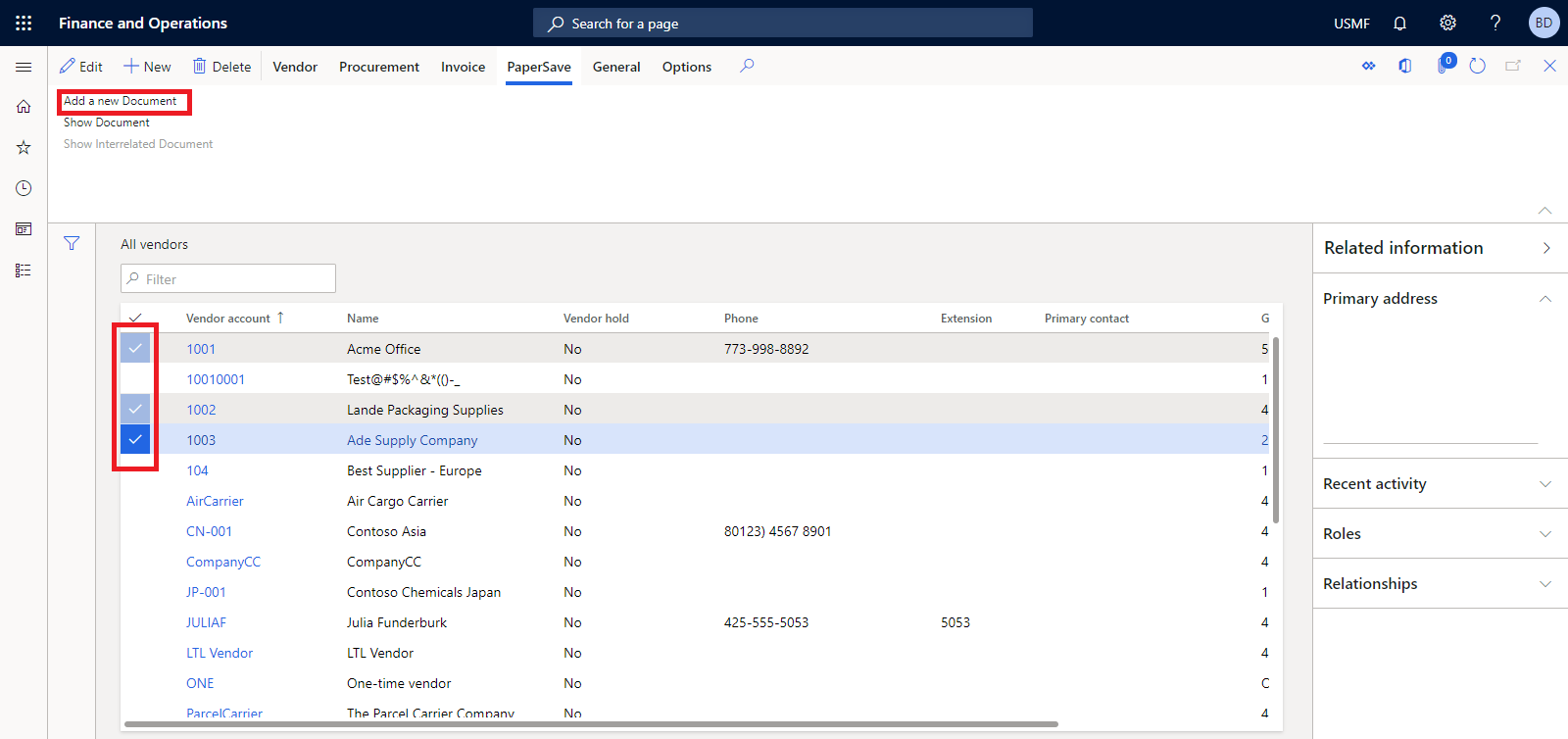
1) Select more than one or all the records from the Raiser's Edge list view, and go to PaperSave option in action pane and click on Add a new Document option, as shown in the below screen.
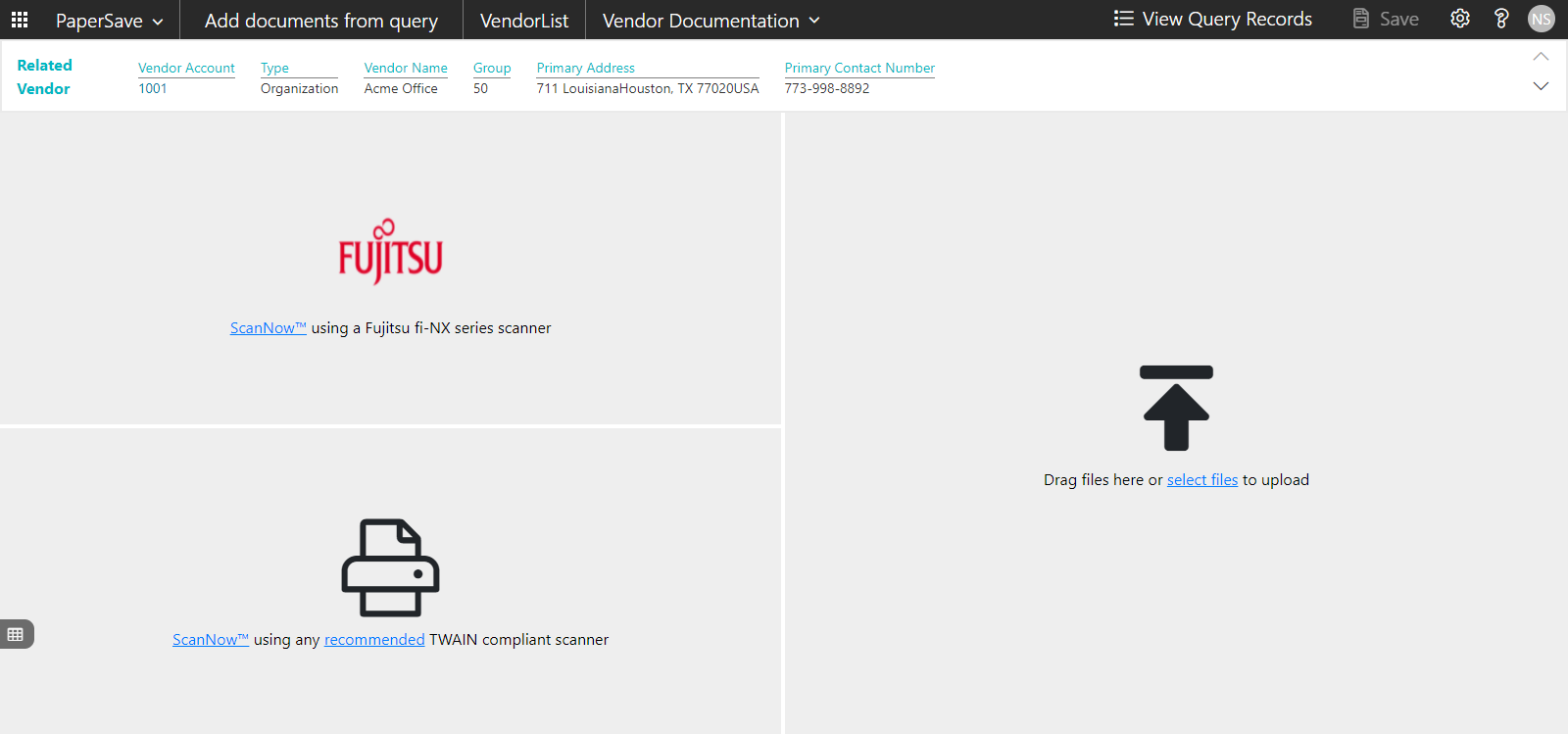
2) Now, it will open File capture options panel of PaperSave Add documents from query window as shown in the below screen.
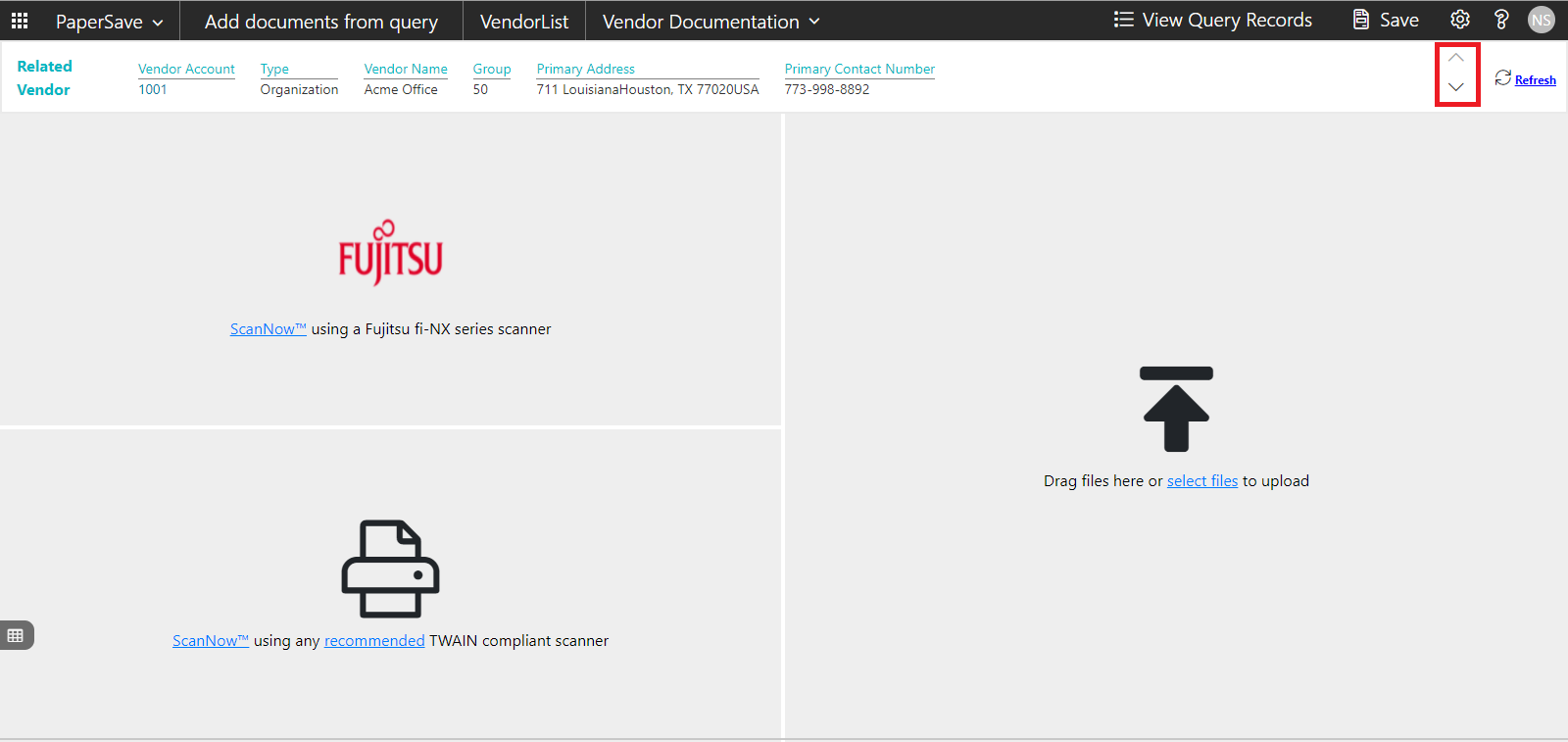
3) In the HALD panel, you can also use the navigation arrows to move to next/previous record in the query to add a document.
4) Once you have acquired the documents using any of the acquisition method, you will be redirected to the item viewer where you can enter the required values in the profile fields and apply annotations as needed before clicking on Save option from the top-level toolbar to add the document to the selected record.