Drag files or select files to upload
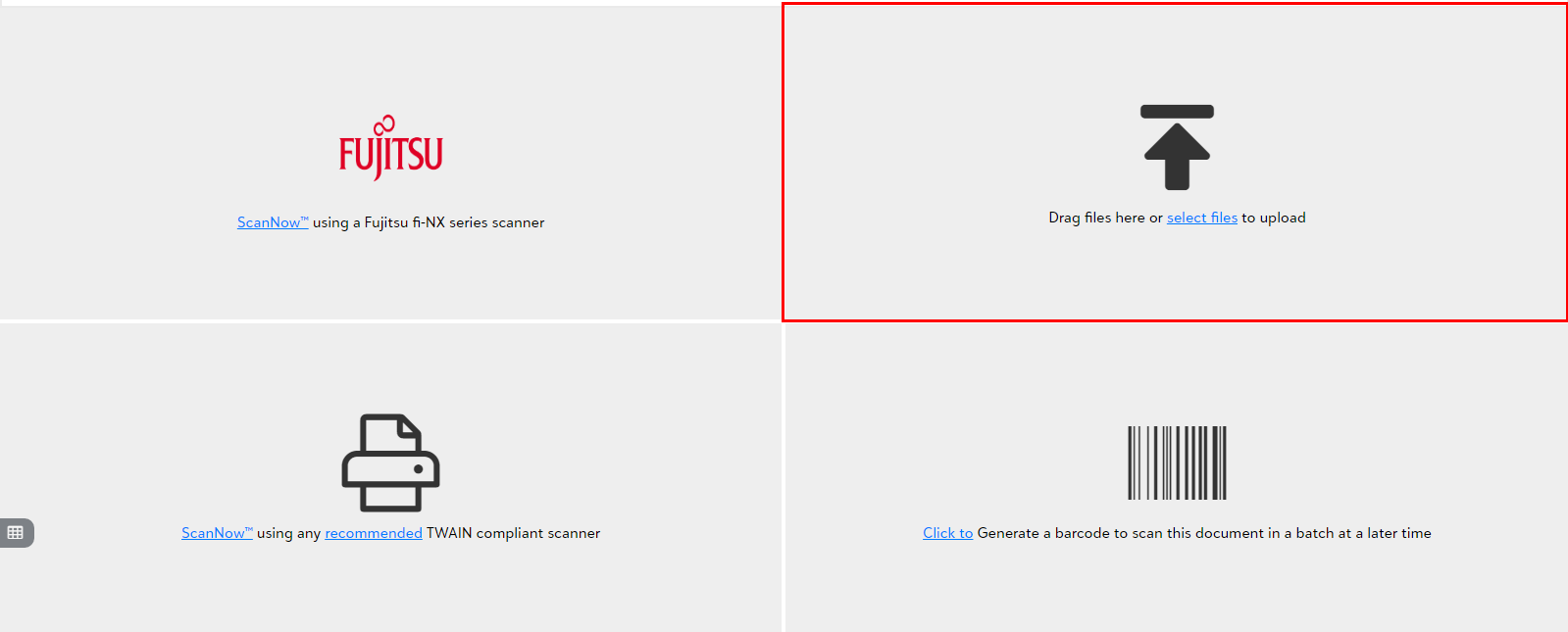
Once you click on PaperSave- Add document or Add another Document from Records and Batch sections in Raiser's Edge respectively or click on Yes in Add document dialog box, you will be redirected to PaperSave file capture options panel. Click here to see the steps to reach file capture options panel.
The following video covers how to add a document to an Raiser's Edge record by dragging files or uploading from your file explorer:
PaperSave provides you two options to acquire electronic documentation.
- Drag one or more documents from your file explorer to the Drag files tile in the file capture options panel.
- Click on "select files" (from within the Drag files tile) to select one or more documents from your file explorer as shown below.