
Show interrelated document
You can view the interrelated documents added within Raiser's Edge records by using Show Interrelated Document options from the Records available in the Raiser's Edge bar on left side in an application.
Follow the below steps to view the interrelated PaperSave documents associated with an Raiser's Edge record:
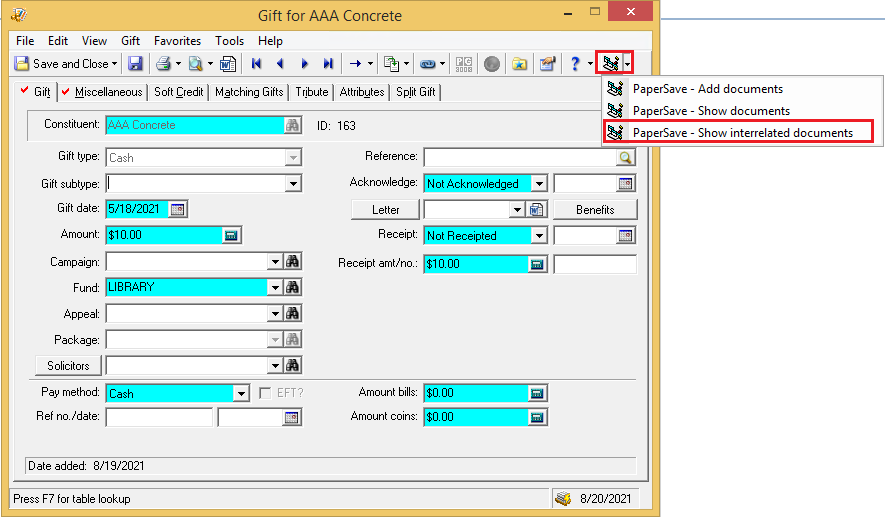
1) In Raiser's Edge, Click on PaperSave - Show interrelated documents from Record as shown in the below screen.
2) Now, it will open interrelated document list window of PaperSave application. If there are multiple documents interrelated with the Raiser's Edge record, then PaperSave document list as shown in the below screen.
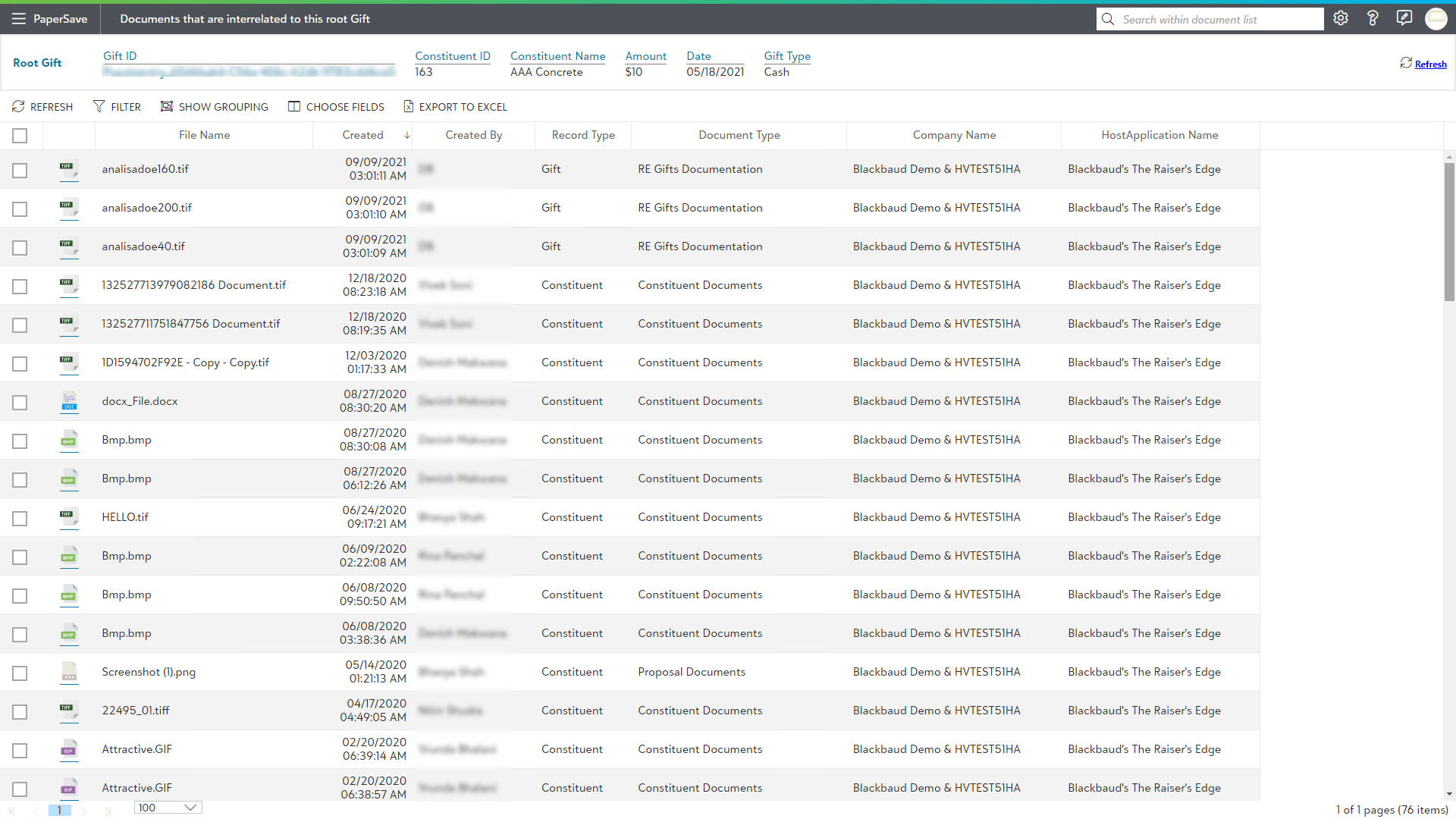
3) The PaperSave document list window contains the list toolbar with the following options:
- Refresh: This option updates the recent changes in the show document list.
- Filter: This option allows you to narrow down the items in the list by applying filter conditions. Learn more about Filter.
- Show Grouping: This option helps you to cluster the items in the list based on the desired header fields. Learn more about Show Grouping.
- Choose Fields: This option allows you to set desired preferences for the fields to be displayed in the current list using Choose Fields. Learn more about Choose Fields.
- Export to Excel: This option exports the current list of items to a Microsoft Excel Sheet. Learn more about Export to Excel.
4) The interrelated documents associated with the selected Raiser's Edge record will be displayed (if they exists) in the PaperSave Document list windows.
5) When you select the desired item from the list, a slide-up panel will pop-up at the bottom of the screen, as shown below.
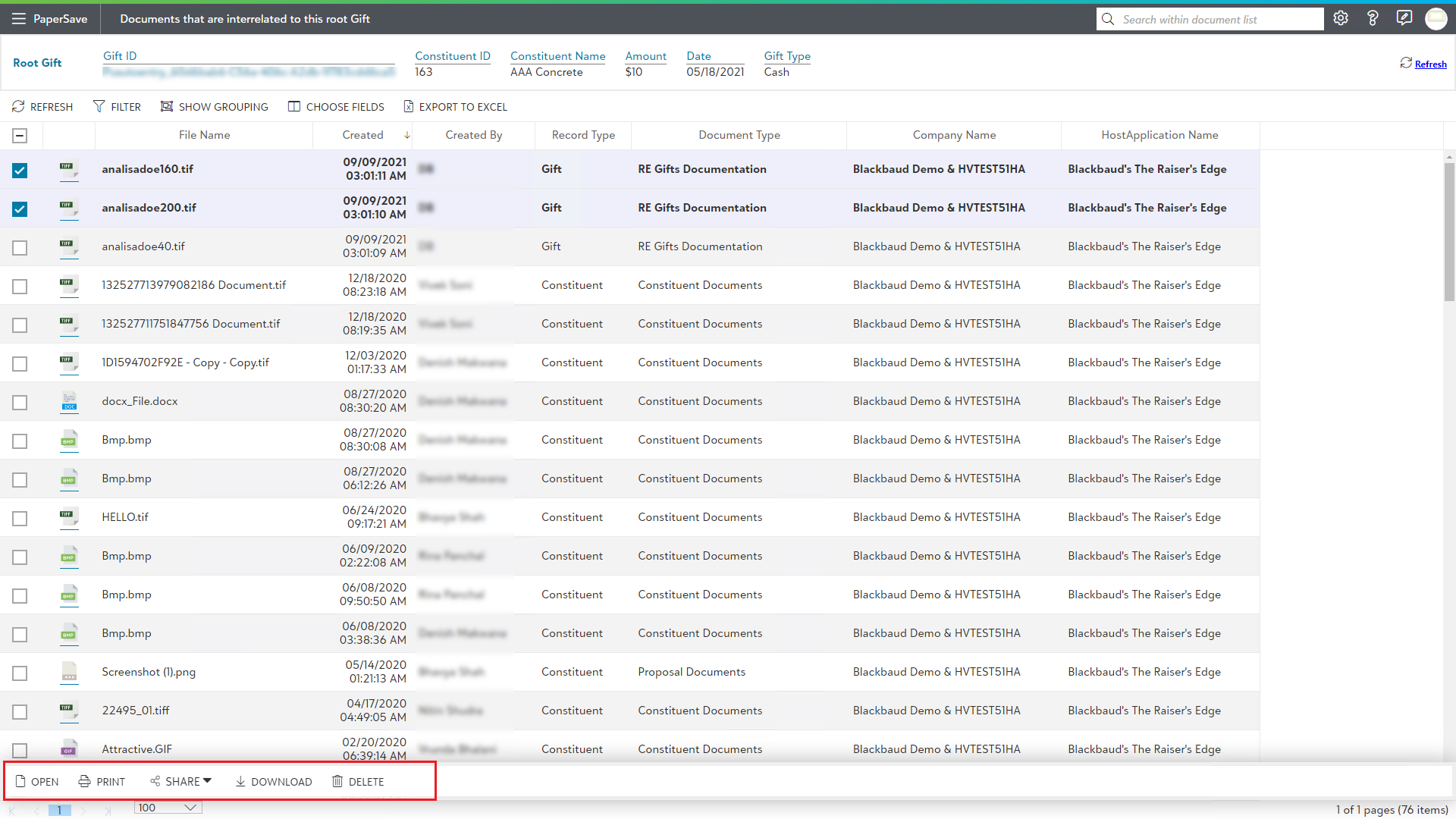
- The slide-up panel contains the following options:
- OPEN: This option will open the selected item in an item viewer.
- PRINT: This option enables you to print the selected item from the list.
Note:
1) Print option will be only allowed if a single item is selected. In case, multiple items are selected , then the Print button will be disabled.
2) This option also prints the annotations on the document, if any.- SHARE: You can share the selected item(s) from the list using any of the below options:
Share Workflow item via eMail
- Share link of the Workflow item via eMail
- Copy Link
- DOWNLOAD: You can download the selected documents from the list. Learn more about the Download option.
- DELETE: You can permanently discard the unnecessary items from the current list using the Delete option.
Note: The Delete option will remain enable only if the current user has the rights to delete the item within the selected document type. These rights could be managed from the Document types in the Configuration Area.
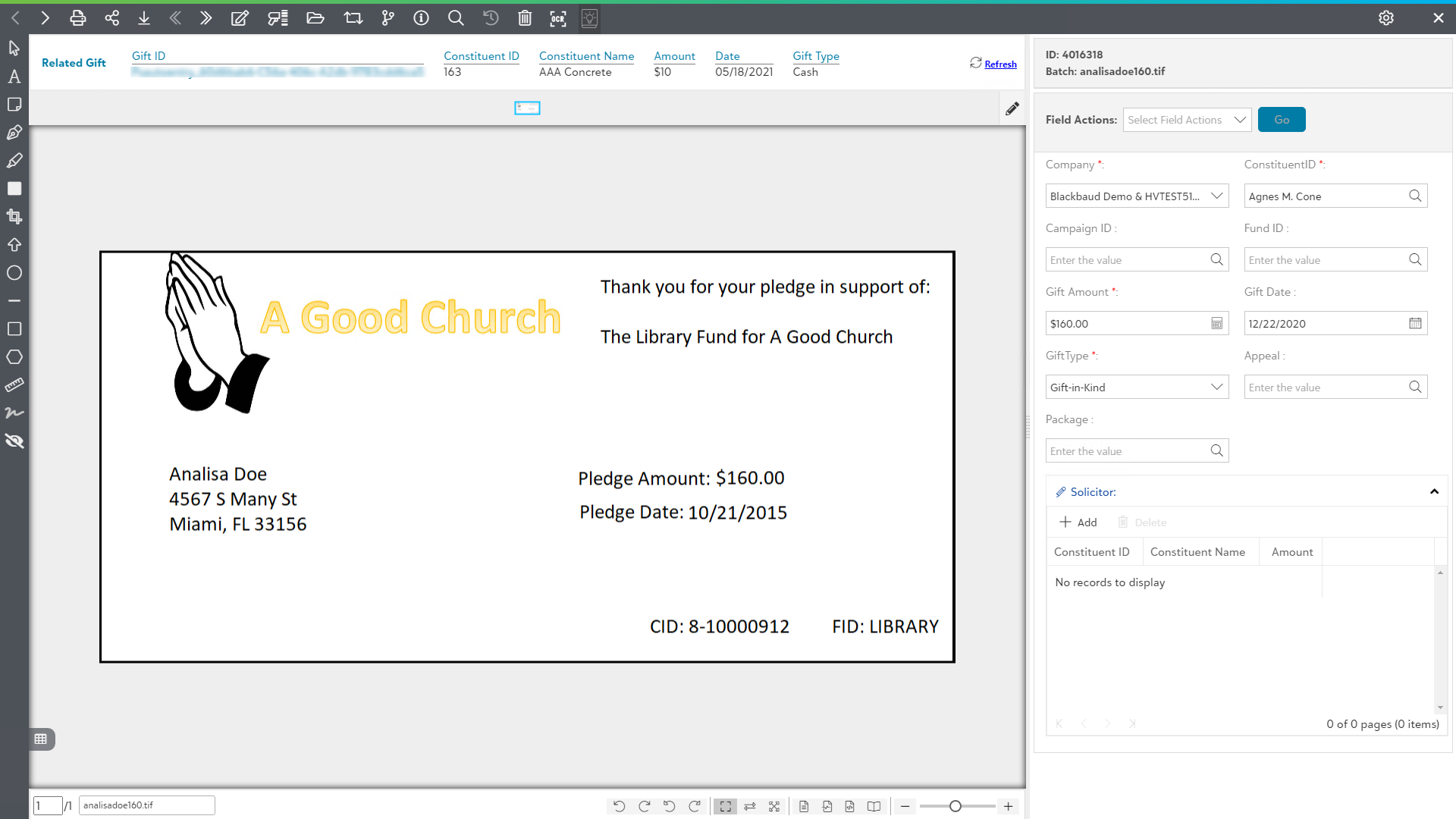
6) Now, click on the ID hyperlink or double-click on the desired item in the document list to view the document in the item viewer, as shown in the below screen.
In addition to viewing interrelated documents directly from an Raiser's Edge record, you can also view the documents by using any of the below options:
-
From Browse Area
-
From Search Areas