|
Importing a CSV File |
  
|
|
Importing a CSV File |
|
To import a CSV file follow the steps below:
1. Click Document Import under the Utilities tab in the PaperSave Settings. The PaperSave Document Import window will open.
2. Click Load. The Open dialog box will appear.
3. Select the appropriate CSV file and click Open.
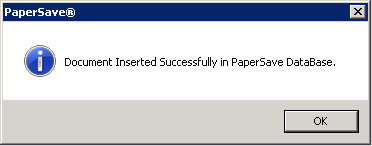
| • | Click Verify. Upon successful verification of the CSV file, click Process to start the import process. When the import task is completed successfully, the following message will appear as shown below: |