|
Understanding Add Document Form |
  
|
| Show/Hide Hidden Text |
|
Understanding Add Document Form |
|
| Show/Hide Hidden Text |
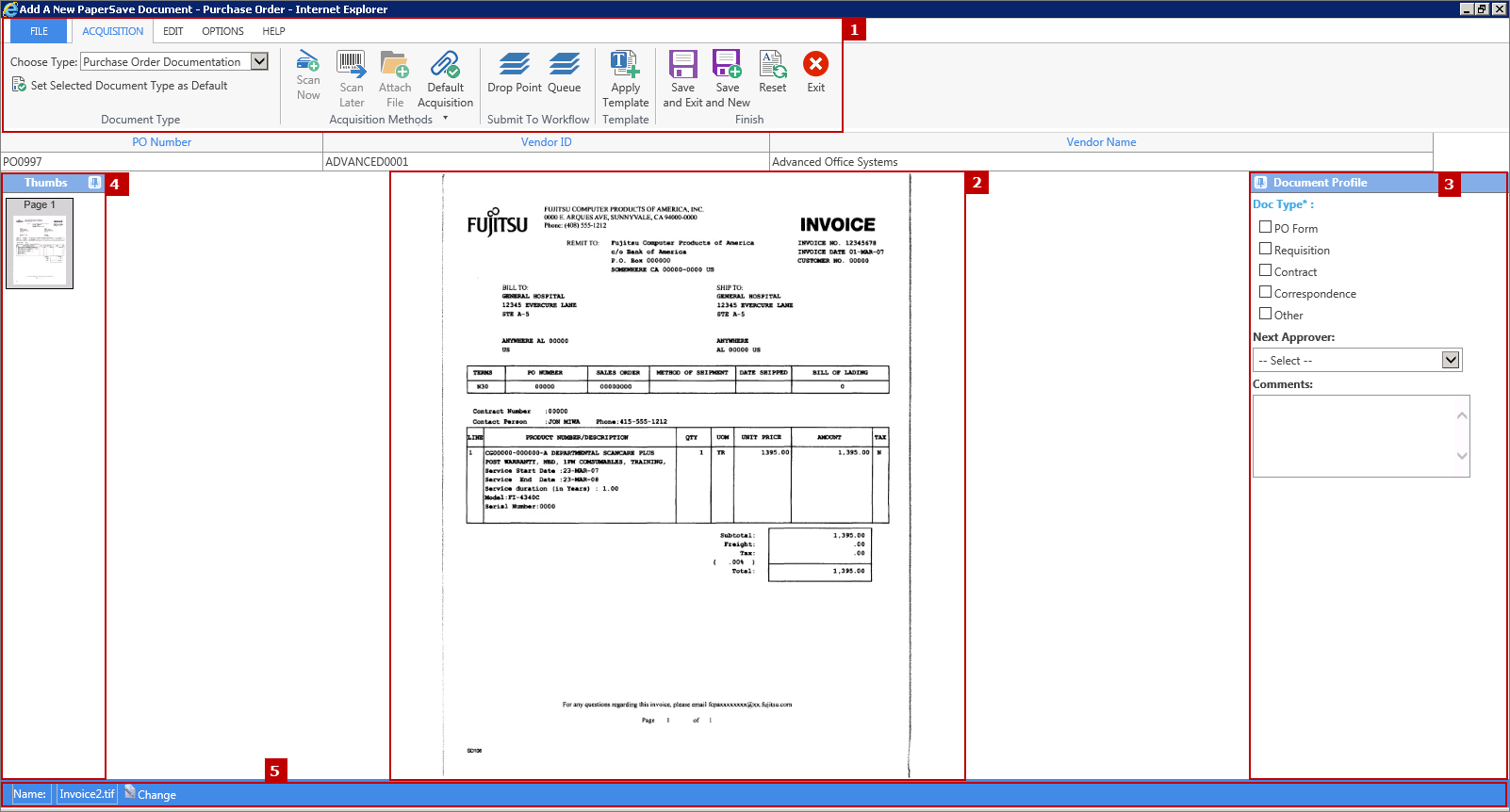
PaperSave Add Document User Interface looks like below. Title of this window will appear like - Add a New PaperSave Document - <Transaction Type Name>. Lets us understand various panels available in this window followed by description of all the options available in the ribbon.
1. Ribbon: This panel consists of Acquisition, Edit, Options and Help tab that allows you to perform various actions.
2. Document Display Area: This is the area where you can view the document. If the selected document is Searchable PDF then you have the ability to select and copy the text using ctrl+c and paste it.
3. Document Profile Field Pane: In this pane, you should see the Profile Field for the selected Transaction Type.
4. Thumbnail: The Thumbnail panel displays the page(s) that exists in the document. You can rotate and delete the thumbnail page by right-clicking on it accordingly.
5. Document Information panel: This panel shows you the document information and you also have an ability to change the File Alias by clicking on Change button.
 |
| Click on image to magnify/shrink |
Following topics talks about the each option available under respective tab:
| • | Edit |
 |
| Click on image to magnify/shrink |